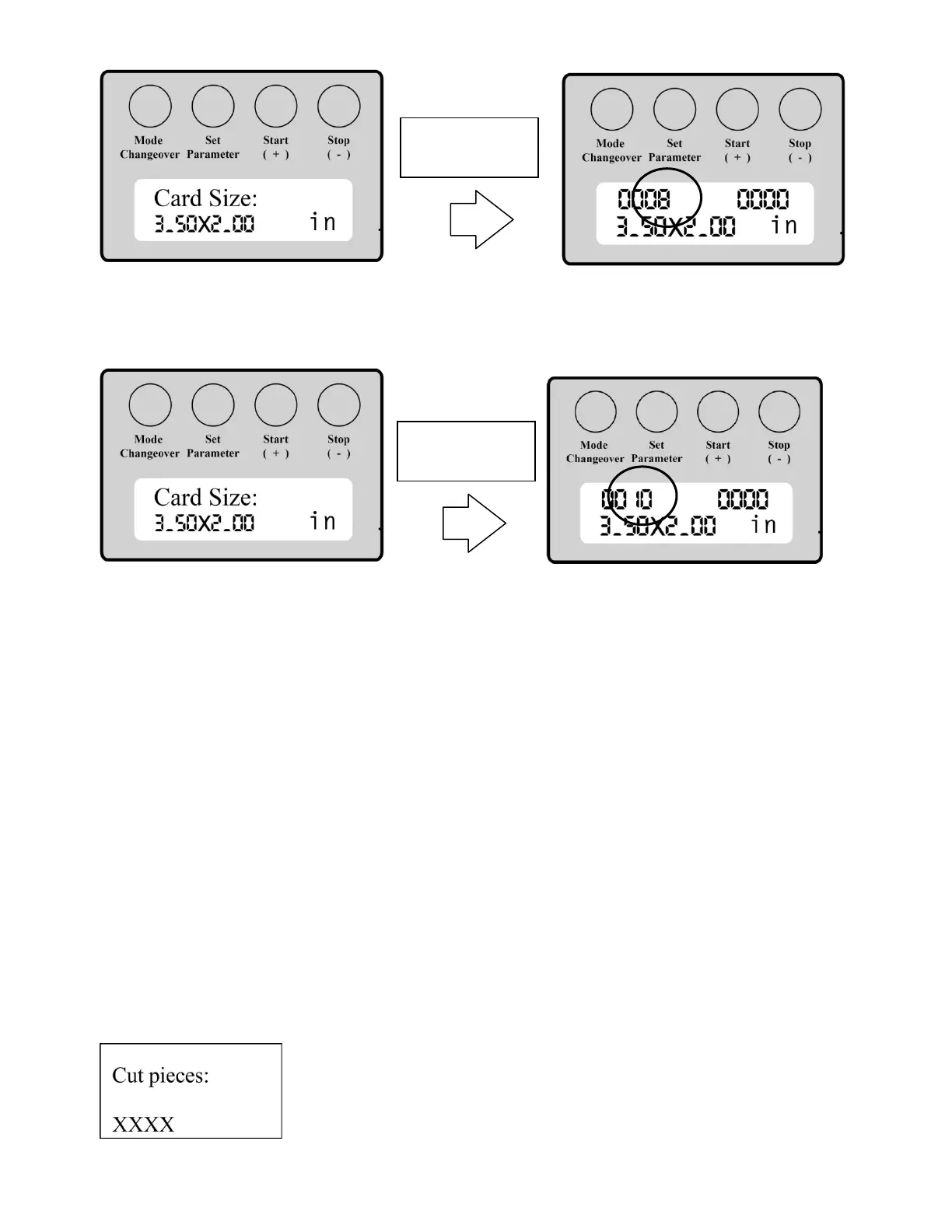
9
If you see the “8” like above, you are in the 3.5” x 2” 8-up Preset Mode. To get to 10pcs, press [Mode Changeover
key] once. Press [Start (+)] key once, to go to the next preset mode. The Card Size will still read “3.50 x 2”. Press
Mode Changeover. Your Set Pieces should now be at “10” as below.
You are now in the 3.5 x 2” 10-up preset mode.
To Select Other Cutting Modes:
Press [Mode Changeover] key once. Press [Start ( + )] or [Stop ( - )] keys to scroll to the Cutting Mode required for
your project. Press Mode Changeover to set Cutting Mode and return to standby.
Preset Cutting Modes (In Sequential Order)
3.50 x 1.77 Inch 10 pieces
(A4 Sheet Only)
3.50 x 2.00 Inch 8 pieces
3.50 x 2.00 Inch 10 pieces Set To This Mode for 10-up Business Cards
3.50 x 2.20” Inch 10 pieces
(A4 Sheet Only)
3.50 x 3.74 Inch 6 pieces
(A4 Sheet Only)
3.50 x 5 Inch 4 pieces Set To This Mode for 4-up Post Cards
3.50 x ___* Customize Mode
Press [Mode Changeover] key to set Cutting Mode and return to standby.
To Set Pieces To Be Cut:
Set the cut pieces when several sheets are to be automatically cut.
1) Press [Set Parameter] key one time. The LCD will show:
Changeover
Changeover



 To Next Page