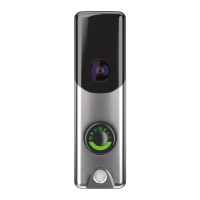
Slim Line Doorbell Camera
LED and Troubleshooting Reference Guide
Normal Operation
Requires Attention
Troubleshooting
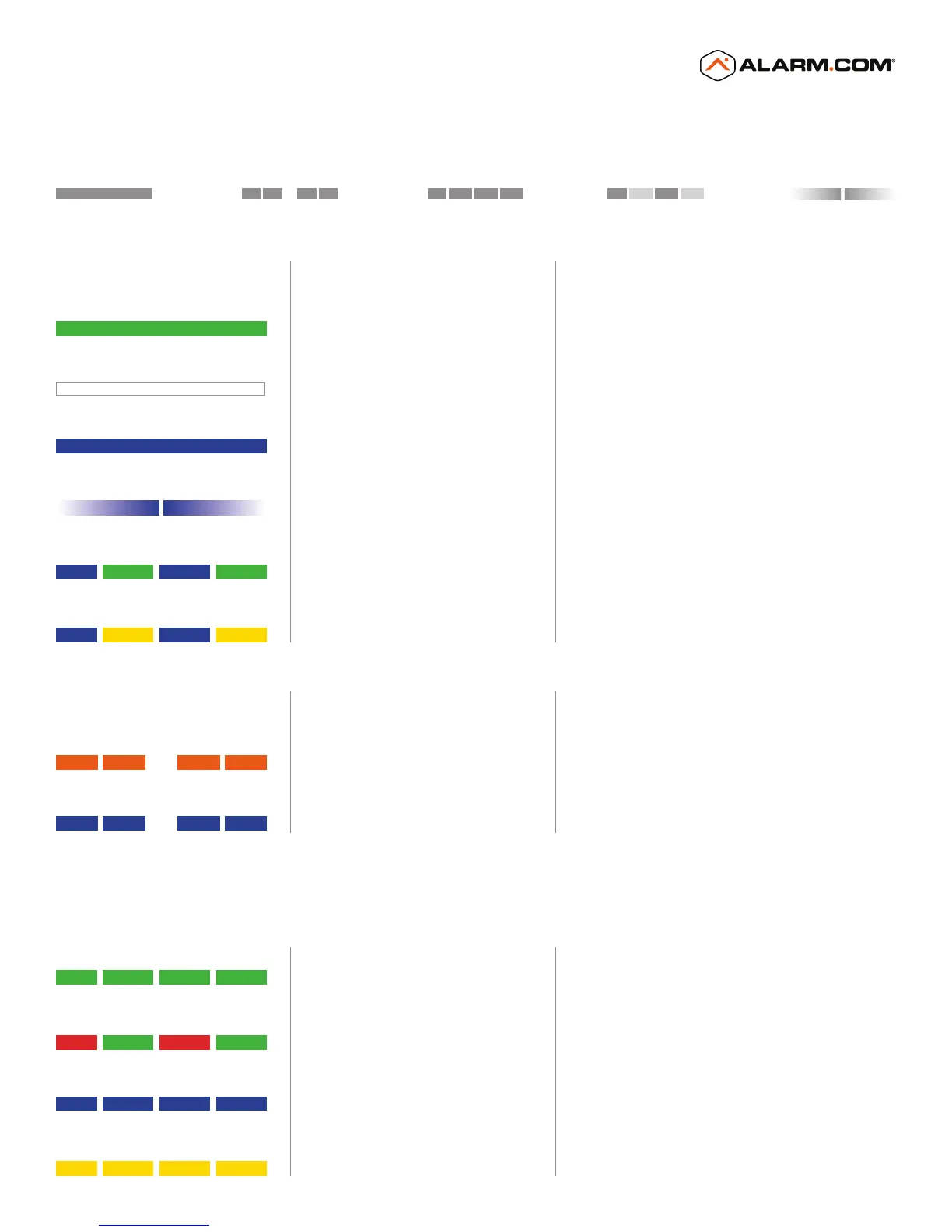
LED Pattern Key
Solid Rapid double flash Flashing Alternating flash Pulsing
Green | Solid
Ready and working normally
Use the Alarm.com app or Customer Website to
choose a custom color in place of default green.
Orange | Rapid double flash
No Wi-Fi connectivity
Check your Internet connection. Your Wi-Fi credentials
may have changed. Enter Wi-Fi Access Point Mode
(see Troubleshooting below) and re-add the doorbell
camera using the app.
Blue | Rapid double flash
Power supply issue
Contact your installer.
The doorbell transformer may need to be replaced.
White | Solid
In Call mode A call has been initiated or is occurring.
Blue | Solid
Starting up Please wait while the doorbell is booting up.
Blue | Pulsing
Battery is charging Battery may charge for ~30 minutes after installation.
Connected to Wi-Fi,
waiting for server connection
Blue | Green | Alternating flash
Please wait.
Entering Troubleshooting modes
Green | Flashing
Continue to press & hold for troubleshooting steps below.
Power cycle
Blue | Flashing
Reboots the camera.
Push & hold ~70 sec until flashing, then release.
Factory reset
Yellow | Flashing
Factory resets the camera. Deletes all Wi-Fi
and configuration information.
Push & hold ~80 sec until flashing, then release.
Wi-Fi Access Point mode
Red | Green | Alternating flash
Connect to the camera’s temporary network
and use the app to re-add the camera.
Push & hold ~60 sec until flashing, then release.
Firmware update in progress
Blue | Yellow | Alternating flash
Please wait.
Press and hold doorbell button for the time shown to perform a troubleshooting step.


 To Previous Page
 Loading...