23 24
3.7 Camera ..............................................................................................
Accessing the camera
Swipe upward from the Home screen and then tap Camera. If the phone is locked, press the Power/Lock key and
then swipe the camera icon left to open the camera.
Taking a picture
• Position the object or landscape in the viewfinder, tap the screen to focus if necessary
• Tap
to take the picture which will be automatically saved. You can also press and hold to take burst shots.
Making a video
• Tap to enter the Video mode.
• Tap
to start video recording.
• Tap
to take a picture during video recording.
• Tap
to stop recording. The video will be automatically saved.
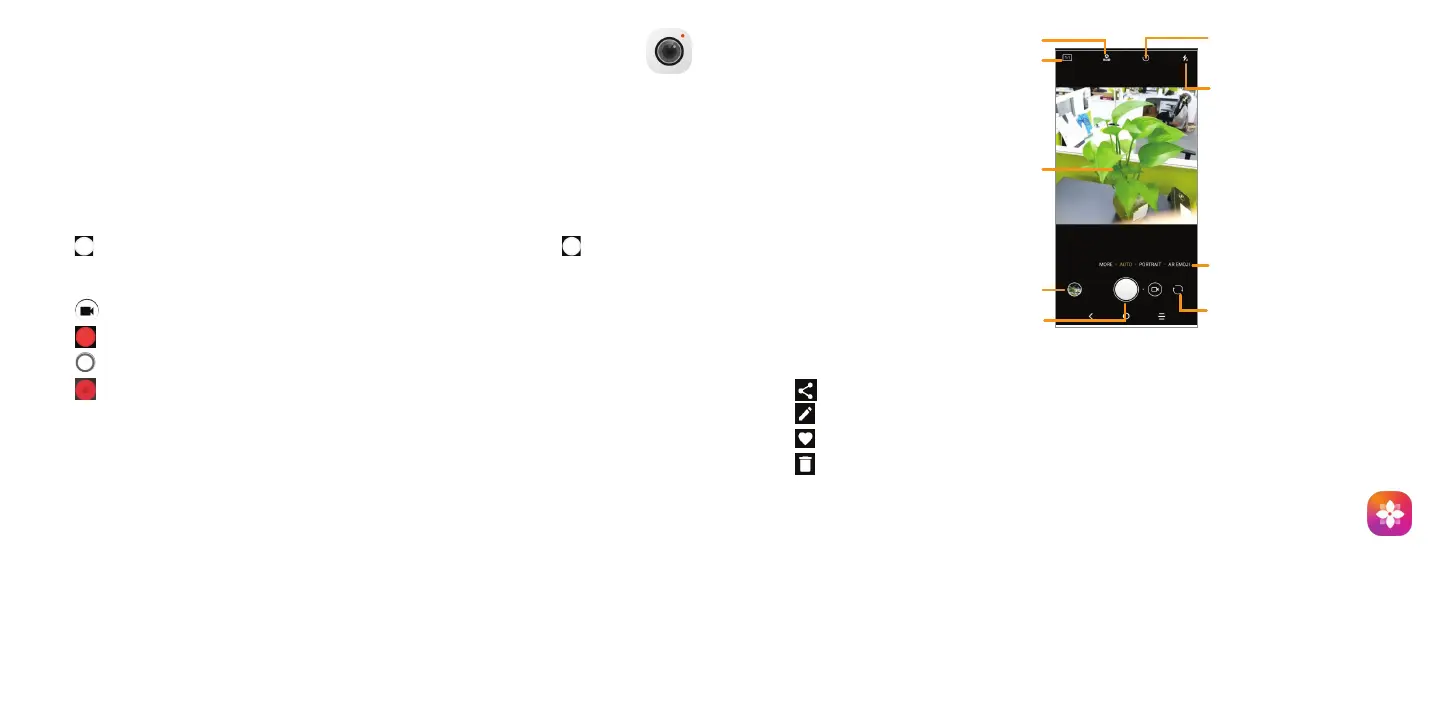
Tap to set magnification scale
Tap the screen to set a focus
Pinch two fingers together to zoom out and
spread two fingers apart to zoom in
Switch between front/
back camera
Take a picture
View the photos or videos you have taken
Select flash mode
Tap to change the camera
mode to Portrait, Pano, Auto,
etc.
Tap to turn on/off HDR
Tap to enable a countdown timer
Further operations when viewing a picture/video you have taken
• Tap then Gmail, Bluetooth, MMS, etc. to share the photo or video.
• Tap
to edit.
• Tap
to add the picture to favorites.
• Tap
to delete.
3.8 Gallery ................................................................................................
To view a picture/play a video
Pictures and videos are displayed by moments, Explore and albums in Gallery.
• All pictures and videos are divided by moments, and by albums. Tap an album to view pictures and videos spread
on the screen.
• Tap the picture/video directly to view or play.



 To Next Page