15 16
When finished, tap SAVE to save.
To exit without saving, tap
and then tap DISCARD.
Editing your contacts
Tap in the contact details screen to edit.
When finished, tap SAVE to save.
Add to/remove from Favorites
(1)
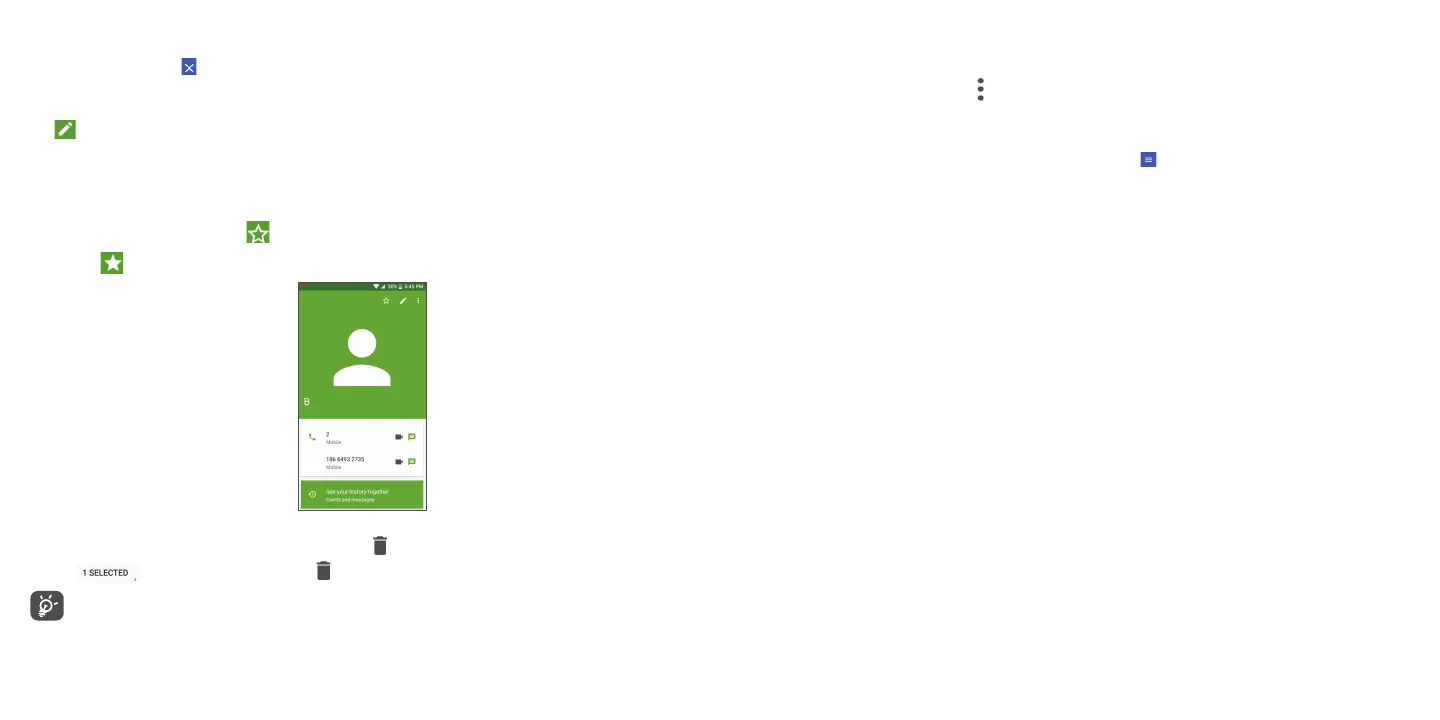
Tap a contact to view details then tap to add the contact to favorites.
Tap the star
to remove a contact from favorites.
Deleting a contact
• Press and hold the contact you want to delete, then tap and confirm to delete.
• Tap
to select all contacts, then tap and confirm to delete all contacts.
Deleted contacts will also be removed from other applications on the phone or web the next time you
synchronize your phone.
(1)
Only phone contacts can be added to Favorites.
Sharing a contact
You can share a single contact with others by sending the contact's vCard to them via Email, Messages, or Bluetooth.
Select a contact you want to share, tap
and then select Share.
Available options
From the contact list, you may also make further settings by tapping .
Settings
• My info Tap to set up your profile
• Accounts Sync accounts with your device to access all contacts in one place.
• Default account for
new contacts
Tap to choose the default place to save a new contact.
• Contacts to display Choose contacts to display.
• Sort by Set how contacts are sorted and displayed.
• Name format Tap to choose whether to display first name first, or last name first.
• Phonetic name Tap to choose display or hide phonetic name.
• Import/Export Import or export contacts between phone, SIM card, microSD
TM
card and phone
storage.
• Block numbers Add numbers here so that you won't receive calls or texts from them.
• About Contacts Tap to view the build version, open source licenses and so on.


 To Next Page