19
Attach options:
• Camera Access Camera to capture a new picture for
attaching.
• Capture video Access Camcorder to record a new video for
attaching.
• Record audio Enter voice message recorder to record a voice
message for attaching.
• Contact Enter Contacts to select a contact as attachment.
• Photo Access Gallery application or File manager to select
a picture as attachment.
• Videos Access Gallery application or File manager to select
a video as attachment.
• Audio Access to select an audio file as attachment.
• Calendar Access Calendar application to select one or more
event(s) to attach.
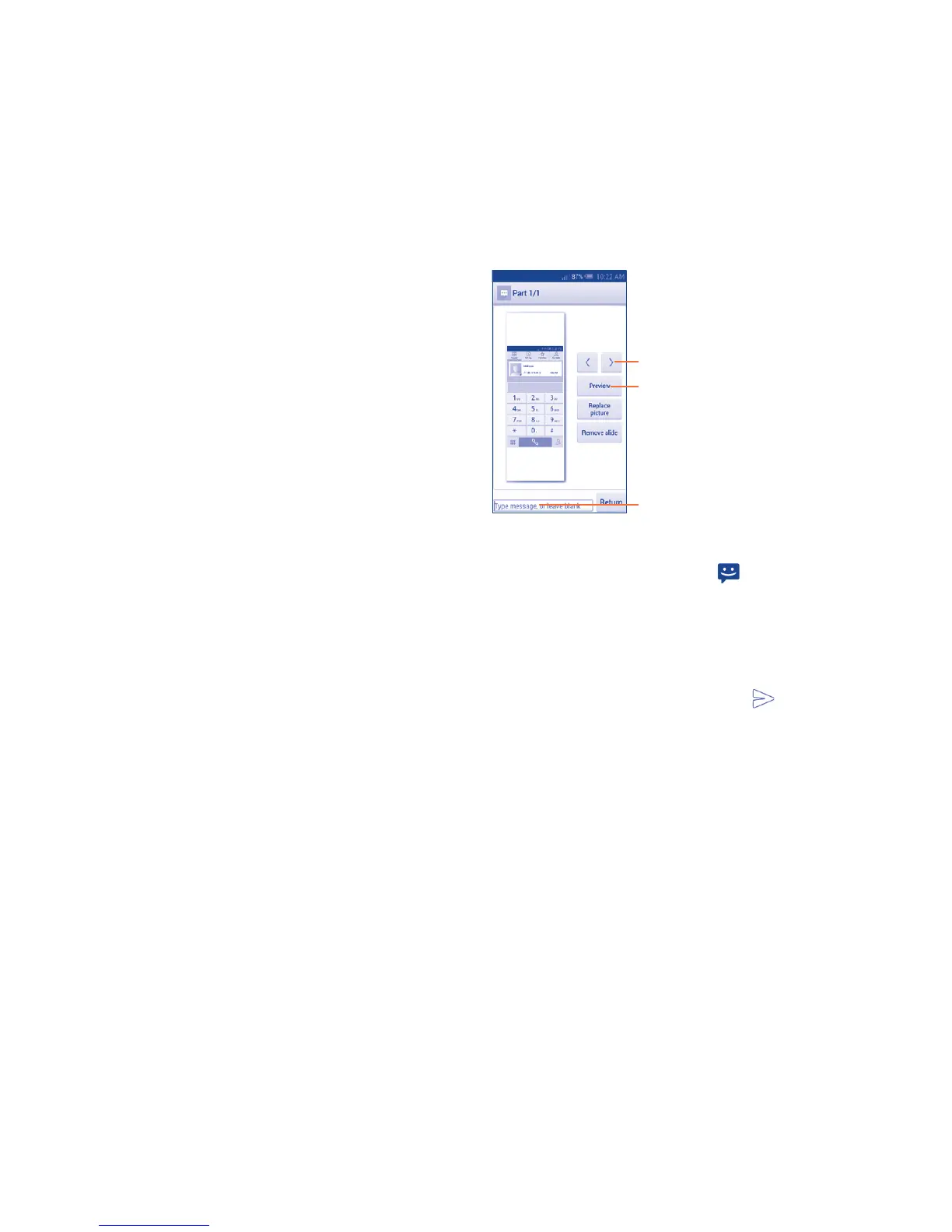
• Slideshow Enter Edit slide show screen, touch Add slide to
create a new slide, and touch currently existing slide
to edit it (see following picture). Touch the Menu key
to get more actions, like setting the slide duration,
adding music, etc.
Touch to preview the current slide.
Touch to go to previous or next slide.
Touch to edit the title of this slide.
4.1.2 Manage messages
When receiving a message, an icon will appear on status bar as
notification. Drag down the status bar to open the Notification panel, touch
the new message to open and read it. You can also access the Messaging
application and touch the message to open.
Messages are displayed in conversational order.
To reply to a message, touch the current message to enter message
composing screen, enter the text, then touch .
Touch and hold an SMS in message details screen. The following message
options are available for selection:


 To Next Page