40
To move the map, drag the map with your finger.
To zoom in and out of a map, pinch or spread your fingers, or you can also
zoom in by double-tapping a location on screen.
9.2 Search for a location
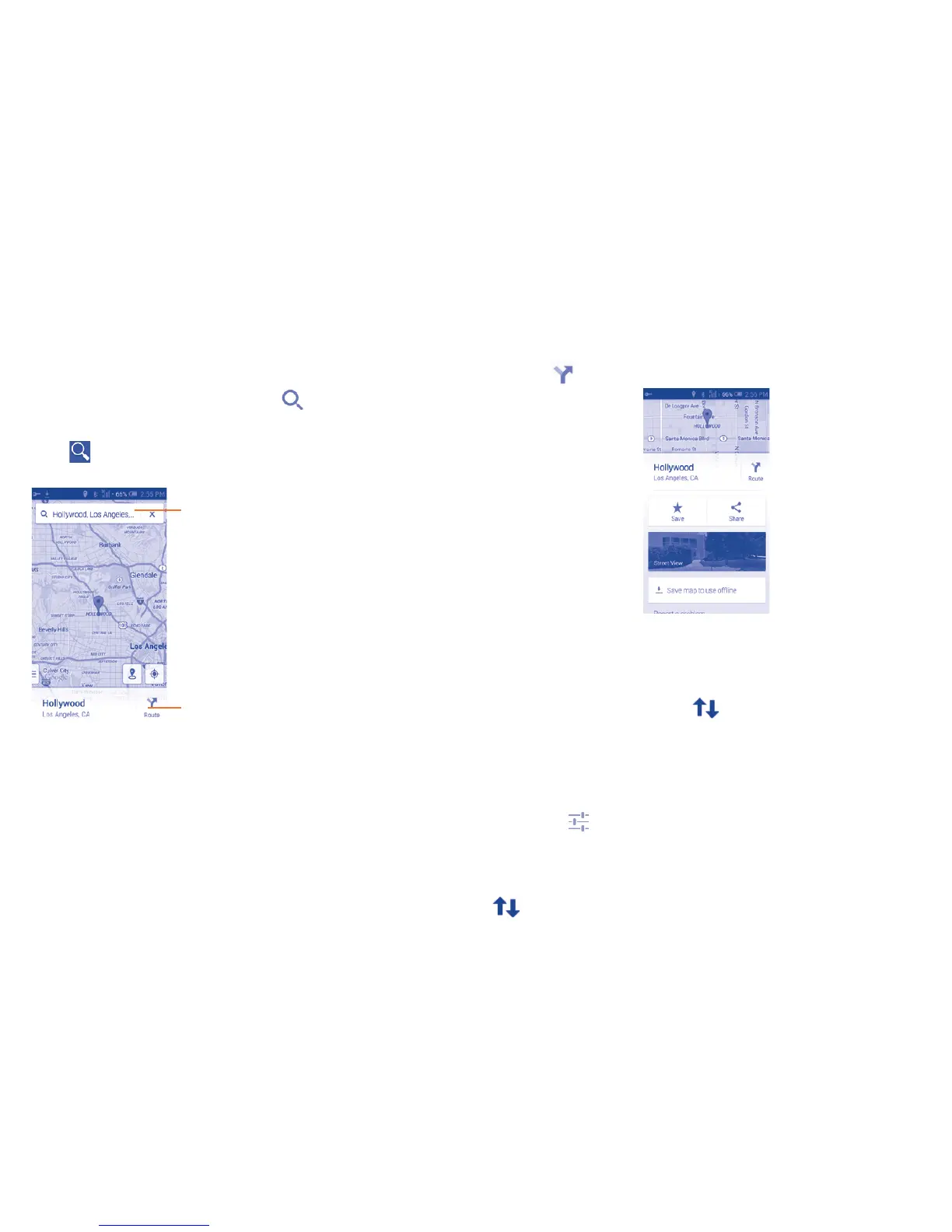
While viewing a map, touch the search icon to activate search function.
In the search box, enter an address, a city or a local business.
Touch and your search results will appear on the map as red dots. You
can touch one to show a label.
Touch to show all search results list
Touch to show more information
9.3 Get driving, public transport or walking
directions
9.3.1 Get suggested routes for your trip
Touch the icon from Maps screen.
• Touch enter bar to edit your start point by one of the following methods:
entering an address or using My Location.
• Do likewise for your end point.
• To reverse directions, touch the icon.
• Then select a transport mode: driving by car, using public transport, or
walking directions.
• A couple of suggested routes will appear in a list. Touch any route to view
their respective detailed directions.
• Touch the icon for route options to avoid motorways and tolls when
choosing driving by car or for editing the departure and arrival time when
using public transport.
To get reverse directions for a route you’ve already made, simply touch the
icon. No need to enter your start point and end point again.


 To Next Page