AUTHORITY 23
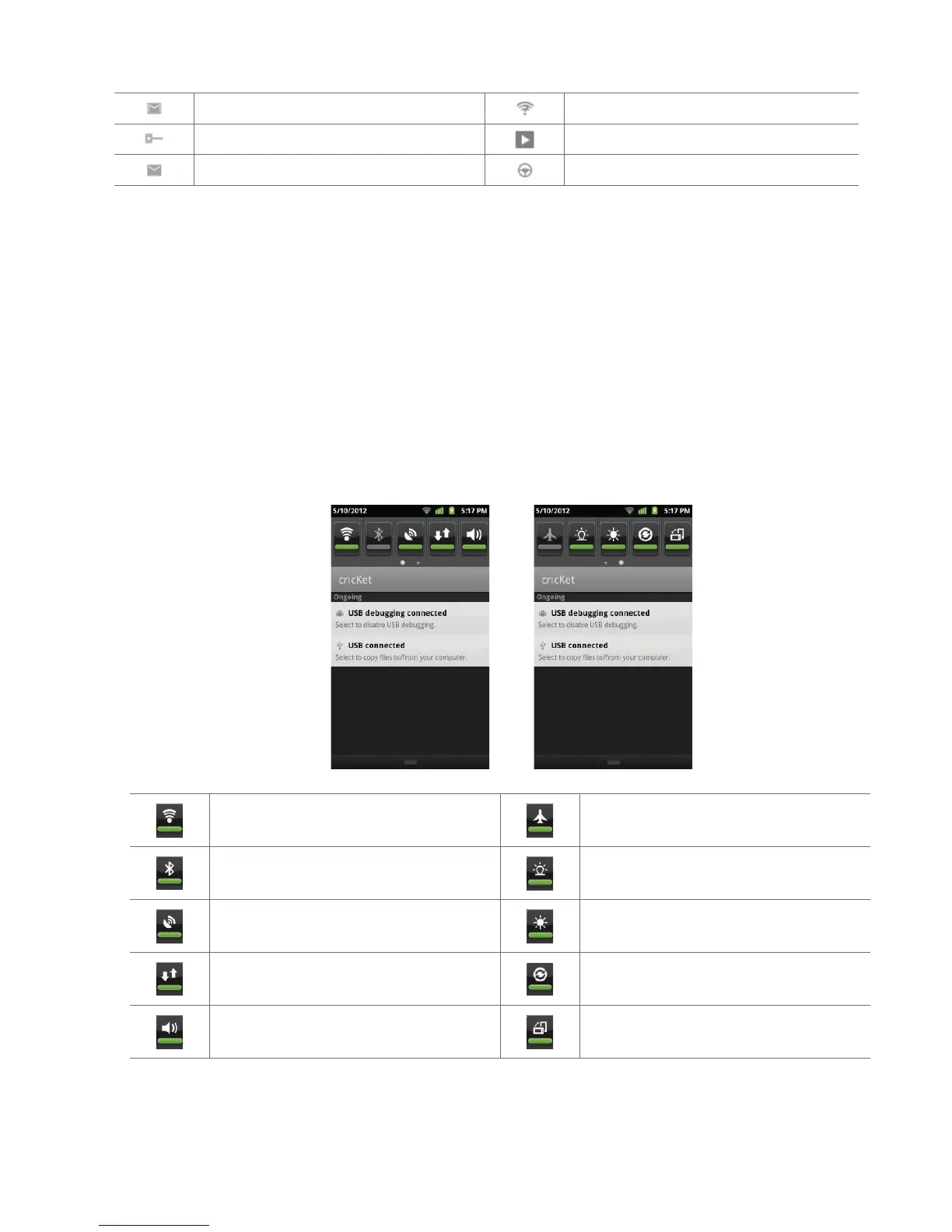
New Gmail Wi-Fi is on and wireless networks are available
Connected to or disconnected from VPN Song is playing
New Email Car mode is active
Notifications Panel
When you receive a new noti cation, an icon will be displayed in your Status bar at the top of your screen.
Viewing and responding to Noti cations
1. Tap and hold Status bar, and then slide your nger downward to open the Noti cations panel. You can set your phone such as
Wi-Fi, Bluetooth, etc. with these icons without the need to go to Settings application.
• Drag the screen to the left to see more icons.
Wi-Fi on / o .
Tap and hold it to go directly to Wi-Fi settings.
Airplane mode on / o .
Bluetooth on / o .
Tap and hold it to go directly to Bluetooth settings.
Noti cation ash on / o .
GPS on / o . Adjust the brightness of the screen.
Data on / o .
Data synchronizing on / o . Tap and hold it to go
directly to Accounts & sync settings.
Sound on / o .
Tap and hold it to go directly to Sound settings.
Landscape mode of the screen on / o .
2. If you have multiple noti cations, you may need to scroll to see them all.
3. Tap a noti cation to respond to it.
• Tap
Clear to clear all Noti cations.


 To Next Page