6
OS supported
Windows (32 bit & 64 bit) 7/8/8.1/10
Mac OS X 10.6 to 10.11 with the latest upgrade
Connect your Wi-Fi device to your
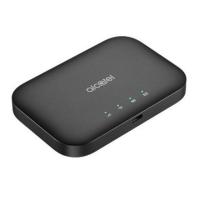
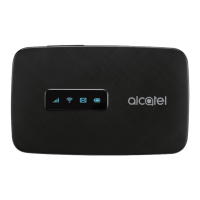
Mobile Hotspot
1. Power on your mobile hotspot.
2. On your computer or other Wi-Fi enabled device, search for
available Wi-Fi networks and select network name (SSID)
located on label on back panel of your mobile hotspot.
Note: Wi-Fi name (SSID) and Wi-Fi Password is located on
the label inside the back cover of the device.
• From a Windows PC: Le-click Wireless Network
Connecon on the task bar to view available networks.
View Available Networks. Choose the SSID from the
list of available networks.
• From a Mac computer: Select System Preferences
->Network -> Airport. Click “Advanced” to choose SSID
from the list of available networks.
• From an iOS device: Sengs -> Wi-Fi. Choose SSID
from the available networks.
• From an Android device: Sengs -> Wi-Fi sengs.
Choose the SSID from the available networks.
3. Enter password located on label on back panel and click OK.
Use the WPS
If your Wi-Fi device supports WPS, you do not have to input the
password manually aer WPS connecon has been established.
Please follow the following steps:
1. Power on your Mobile Hotspot and enable the Wi-Fi
funcon.
2. Press and hold the WPS key on your device for more than
3 seconds to start Wi-Fi Protected Setup authencaon
process.




 To Next Page