8
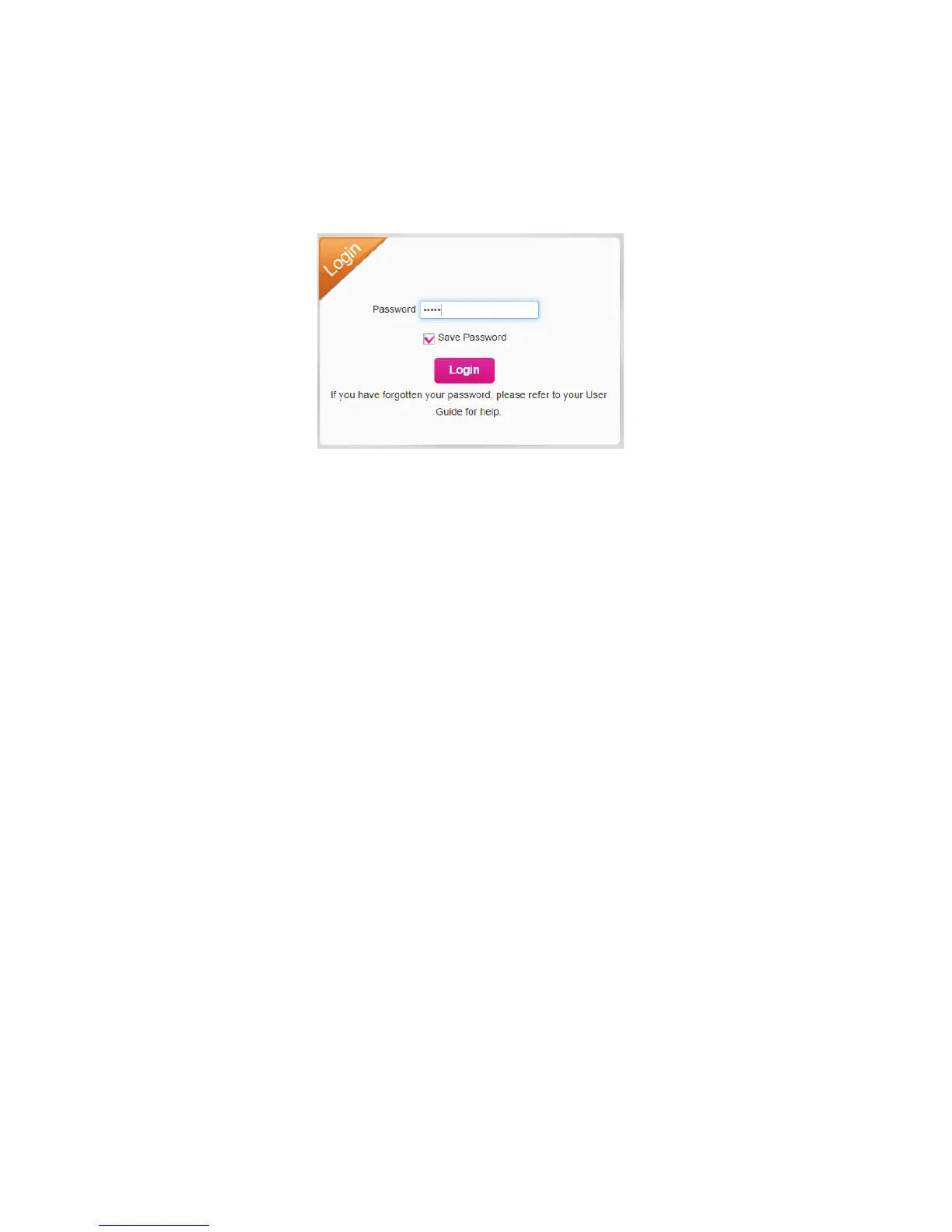
3. Enter your Password in the eld provided. The default
password is admin.
4. Select the Save Password checkbox if you wish to bypass
the login screen in the future.
5. Click Login. If you entered the correct password, the Web
User Interface screen appears.
Access Using USB Cable
1. Connect your Mobile Hotspot to the PC with USB cable.
2. Power on your device.
3. The OS detects and recognizes new hardware and nishes
the installaon automacally. Aer successful installaon,
the web connecon icon will appear on your desktop.
Note: If the system does not launch installaon
automacally, you can run the installaon program in path
of My Computer -> Mobile Hotspot.
4. Double click the icon to open the login screen.
5. Enter your Password in the eld provided. The default
password is admin.
6. Select the Save Password checkbox if you wish to bypass
the login screen in the future.
7. Click Login. If you entered the correct password, the
Dashboard screen appears.
Change Mobile Hotspot Admin Password
1. Access hp://mobile.hotspot or hp://192.168.0.1.
2. Click Sengs in the navigaon area.




 To Next Page