Editing Effects: Chapter 7
S4 Plus Reference Manual 89
Copying Effect Patches
When you want a Program to use the Effects from a different Program, you must
copy that other Program’s Effects into the Program you are working on. This is done
within Store Mode using the “Copy Effect” function. First, select the Program which
contains the Effects you wish to copy. And, of course, you can only copy Effects to
Programs that are in the User Bank or on a RAM Sound Card Bank.
For more about copying effects, see page 35.
Configurations
A Configuration is essentially the starting point of any Effects Patch. You must select
the Configuration you are going to use before making any other edits, since all
routings and parameters change to their default settings each time you change the
configuration. Each Configuration is a unique arrangement of multiple effect blocks,
distributed across the four effect sends. Some effect sends may have three different
effects (pitch, delay and reverb) on them. Configurations also determine where the
signal to a block comes from, and where the output of each block goes to -- the main
outputs, the next effect in line, or even to an effect block belonging to another effect
send. The Configuration diagrams on the next six pages provide a crucial “road map”
you’ll need to guide you through the many paths that are possible in each
configuration. Refer to them as you program the effect.
The five Effect Configurations are:
• Configuration #1: 4-Sends, 1 Reverb
• Configuration #2: 4-Sends, 2 Reverb
• Configuration #3: 4-Sends, 1 Lezlie
• Configuration #4: 2-Sends, With EQ
• Configuration #5: OD>CHS>DDL>REV>LZ
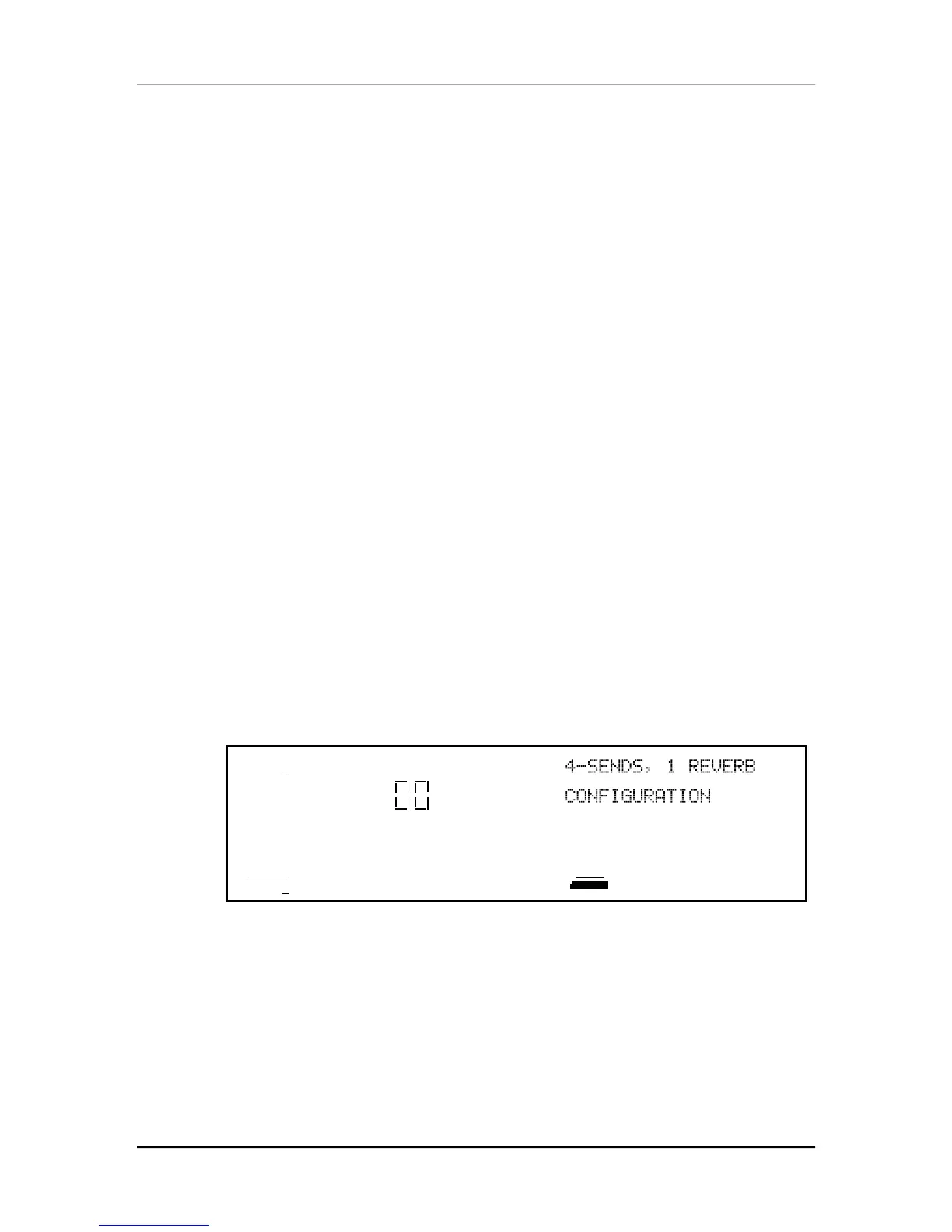
The Configuration function is used to select the Configuration for the Effects Patch
you are editing. Use the FUNCTION [¨] and [Æ] buttons to scroll through the functions
in the display until the word CONFIG is underlined. The display should look like this
(from Mix Edit Mode):
MIDI
CHAN
PROG
1
PRESET
EDITING: 1 EFFECT
PITCH MOD
CONFIG REVERB DELAY MIX MISC.
PAGE: 1
Quad Knob [1] selects the Configuration. As you scroll through the various Configu-
rations, each one’s name will appear in the upper right section of the display.
Here is a run-down of the various Configurations:


 To Next Page