AlgoForce E1500
15
User Settings
Audio Volume: Modify by pressing the Vol/Vibration buttons.
Vibration: Adjust by holding the Vol/Vibration buttons.
Note: Pinpoint mode has separate volume and vibration controls from the main detection mode.
Backlight Level: Control by pressing the Backlight/Theme button.
Display Theme: Hold the Backlight/Theme button to switch between dark and light display themes.
Sensitivity: Modify in the Main Detection UI or the Pinpoint UI using the Minus and Plus buttons.
To adjust other settings:
1) Press Return/Auto FS in the Main Detection UI to access the menu.
2) Navigate with Left/Pinpoint or Right/Auto GB.
3) Modify selected setting with Minus or Plus.
4) Press Return/Auto FS to go back to the Main Detection UI.
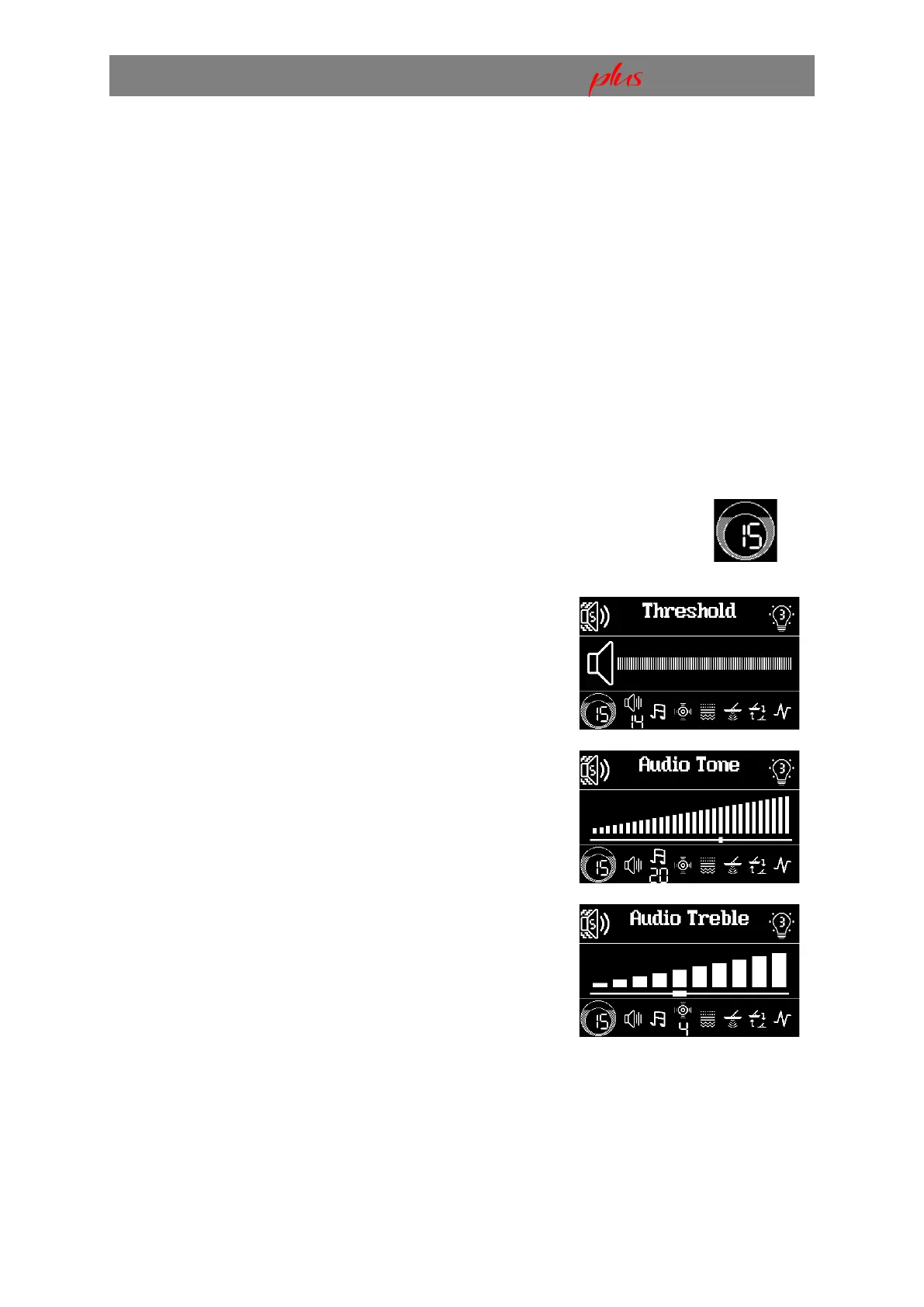
Adjust Sensitivity so that the peak of the Real-time Scrolling Detection Signal is
close to the Detection Threshold when there is no target.
Audio Threshold adjusts the volume of the constant
background hum added to the detection audio. It's
recommended to set it to a level that's just barely audible.
The Audio Tone setting adjusts the frequency of the constant
background hum added to the detection audio. The tone can
be set according to personal preference.
Users can adjust the treble to enhance or reduce the
prominence of higher-pitched sounds, affecting the overall
tonal balance of the audio. Increasing the treble results in a
brighter, crisper sound. Decreasing the treble produces a
softer, mellower sound. This feature provides the flexibility to
tailor audio feedback to match individual detecting styles,
whether you prefer crisper or softer audio responses.


 To Next Page