7 www.Observint.com
© 2019 Observint Technologies. All rights reserved.
Step 8. Customize your NVR Configuration
Congure your surveillance system for the environment you are using it for. Most conguration settings are accessible through the Menu
screen. Additionally, most conguration setting changes require a login with administrative credentials.
For detailed information about how to customize the conguration of your NVR and cameras, refer to the ALIBI Firmware User Manual for
your recorder.
Specications
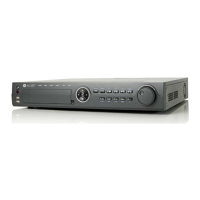
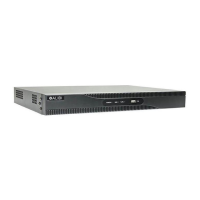
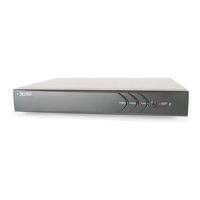
Model ALI-NVR5332P
Number of Channels Supported 32
Supported Compression Format H.265+, H.265, H.264+, H.264
Recording Performance 320 Mbps
Remote Viewing Output Capacity 256 Mbps
Remote Connections 128
Recording Type Continuous, Schedule, Alarm, Motion Detection, POS, Event
Supported IP Camera Resolution 12 MP / 8 MP / 6 MP / 5 MP / 4 MP / 3 MP / 1080p / UXGA / 720p / VGA / 4CIF / DCIF / 2CIF / CIF / QCIF
Supported Playback Resolution 12 MP / 8 MP / 6 MP / 5 MP / 4 MP / 3 MP / 1080p / UXGA / 720p / VGA / 4CIF / DCIF / 2CIF / CIF / QCIF
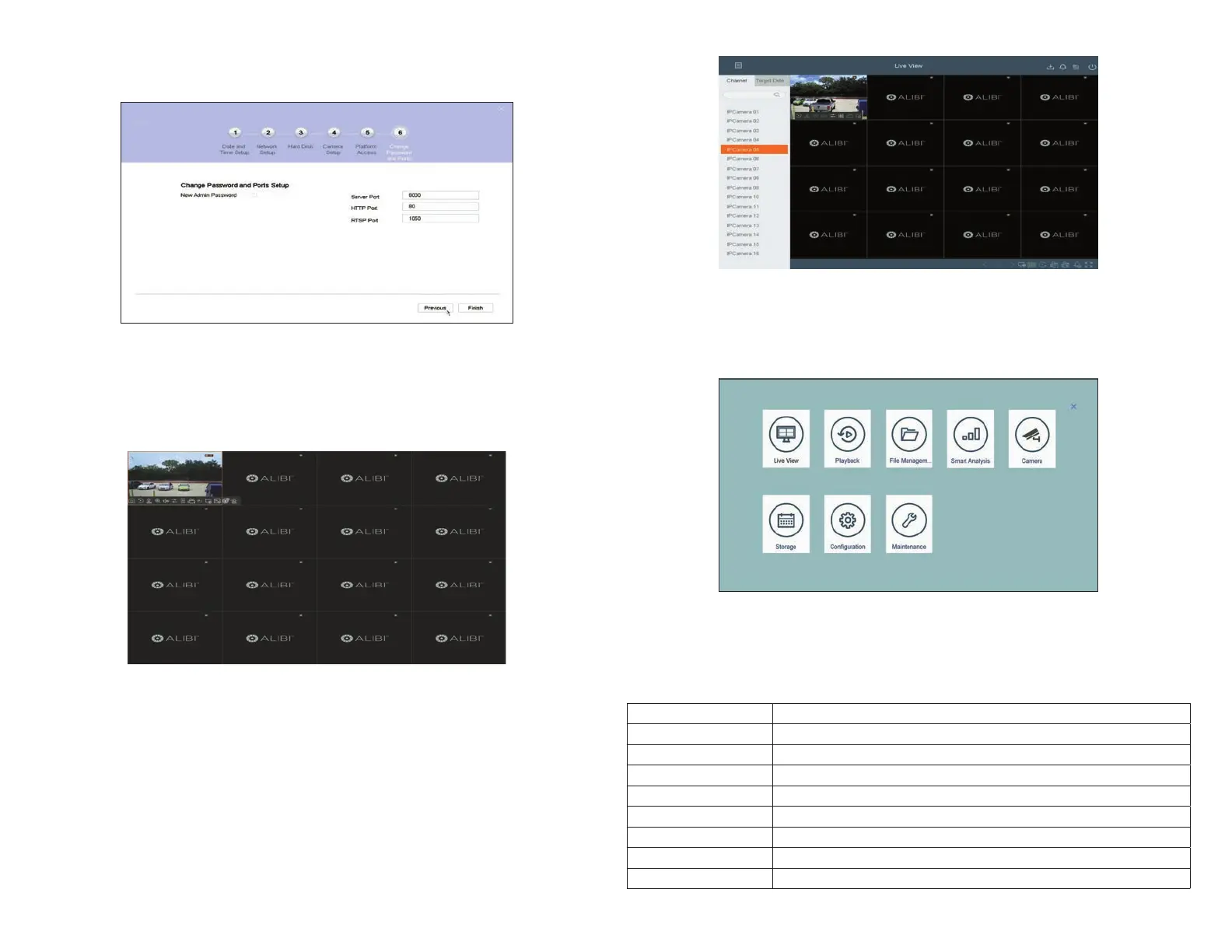
6. In the Wizard 6 Change Password and Ports menu, you can modify your admin password and change the Server, HTTP and RSTP
port numbers. Alibi Support recommends that you change these port numbers for stronger security.
To change the password, check the New Admin Password box, and then follow the on screen instructions.
To change the port numbers, enter the new port numbers in the eld provided.
To save your settings and exit the conguration Wizard, click Finish. Click Previous to return to an another Wizard menu. After
clicking Finish, the Live View window will open.
Step 6. Basic camera setup
Use the Live View window to point your cameras at their surveillance targets, if necessary.
Step 7. Camera adjustments
1. Right click on the Camera menu to return to the Menu screen, and then right click again to return to the Live View window.




 To Next Page