CHAPTER 3 RFID TAG READER
ALR-H450 USER GUIDE
DOC. CONTROL #8102146-000 REV A
In reality, you don’t always want to have to think about memory banks and pointer offsets – you just
want to find that pair of jeans that is on the wrong rack, or you only care about “pallet tags”, however
that is defined for you. The Tag Mask screen therefore gives you four ways to pick a tag mask:
1. Scanning the field for tags (or loading a text file of EPCs) and picking a tag from a list.
2. Exactly defining the bank, offset, and hex data.
3. Picking a named mask from a preset list
4. Selecting a pre-defined asset (RFID+barcode+picture)
Once you have defined and set your mask, just close the Tag Mask window and your new mask will
be displayed at the top of the screen you were originally on, and it will be used in subsequent
operations.
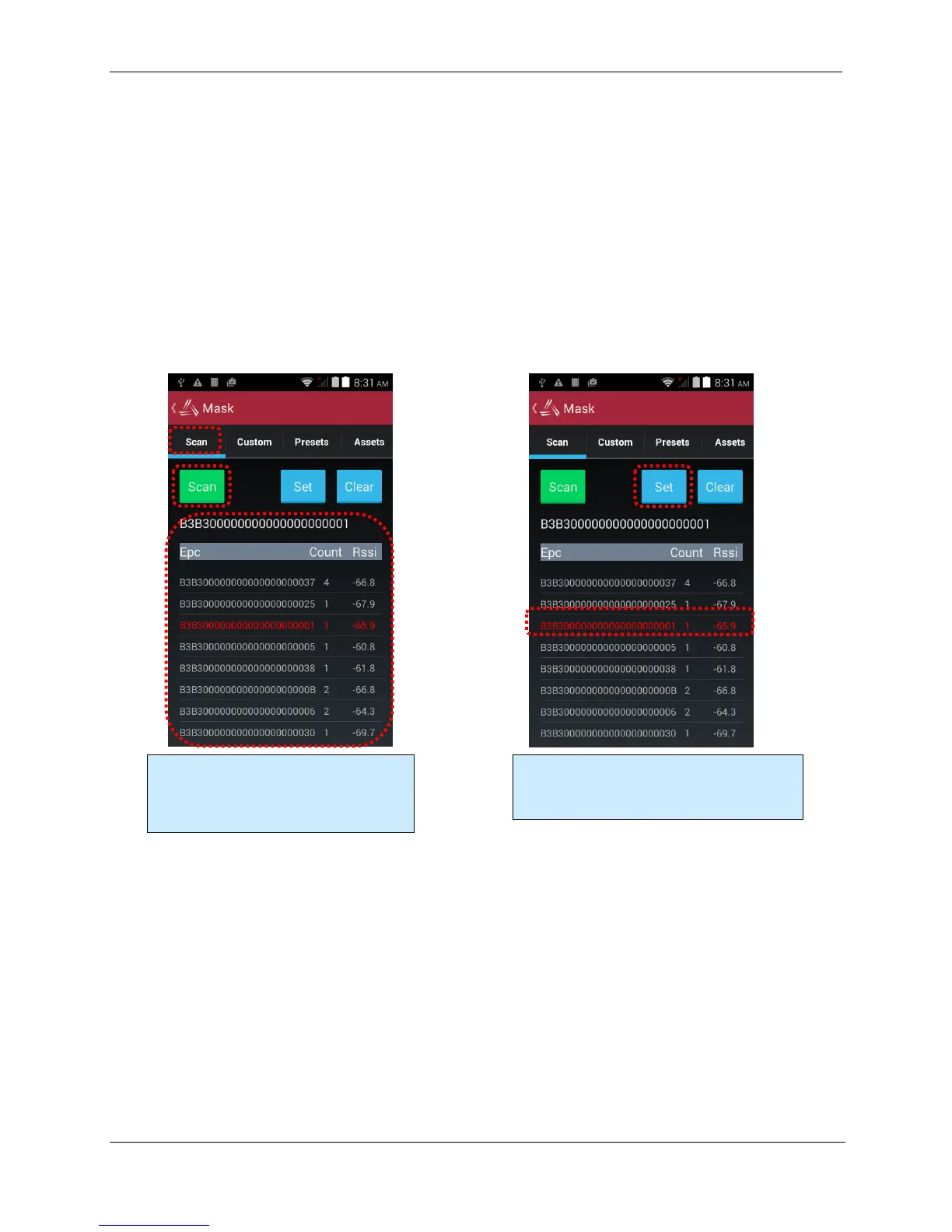
Tag Mask – Scan
After scanning. select a tag from the list and
click the Set button.
To clear the mask, click the Clear button.
The Scan tab acts just like the Inventory
screen – start/stop the reader with the
trigger or Scan button, and all tags in range
are displayed.



 To Next Page