RFID TAG READER CHAPTER 3
ALR-H450 USER GUIDE
DOC. CONTROL #8102146-000 REV A
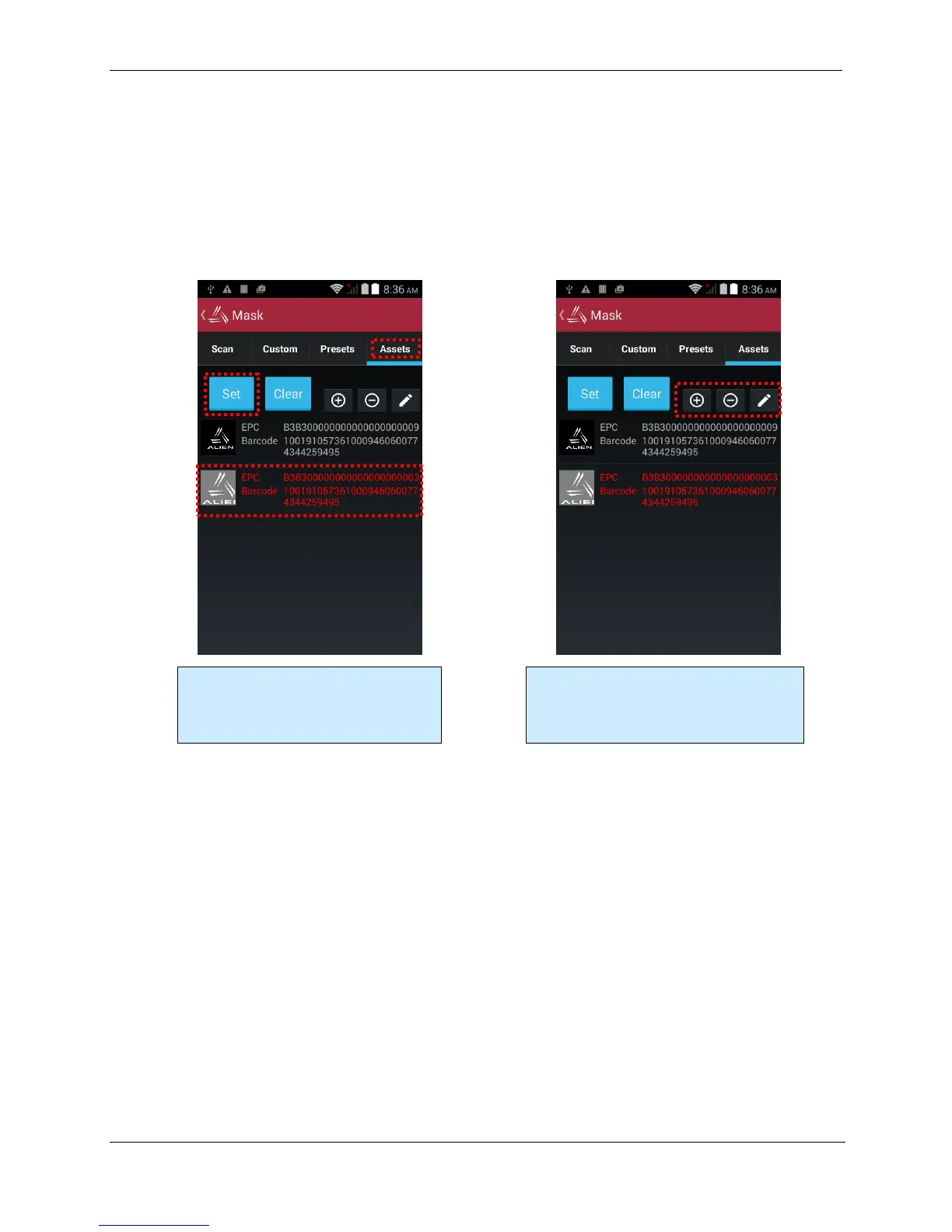
Tag Mask – Assets
The Assets feature of the Alien demo application shows how you might associate an EPC code,
barcode, or a picture to an actual physical asset. By linking those pieces of information, you can
cross-reference a barcode scan with the EPC code on that product’s RFID tag, and see a picture of
the asset each time the tag is read. If you need to search for a particular asset, you can select it
from the list of assets, set the Tag Mask to that asset’s EPC code, and then use the Geiger utility to
go look for that tag. When the tag is detected, the item’s picture is shown on the screen for
verification, and you can also see the associated barcode as well.
There are four steps to creating or editing an asset, and pulling the gun trigger performs each one
and advances you to the next step. You can skip steps, or redo steps by manually tapping on one of
the step buttons.
1. RFID – read an RFID tag
2. Barcode – scan a barcode
3. Picture – load an image from a file
4. Save – remember the asset definition
At the Assets mask screen, simply select
one of the created assets from the list and
then click the Set button to mask on that
asset.
To create a new asset, click the “+” button.
To remove or edit an existing asset, select it
from the list and then click the “-“ or
pencil/edit buttons.



 To Next Page