Need help?
Do you have a question about the Alienware 610M and is the answer not in the manual?
Customizable mouse tracking resolution settings indicated by DPI indicator color.
Adjusts the scroll wheel steps between 12 or 24.
Instructions for physically connecting the gaming mouse in wired or wireless modes.
Guide for connecting the mouse wirelessly using a USB dongle and extension.
Instructions for connecting the mouse using a USB cable for wired operation.
Procedure for charging the gaming mouse's rechargeable battery via USB.
Explanation of LED indicator colors for battery status: low, charging, and full.
Steps to install the AWCC application automatically via Windows Update.
Instructions to download and install AWCC software from the Dell support site.
Troubleshooting steps for when the mouse is unresponsive or not working.
Solutions for issues where the mouse's LED lighting does not illuminate.
Fixes for when mouse behavior doesn't match AWCC application settings.
Guidance for addressing problems with cursor movement and tracking.
Troubleshooting steps for when mouse buttons are not registering clicks.
Solutions for a cursor that moves slowly on the screen.
Steps to resolve cursor lag caused by wireless interference or other factors.
Guidance for resolving issues with mouse lift-off distance calibration.
The Alienware 610M is a versatile gaming mouse designed for both wired and wireless operation, offering a range of features to enhance the gaming experience. This user guide provides comprehensive instructions for setting up, using, and troubleshooting the mouse, ensuring optimal performance and customization.
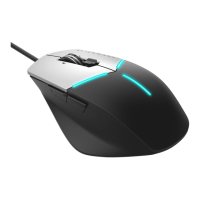
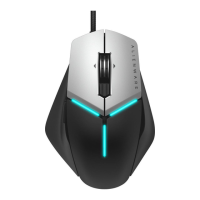
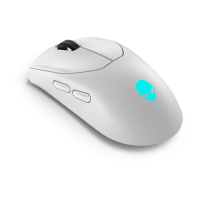
The Alienware 610M functions as a high-performance gaming mouse, capable of precise tracking and responsive input. It supports both wired and wireless modes, providing flexibility for different gaming setups and preferences. In wired mode, the mouse connects directly to a computer via a USB cable, which also serves to charge its internal battery. In wireless mode, it utilizes a USB wireless dongle for connectivity, offering freedom of movement without the constraints of a cable. The mouse is equipped with multiple programmable buttons, including left and right click buttons, a scroll wheel, and forward/backward buttons, allowing for a wide array of in-game actions and shortcuts. A key feature is its adjustable DPI (Dots Per Inch) settings, which allow users to instantly change the mouse's tracking resolution to suit various gaming scenarios, from precise aiming to rapid movements. The mouse also incorporates LED indicators for DPI settings and battery status, providing visual feedback to the user.
The Alienware 610M is designed with several features to optimize its usability for gamers.
Adjustable DPI: The mouse offers five default DPI settings: 800 (Blue), 1800 (Green - out-of-box default), 3500 (Yellow), 9000 (Orange), and 16000 (Red). These settings can be cycled through instantly using the dedicated DPI adjustment slider. The current DPI setting is indicated by the color of the DPI indicator. Users can further customize these DPI stages and LED colors through the Alienware Command Center (AWCC) application, allowing for a personalized gaming experience tailored to specific games or playstyles.
Scrolling Count Adjustment: The scroll wheel features an adjustment switch that allows users to change the number of steps for scrolling. Pushing the switch up sets the scroll count to 12 steps, while pushing it down sets it to 24 steps. This feature provides flexibility for different scrolling needs, whether for precise weapon selection or rapid document navigation.
Wired and Wireless Connectivity: The mouse offers seamless switching between wired and wireless modes. For wireless use, the USB wireless dongle connects to an available USB port on a laptop or desktop. For desktop users, an extension cable and adapter are provided to ensure optimal dongle placement and signal strength. In wired mode, the mouse connects directly via its USB wireless dongle extension/charging cable, which also initiates battery charging.
Power Management: The mouse includes a power button to turn it on or off, conserving battery life when not in use. The rechargeable battery ensures continuous operation, with clear indicators for battery status.
Alienware Command Center (AWCC) Integration: The AWCC application is central to customizing the Alienware 610M. It provides a single interface to customize mouse features, lighting effects, and DPI settings. AWCC can be installed automatically via Windows Update when the peripheral is connected, or manually downloaded from the Dell Support website. This application allows users to fine-tune the mouse's performance and aesthetics to match their preferences and gaming environment.
Maintaining the Alienware 610M involves simple steps to ensure its longevity and optimal performance.
Battery Charging: The mouse features a rechargeable battery. For best results, it is recommended to fully charge the battery before initial use. Charging occurs automatically when the mouse is connected in wired mode via the USB wireless dongle extension/charging cable. The battery indicator provides visual feedback during charging: flashing amber for low power, morphing between amber and green during charging, and solid green when fully charged. This clear indication helps users manage power effectively and avoid unexpected power loss during gameplay.
Troubleshooting Guide: The user guide includes a comprehensive troubleshooting section to address common issues such as the mouse not functioning, lights not turning on, cursor issues, and mouse button problems. This section provides step-by-step solutions, including checking battery power, restarting the mouse or computer, ensuring proper driver installation, and verifying sensor cleanliness.
Sensor Care: To resolve cursor issues or slow movement, it is crucial to ensure that the mouse sensor is not obstructed or dirty. Regular cleaning of the sensor area can prevent tracking problems. The guide also advises against using glass or very smooth glossy surfaces, as these are not suitable for the mouse sensor to capture movement effectively. Using a dark-colored fabric mouse pad is recommended to improve tracking and lift-off distance (LOD) calibration.
Driver and Software Updates: Keeping the Alienware Command Center (AWCC) application and the Alienware Gaming Peripheral driver updated is essential for optimal performance and access to the latest features. The guide outlines how to check for updates through Windows Update or download them from the Dell Support website. This ensures that the mouse benefits from performance enhancements and bug fixes.
Storage of Wireless Dongle: The mouse includes a dedicated compartment for storing the USB wireless dongle. This feature helps prevent loss of the dongle when the mouse is being transported or not in use, ensuring that the wireless functionality is always available when needed.
By following these guidelines, users can ensure their Alienware 610M gaming mouse remains in excellent condition and delivers a consistent, high-quality gaming experience.
 General
| Sensor | Optical |
|---|---|
| DPI | Up to 16, 000 |
| IPS | 400 |
| Acceleration | 40G |
| Polling Rate | 1000Hz |
| Buttons | 7 |
| RGB Lighting | Yes |
| Wireless Technology | 2.4GHz |
| Battery Life | Up to 350 hours |
| Connectivity | Wired |
| Cable Length | 2m |
| Compatibility | Windows 10 |
| Lighting | RGB |

 To Next Page