Need help?
Do you have a question about the Alienware AW620M and is the answer not in the manual?
Lists and illustrates the items included in the mouse packaging.
Identifies the main buttons, scroll wheel, and ports on the mouse.
Explains how to adjust mouse DPI and the corresponding scroll wheel LED colors.
Provides initial steps for connecting the mouse and notes on battery charging.
Guides users through connecting and using the mouse in 2.40 GHz wireless mode.
Instructions for connecting the mouse via USB cable for wired use and charging.
Details the meaning of different LED colors indicating battery status.
Steps to install the AWCC software automatically through Windows Update.
Instructions for manually downloading and installing AWCC from Dell's website.
Covers model, connection, system requirements, voltage, battery type, and life.
Details the mouse's weight and dimensions.
Information on operating conditions, temperature, humidity, and wireless transmission.
Provides solutions for when the mouse is unresponsive or not working.
Addresses problems with mouse lights not turning on or AWCC settings not applying.
Troubleshooting steps for cursor tracking and movement issues.
Solutions for mouse button problems and Lift Off Distance calibration.
Troubleshooting steps for cursor lagging and slow pointer speed.
Outlines Dell's limited warranty and return policies for various customer regions.
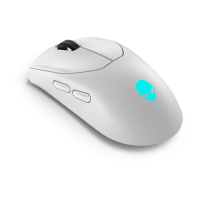
The Alienware Wireless Gaming Mouse - AW620M is a high-performance peripheral designed for an enhanced gaming experience, offering both wireless (2.40 GHz) and wired connectivity options. This user guide outlines the setup, features, and troubleshooting for the mouse, ensuring users can maximize its potential.
The Alienware AW620M is primarily a gaming mouse, engineered to provide precise tracking and customizable controls essential for competitive gaming. Its core function is to translate physical movements into on-screen cursor actions, with additional features tailored for gaming performance. The mouse supports adjustable Dots Per Inch (DPI), allowing users to instantly change the tracking resolution to suit different gaming scenarios or personal preferences. It is equipped with a rechargeable battery, enabling wireless operation, and can also function in a wired mode, which simultaneously charges the battery. The mouse integrates with the Alienware Command Center (AWCC) application, a software suite that allows for extensive customization of mouse features, lighting effects, and DPI settings, thereby enhancing the overall gaming experience.
The AW620M offers flexible connectivity options to cater to various user setups. For wireless operation, the mouse utilizes a 2.40 GHz USB wireless dongle. Users can connect this dongle directly to a USB port on their laptop or, for desktop setups, use a dongle extender. The dongle extender connects to the computer via a USB charging cable, and the wireless dongle is then inserted into the extender, potentially improving signal reception and placement flexibility. To initiate wireless use, the protective sheet must be removed from the mouse, and the power button slid down to turn it on.
In wired mode, the mouse connects to the computer using a USB-C charging cable. One end of the cable plugs into the USB-C port on the mouse, and the other end connects to an available USB port on the desktop or laptop. A significant advantage of the wired mode is that the battery automatically begins charging when connected, ensuring the mouse is always ready for wireless use.
A key feature for gamers is the Adjustable Dots Per Inch (DPI) setting. The mouse has a dedicated DPI adjustment button, allowing users to cycle through five default DPI settings: 800 (Blue), 1200 (Green - default), 1600 (Yellow), 2400 (Purple), and 3200 (Red). The scroll wheel LED color indicates the currently selected DPI setting, providing immediate visual feedback. For advanced customization, the Alienware Command Center (AWCC) application allows users to change these default DPI settings and create custom DPI stages, offering granular control over sensitivity.
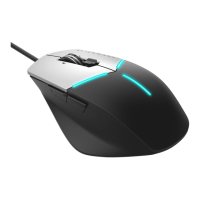
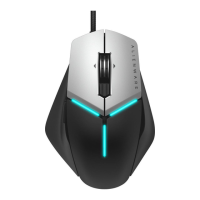
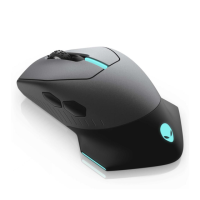
The mouse's physical layout includes essential buttons for gaming. It features a left button, right button, scroll wheel, DPI adjustment button, power button, USB-C port, forward button, and backward button. These buttons are strategically placed for ergonomic access and quick in-game actions. The scroll wheel not only facilitates vertical navigation but also serves as an indicator for DPI settings through its LED color.
The Alienware Command Center (AWCC) application is central to unlocking the full potential of the AW620M. It provides a single interface for customizing and enhancing the gaming experience. Users can install AWCC either through Windows Update, where it may download automatically upon connecting the peripheral, or by manually downloading it from the Dell Support website. Once installed, AWCC allows for the customization of mouse features, such as button assignments, macro creation, and performance tuning. It also enables users to personalize the mouse's lighting effects, which can be synchronized with other Alienware peripherals for a cohesive aesthetic. The application's online help provides further details on how to leverage its extensive customization options.
The AW620M is designed with features that contribute to its longevity and consistent performance. The mouse has a rechargeable battery, eliminating the need for disposable batteries and reducing environmental impact. To optimize battery life, users are advised to turn off the power switch when the mouse is not in use. This simple action helps conserve power and extends the time between charges.
Charging the battery is straightforward, primarily done through the wired connection. When the USB-C charging cable is connected to the mouse and a computer, the battery automatically charges. The mouse provides clear battery indicator colors to keep users informed about its power status. An amber pulsing light indicates low power, while a morphing light between amber and green signifies that the mouse is charging. Once fully charged, the battery indicator blinks green for 3 seconds, then stays static green for 9 seconds, before reverting to the user's default lighting settings. This visual feedback ensures users are aware of the battery's charge level, preventing unexpected power loss during critical gaming moments.
Troubleshooting guidance is provided to address common issues. If the mouse is not functioning, users are advised to ensure the power switch is on, check for sufficient battery power in wireless mode, try a different USB port in wired mode, or reconnect the wireless dongle and extender in 2.40 GHz wireless mode. Restarting the computer is also a recommended step. For issues with mouse lights, users should wake the mouse from sleep mode, check battery power, or ensure proper wired/wireless connection. If the mouse is not performing according to AWCC configurations, verifying AWCC installation and saved settings is crucial.
Cursor issues, such as erratic movement or lack of tracking, can often be resolved by ensuring the sensor is clean and unobstructed. The guide also highlights that certain surfaces, like glass or very smooth glossy surfaces, are not ideal for the mouse sensor, recommending a dark-colored fabric mouse pad for improved tracking. Adjusting pointer speed through the operating system's mouse settings is another solution for slow-moving cursors.
Mouse button issues, such as unresponsiveness, are addressed by checking for physical obstructions, ensuring proper wired or wireless connection, and restarting the system. Cursor lagging, particularly in wireless mode, might be due to wireless interference, suggesting the use of the dongle extender to improve signal strength. For Lift Off Distance (LOD) surface calibration issues, using a dark-colored fabric mouse pad is recommended as LOD calibration is dependent on surface characteristics. These maintenance and troubleshooting tips empower users to resolve common problems and maintain optimal mouse performance.
 General
| Buttons Qty | 6 |
|---|---|
| Movement Detection Technology | Optical |
| Movement Resolution | 16000 DPI |
| Max Speed | 400 IPS |
| Max Acceleration | 50 G |
| Polling Rate | 1000 Hz |
| Weight | 89 g |
| Cable Length | 1.8 m |
| Connectivity Technology | Wireless, Bluetooth |
| Features | Adjustable DPI, Customizable Buttons |
| Battery Life | 140 hours |
| RGB Lighting | Yes, AlienFX RGB |
| Compatibility | Windows |


 To Next Page