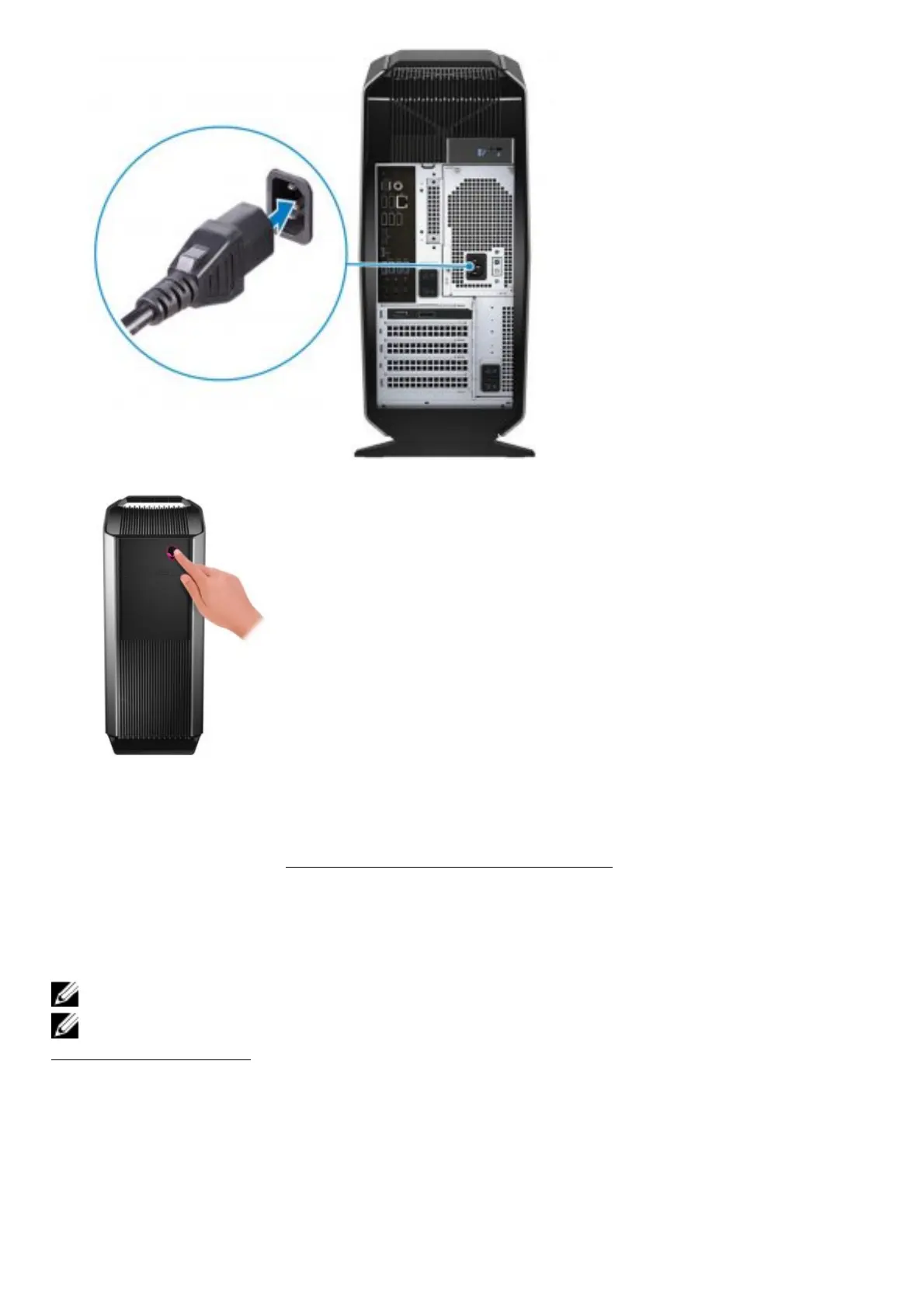
5. Press the power button.
6. Create recovery drive for Windows.
NOTE: It is recommended to create a recovery drive to troubleshoot and fiÚ problems that may
occur with Windows.
For more information, see Create a USB recovery drive for Windows.
Create a USB recovery drive for Windows
Create a recovery drive to troubleshoot and fiÚ problems that may occur with Windows. An empty USB
floÁ drive with a minimum capacity of 16 GB is required to create the recovery drive.
NOTE: This process may take up to an hour to complete.
NOTE: The following steps may vary depending on the version of Windows installed. Refer to the
Microsoft support site for latest instructions.
1. Connect the USB floÁ drive to your computer.
2. In Windows search, type Recovery.
3. In the search results, click Create a recovery drive.
The User Account Control window is displayed.
4. Click Yes to continue.
The Recovery Drive window is displayed.
5. Select Back up system file to the recovery drive and click Next.
6. Select the USB flash drive and click Next.
A message appears, indicating that all data in the USB floÁ drive will be deleted.










 To Next Page