1. USB 3.1 Gen 1 ports (2)
Connect peripherals such as external storage devices and printers. Provides data transfer speeds
up to 5 Gbps.
2. Headphone port
Connect a headphone or speakers.
3. Microphone port
Connect an external microphone to provide sound input.
4. USB 3.1 Gen 1 Type-C port
Connect to external storage devices. Provides data transfer speeds up to 5 Gbps.
NOTE: This port does not support video/audio streaming or power delivery.
5. USB 3.1 Gen 1 port
Connect peripherals such as external storage devices and printers. Provides data transfer speeds
up to 5 Gbps.
6. Optical-drive eject button
Press to open the optical drive tray.
7. Optical drive (optional)
Reads from and writes to CDs, DVDs, and Blu‑ray discs.
8. Power button (AlienHead)
Press to turn on the computer if it is turned ¯äĘ in sleep state, or in hibernate state.
Press to put the computer in sleep state if it is turned on.
Press and hold for 4 seconds to force shut-down the computer.
NOTE: You can customize the power-button behavior in Power Options.
Back
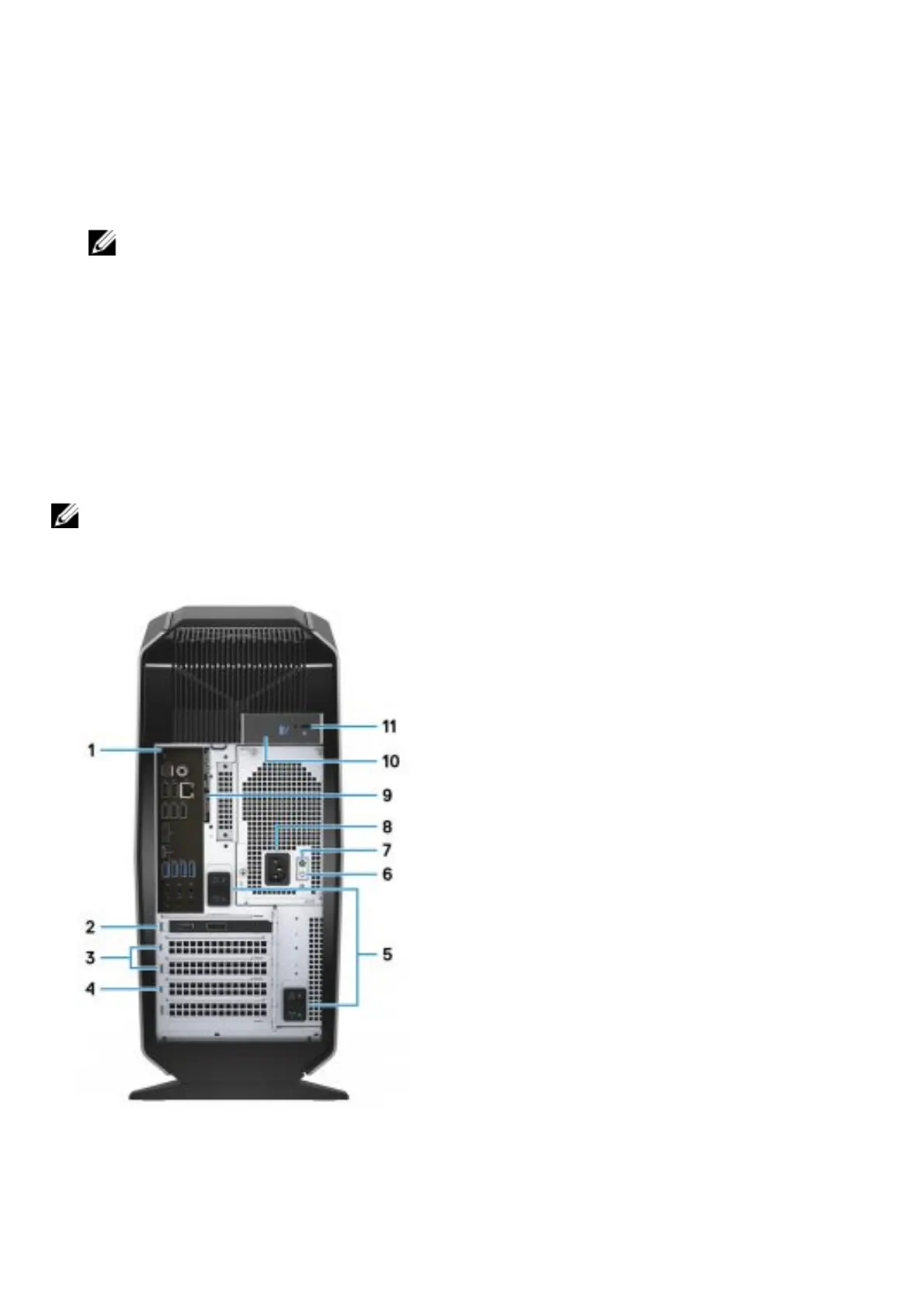
1. Back panel
Connect USB, audio, video, and other devices.
2. PCI-Express X16 (graphics slot 1)
Connect a PCI-Express card such as graphics, audio, or network card to enhance the capabilities
of your computer.
For optimal graphics performance, use a PCI-Express X16 slot for connecting the graphics card.










 To Next Page