14 │ Alienware Control Center
Delete
a macro
1. Drag the macro you want to delete.
2. Drop it on the Delete macro button
. The macro is deleted.
Key Mapping
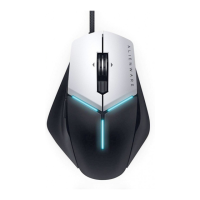
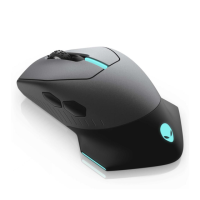
NOTE: This option is only available for gaming mouse.
1. Click Switch primary and secondary buttons to switch the button
functions of your mouse.
2. Select a function or game on the list box. The corresponding gesture for
the selected key is displayed.
3. Drag the selected gesture and drop it to the image of the key displayed
on the screen.
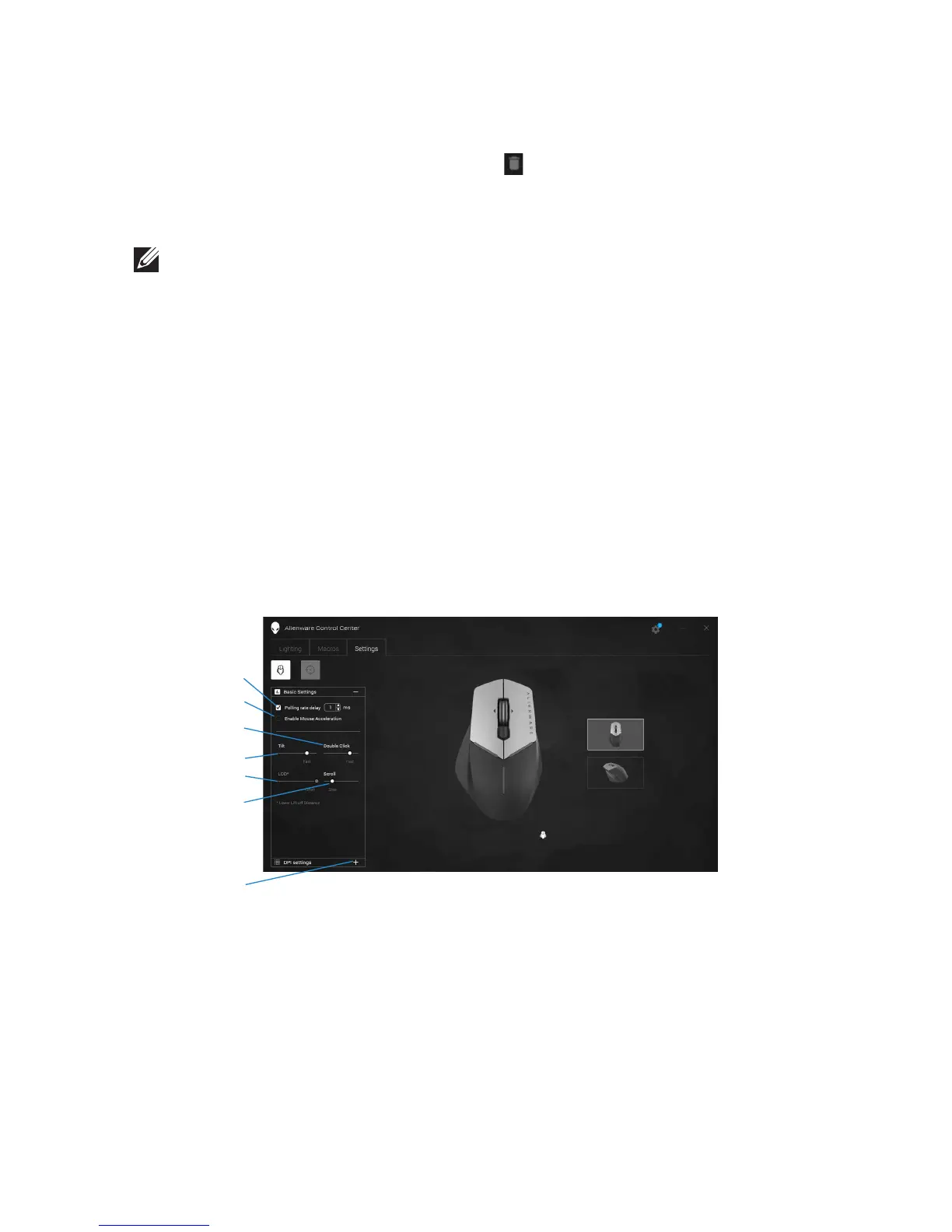
Configuring the Settings
The Settings tab allows you to customize the settings on your Alienware gaming
device.
2 Mouse acceleration
4 Double click slider
6 Scroll slider
1
2
3
4
5
6
7
1
Polling rate delay
3 Tilt slider
7 DPI settings


 To Next Page