■ KEYBOARD LAYOUTS
To change the keyboard layout, press Option-x-L (this com-
mand works in stand-alone mode only, not when the Alpha-
Smart is attached to a computer). You will see four choices:
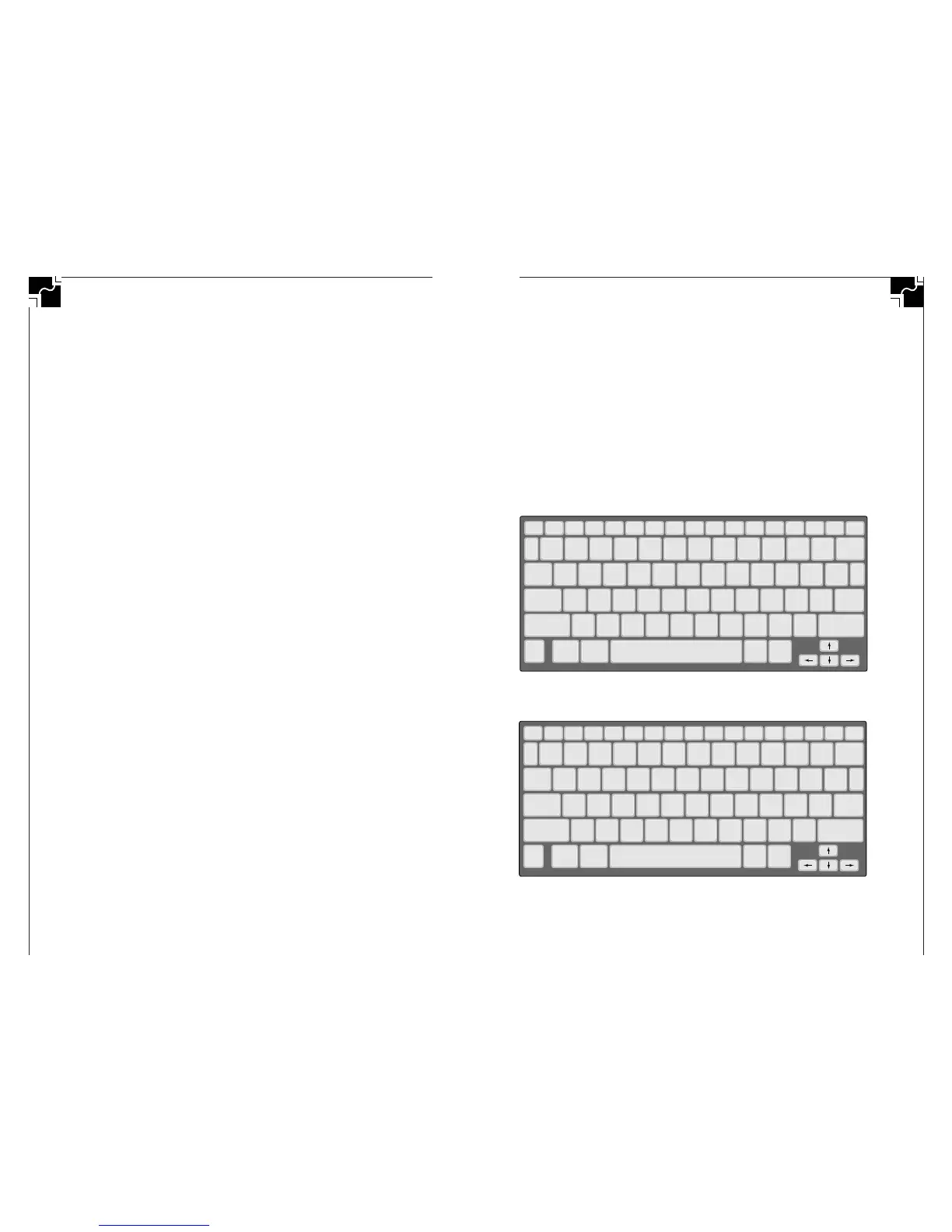
• Pressing 1 chooses QWERTY—the standard default
layout of most keyboards and typewriters (see Figure 7).
• Pressing 2 sets the keyboard to Dvorak. Dvorak is a scientif-
ically-designed key layout which requires much less finger
reaching and stretching for the most commonly used keys,
and results in faster and easier typing (see Figure 8).
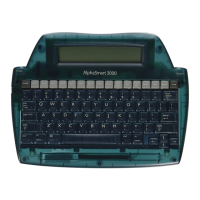
AlphaSmart 2000
25
If you are using a Mac, you can significantly speed up the trans-
fer of data (approximately 6 times faster) by using TurboTransfer
software (see details under TurboTransfer software).
Send speed for Mac
• 1.25 pages per minute (set at speed 4, sending to Apple-
Works on a Power Mac).
• With TurboTransfer, 8 pages per minute.
Send speed for PC
• 3 pages per minute (set at speed 4, sending to Windows
Write, on a 486).
■ ALPHASMART FIND FEATURE
To access the AlphaSmart Find feature, press the Find key or
x-F. You will see a screen that says:
Find:_________
Press Return to search in file 1,
option-Return to search in all files,
CMD-G to Find again, Esc to exit.
At the cursor, you may enter up to 16 characters. The search
is not case sensitive, so if you are looking for “CAT” and
type in “cat”, the search will find cat, CAT, Cat, or caT. It
will also find partial words or characters embedded in other
words. For example, if you searched for “cat”, it will also
show you “catalog.”
If you press Return after entering your search text, it will
search in the current file only. If you press Option-Return, it
will search in all eight files. However, if password protection is
activated, the Option-Return command cannot be used and
you can only search in the current file. When a string is found
in a different file than the one currently displayed, it will open
that file and put a cursor at the end of the string it found.
After the text is found once, you may continue the search
by pressing
x-G. The next occurrence will be displayed or
the message String NOT found will be displayed. (
x-G does
not bring up the Find dialog screen—unless you haven’t ever
entered search text.)
24
AlphaSmart 2000


 To Next Page