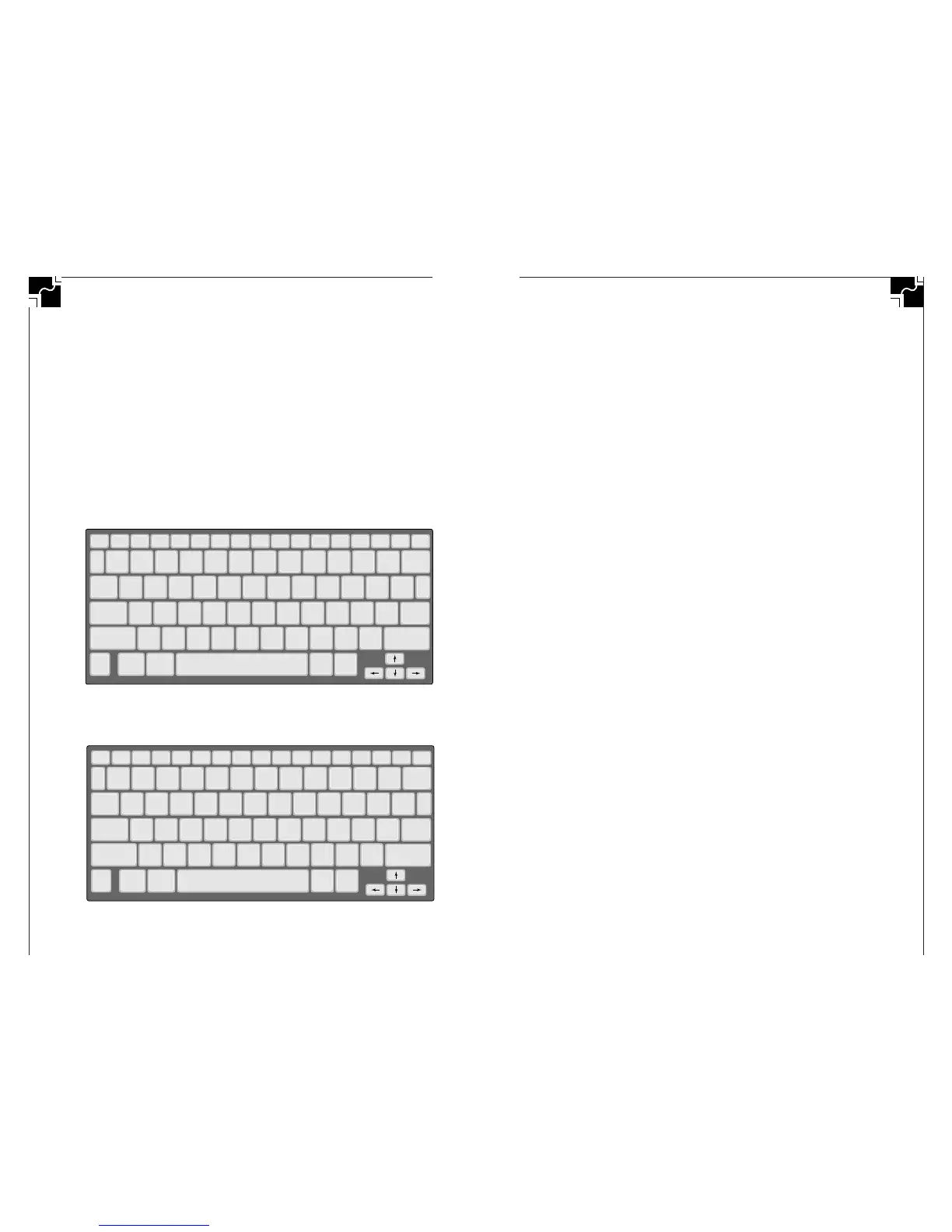
• Choosing 3 sets the keyboard layout for right-hand only,
and selecting 4 sets the keyboard for left-hand only. Right
and left one-handed layouts enable faster typing for
people with disabilities (see Figures 9 and 10).
When the AlphaSmart is turned on, a message is displayed
stating the current layout option—if other than the default
QWERTY layout.
Note: When key layout changes, all command keystrokes use the
default QWERTY location for the key. For example, if the layout
is currently set to Dvorak, you still press Option-
x-L, where L is
the QWERTY location of L, not the Dvorak location. (Note: this
command works in stand-alone mode only, not when the Alpha-
Smart is attached to a computer.)
AlphaSmart 2000
2726
AlphaSmart 2000
Also, international characters use the QWERTY location for the
letters and their accents. For example, to generate an é you press
Option-e, using the QWERTY location for e, regardless of the
current keypad setting.
Note: AlphaSmart keys are removable and may be popped off and
repositioned to match the new layout you choose.
KEYTIME
®
has effective training materials for learning to
type on the standard, Dvorak, right-handed, left-handed,
and single-digit keyboards. In addition, KEYTIME
®
has clear
stickers to relabel keyboards and key-cap pullers to rearrange
keys for alternative keyboard users. Contact KEYTIME
®
, Inc.
at (206) 522-TYPE for more information and prices.
■ SPECIAL EDUCATION NEEDS
AutoRepeat/Key Repeat Control
With Key Repeat Control enabled, only one character prints
per keystroke. For example, if you hold down the letter “a”
key for an extended period of time, you would expect to see
the letter continually repeat itself on your screen (“aaaaaaa”).
However, with Key Repeat Control enabled, you would
obtain just one “a”, regardless of how long the key was held.
The AutoRepeat function can be disabled or enabled by
pressing Option-
x-K to get to the AutoRepeat/Sticky Keys
control screen, and then pressing 1 (this command works in
stand-alone mode only, not when the AlphaSmart is
attached to a computer).
Sticky Keys
To enable the Sticky Key function, press Option-x-K and
then 2 to either enable or disable Sticky Keys(this command
works in stand-alone mode only, not when the AlphaSmart
is attached to a computer).
With Sticky Keys enabled, you can type combination key-
strokes without actually pressing the keys simultaneously.
For example, you could press Option-
x-S individually in
order (instead of as a group) to get to the AlphaSmart Trans-
fer Speed menu.


 To Next Page