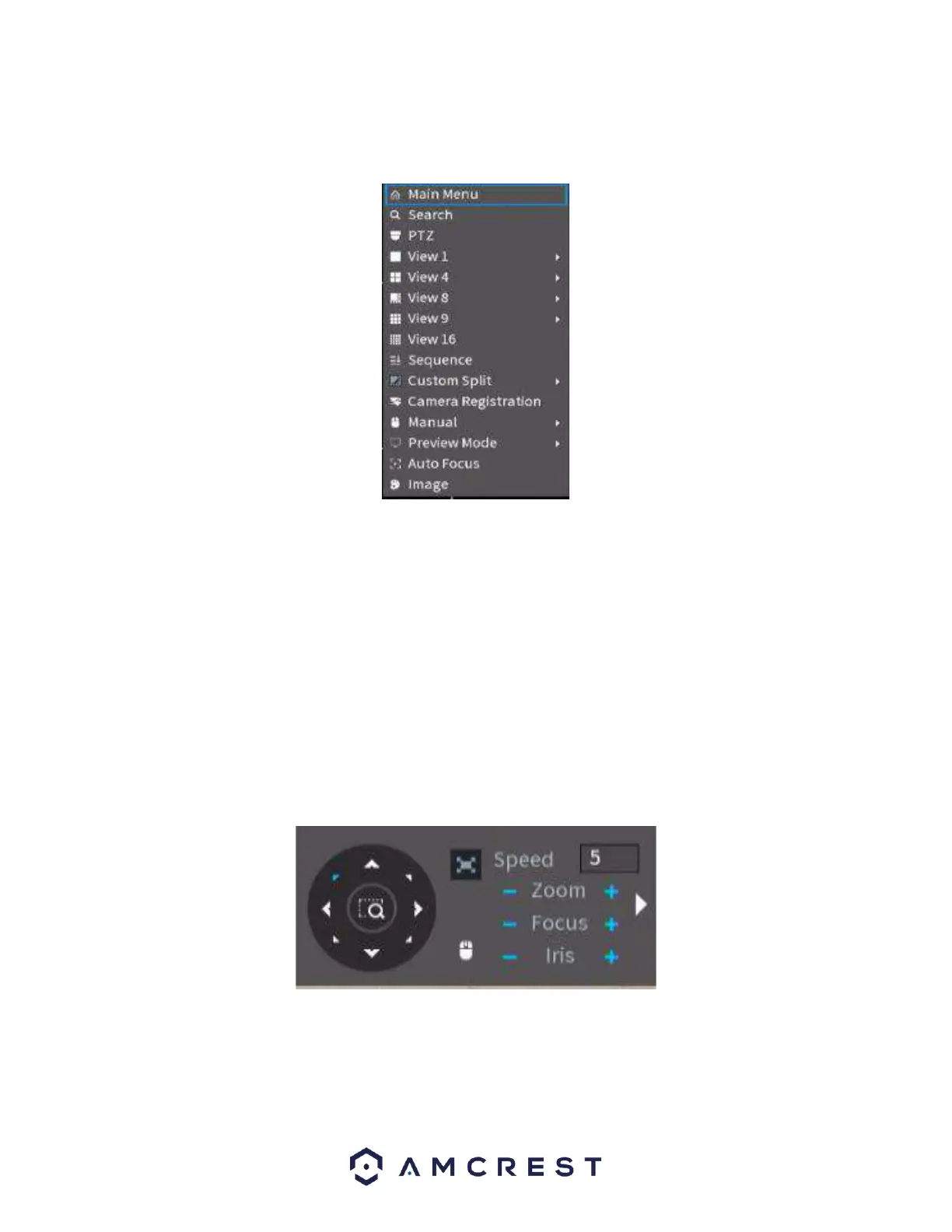
Shortcut Menu
To access the shortcut menu for the device, right click on the video wall screen to access the shortcut
options menu.
Main Menu: Click this option to exit the video wall and access the main menu options the NVR.
Search: Click this option to access the playback interface.
PTZ: Click this option to access the pan/tilt/zoom interface. Please note, this option is only applicable if a
PTZ device is connected to the NVR. PTZ allows you to control the PTZ direction, speed, zoom, focus, iris,
preset, tour, scan, pattern, aux function, light and wiper, rotation, etc.
Full Screen: Click the full screen option to display a selected feed in full screen.
Speed: Controls the PTZ movement speed. Its values can range from 1, being the slowest, and 8 being the
fastest.
Zoom: Use the “+” and “-“icons to zoom in or zoom out on the interface.
Focus: Use the “+” and “-“icons to focus the image.
Iris: Use the “+” and “-“ icons to control the iris behavior of the camera.
PTZ Trace: Provides the ability to store a sequence of camera movements as a preset.
In the middle of the eight direction arrows, there is a 3D intelligent positioning key. Please make sure
your protocol supports this function and you need to use the mouse to control it. Click this key and the
system goes back to the single screen mode. Drag the mouse in the screen to adjust the section size. The
dragged zone supports 4X to 16X speeds. The smaller zone you dragged, the higher the speed.



 To Next Page