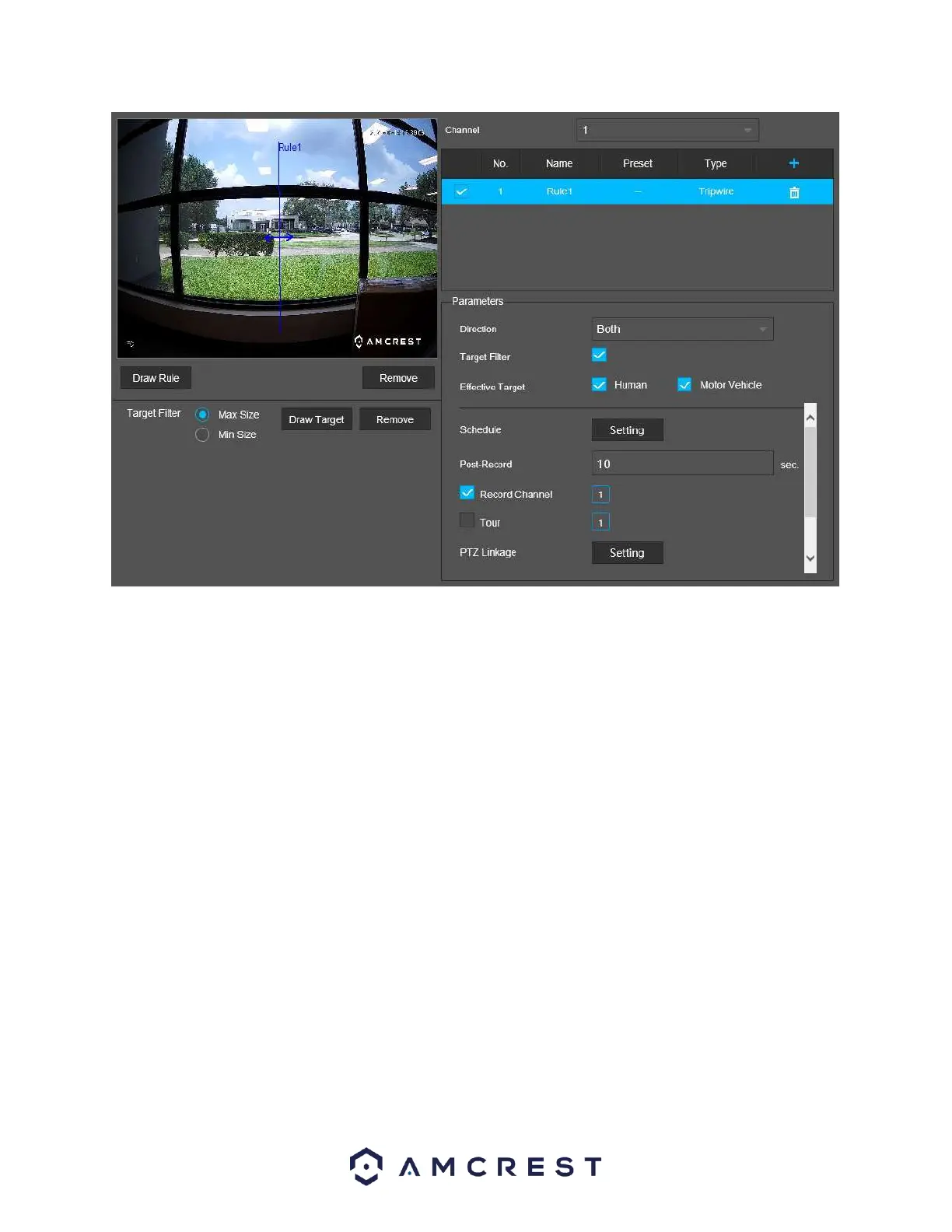
The Target Filter option is used to set a minimum or maximum detection area. It is recommended to leave
this as default; however, it can be modified. Use the Clear (trash can) icon to remove a drawn area or line.
The effective target options allow object filtering options which allow you the ability to determine if a
human or vehicle has entered the area. If a person is chosen, the rule will only be triggered if a human
figure is detected. If Vehicle is chosen, the rule will only be triggered if a vehicle is detected by the system.
Both object filtering options can be used simultaneously if needed.
5. If you would like to add multiple rules to the device, click on the “+” icon and repeat the IVS setup
process for the rule. Click Save once all IVS rules are set.
Viewing IVS Data
Any IVS data retained on the system can be viewed using the IVS AI Search interface or using the playback
menu if an IVS schedule is set in the system.
1. To view IVS data using AI search, click on the IVS option located in the AI Search menu. Enter a start and
end time of the event and click Search. A layout of all IVS events will be displayed. To view the event,
select the event from the interface and click the play icon.



 To Next Page