Send Email: This checkbox allows the user to enable the system to send an email when a motion detection
alarm is triggered.
To reset to default settings, click the Default button. To refresh the page, click the Refresh button. To save
the settings click the Save button.
Abnormality
This screen is used to specify system action in the case of either hard drive abnormality, or network
abnormality.
Disk
This screen allows the user to specify actions that occur when there is an abnormality with the NVR’s
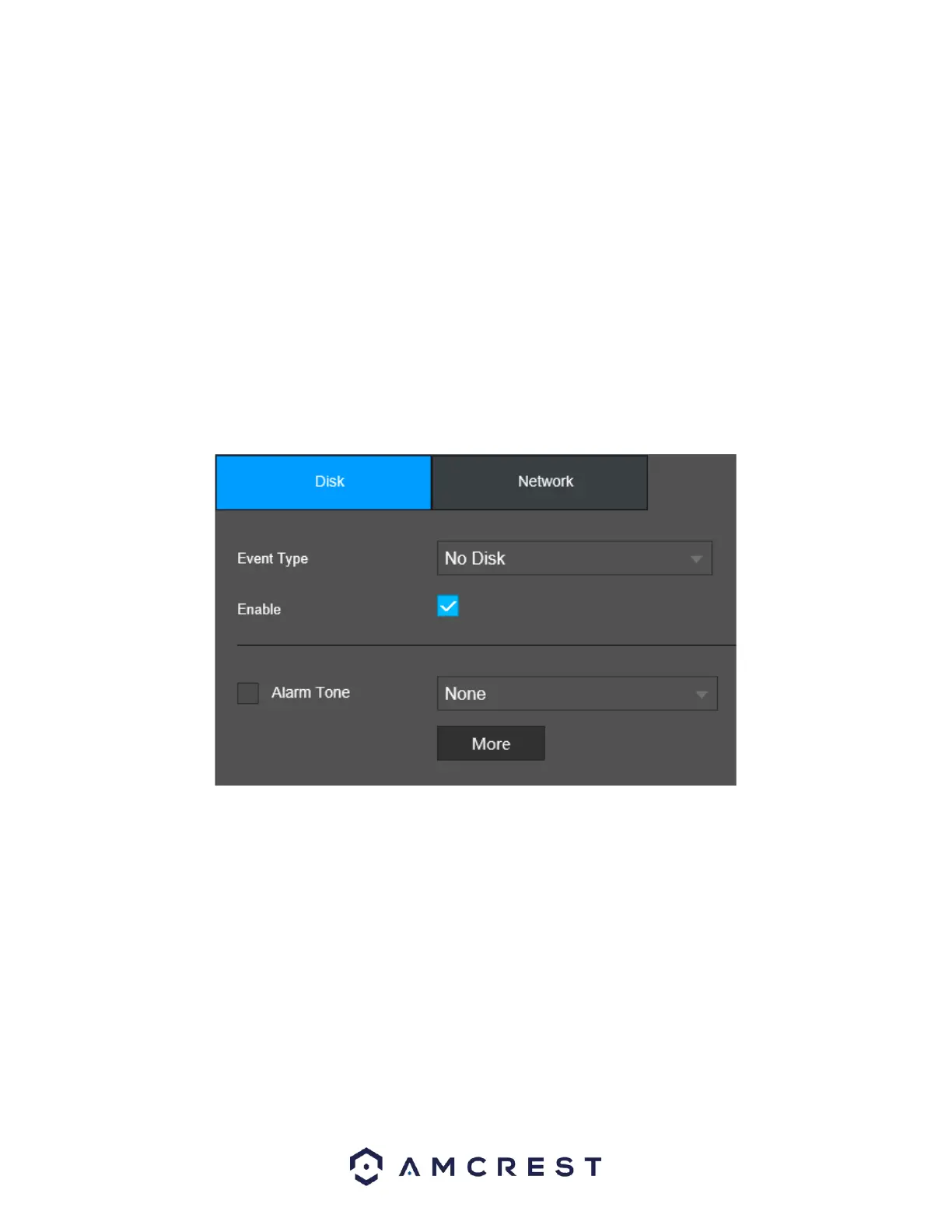
hard disk drive (HDD). Below is a screenshot of the HDD abnormality settings screen:
Below is an explanation of the fields on the HDD abnormality settings screen:
Event Type: This field allows the user to specify which HDD abnormality event type they would like to
configure settings for.
No Disk: No hard drive is detected.
HDD Error: The hard drive has an error.
Low Space: The hard drive is about to or has run out of space.
Enable: This option allows the user to enable the features below for the specified event type.
Alarm Tone: Check this box to enable an imported voice prompt to be used if an event occurs. To use
this feature, select a file from the dropdown box in the File Name section.
More: Allows the user to access other detection options.
Show Message: This checkbox allows the user to enable the system to show an on-screen message
when an HDD abnormality occurs.
Buzzer: Check this box to enable a buzzer to be sound on your device if an event occurs.
Log: Check this box to enable a log of the abnormality to be retained into the system.



 To Next Page