45
2023_001
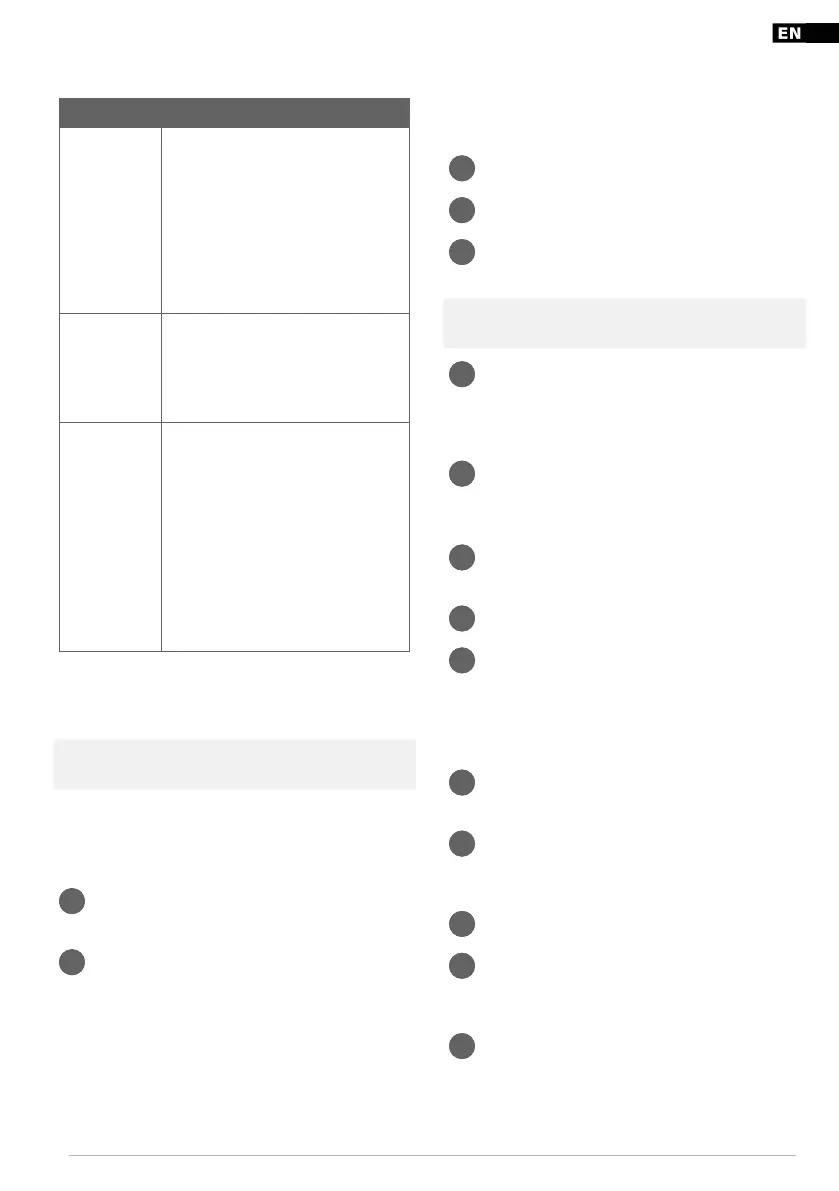
4.2.1 Modes guide
Mode Description
Intelligent
mode
Target humidity level and fan speed are
adjustable. The fan and compressor will
start to operate when the environmental
humidity level is above the target
humidity level + 3%, and stops when
the environmental humidity level is
below the target humidity level - 3%.
The intelligent mode indicator lights
blue.
Continuous
mode
The product operates continuously with
high fan speed. The target humidity
level can not be set.
The continuous mode indicator lights
red.
Sleeping
mode
The fan speed is low, and the target
humidity level is adjustable. In default
mode the fan and compressor will start
to operate when the environmental
humidity level is 63%, and stops when
the environmental humidity level is
57%.
The sleeping mode indicator lights
green, all other indicators is dark.
Touch any button to wake the indicators
up.
4.2.2 Fan speed
Push the fan speed button to select high fan speed or low
fan speed. The high or low fan speed indicator will light up.
Note! The fan speed is not adjustable during continuous
mode, sleeping mode, or the defrosting period.
4.2.3 Timer
Push the timer button to start the product when it is in
sleeping mode or to stop the product when it operates.
1 Push the timer button to set the timer function. The
hour range of the product is 024 hours.
2 Push the minus or add buttons to adjust the hours.
4.2.4 Child lock
Push and hold the child lock button for 3 seconds to start or
stop the child lock function. When the child lock is activated
all buttons are locked.
4.3 To connect the product to the
Wi-Fi
The product can be operated through the application if the
home network has a permanent Wi-Fi connection. (Figure 4)
1 Install the application and create a user account.
2 Place the product close your router.
3 Push and hold the timer button to start the network
configuration. The Wi-Fi indicator flashes.
Note! If there is no network configuration, the status will be
canceled and the indicator light goes out after 3 minutes.
4 If you need to re-connect the Wi-Fi, push and hold
the timer button for 5 seconds to start the network
configuration. The Wi-Fi indicator starts to flash
again.
5 Connect the product to the Wi-Fi.
4.3.1 Method 1 to connect the product to the Wi-Fi
1 Make sure that the Wi-Fi indicator on the product
flashes.
2 Open the bluetooth on a mobile phone or other unit.
3 Open the application. The product will be
automatically connected to the Wi-Fi.
4.3.2 Method 2 to connect the product to the
Wi-Fi
1 Make sure that the Wi-Fi indicator on the product
flashes.
2 Go to “Add device” on a mobile phone or other unit
and choose the product in the list of devices to
connect.
3 Follow the instructions on the display.
4 Do a check of the Wi-Fi indicator on the product. If
the Wi-Fi indicator flashes rapidly, the product
connects to the Wi-Fi.
5 If it the Wi-Fi indicator flashes slowly, go to ”Go to
connect” and choose the product in the list of
devices to connect.


 To Next Page
 Loading...