21
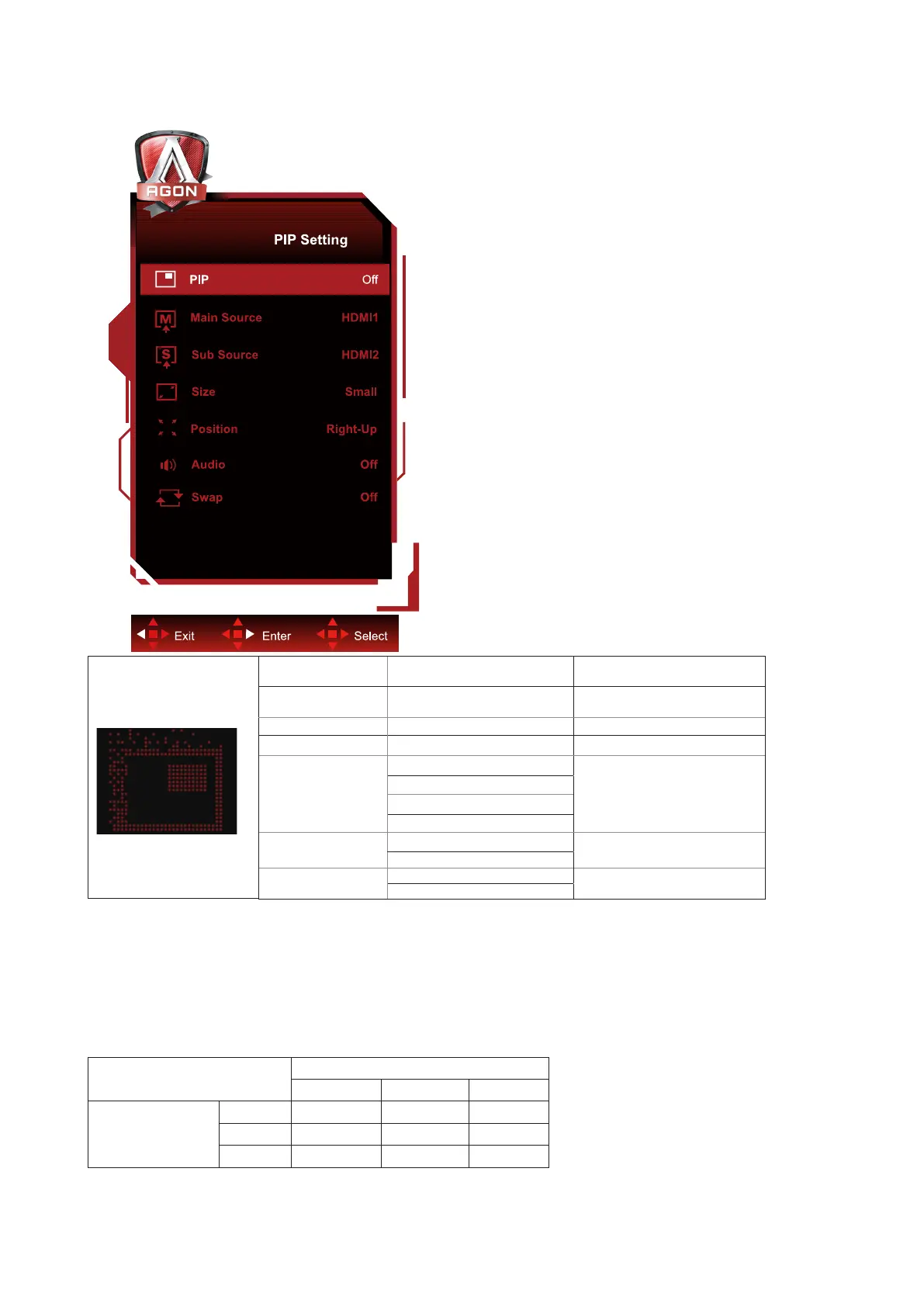
PIP Setting
PIP Off / PIP / PBP
Disable or Enable PIP or
PBP.
Main Source
Select main screen
source.
Sub Source Select sub screen source.
Size Small / Middle / Large Select screen size.
Position
Right-up
Set the screen location.
Right-down
Left-up
Left-down
Audio
On: PIP Audio
Disable or Enable Audio
Setup.
Off: Main Audio
Swap
On: Swap
Swap the screen source.
Off: non action
Note:
1)When “HDR” under “Brightness” is set to non-off state, all items under “PiP Setting” cannot be adjusted.
2)When PIP/PBP is enabled, some color-related adjustments in the OSD menu are valid only for the main
screen, while the sub-screen is not supported. Hence, the main screen and the sub-screen may have
different colors.
3)Set the input signal resolution to 1720X1440@60Hz at PBP to achieve the desired display effect.
4)When PBP/PIP is enabled, the compatibility of the main screen/sub-screen input source is shown in the
following table:
PBP/PIP
Main source
HDMI1 HDMI2 DP
Sub source
HDMI1 V V V
HDMI2 V V V
DP V V V


 To Next Page