Official Support: kt.support@apemans.com
MAC:
1. Insert the SD card into your computer. You may need a card reader
for this.
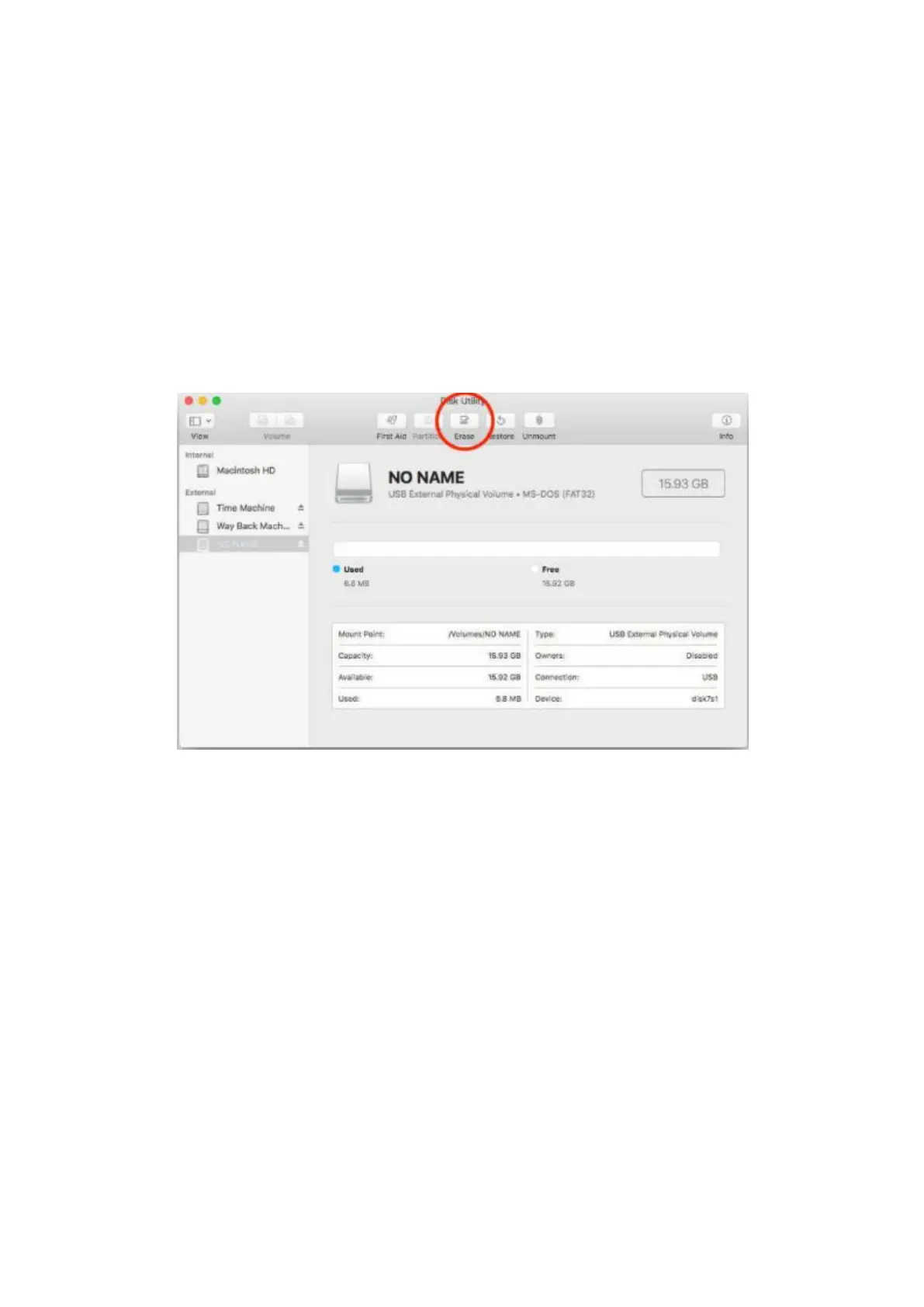
2. Open Disk Utility. To do this, click on the magnifying glass in the
top-right corner of your computer screen. Type “disk utility” in the
search box that opens, then click on the “Disk Utility” application that
comes up.
3. Find the card in the left side of the window.
4. Click the ERASE tab in the middle of the window.
C. How to format the SD card on the Dash Cam
If this SD card is not used for the first time, you can simply format it
on the Dash Cam for your convenience. Although formatting the SD
card on your computer is recommended for better results.
Follow the instructions below.
1. Insert the microSD card into the Dash Cam. Please only insert the
card into the slot before turning on the Dash Cam.
2. Turn on the Dash Cam and make sure it is not recording at the
time.
3. Press the menu button twice to enter the System Settings.
4. Press the DOWN button to scroll down the menu until you see the


 To Next Page