8 USB DATA COMMUNICATION
The instrument uses PC-Link software for data communication through USB connector and cable.
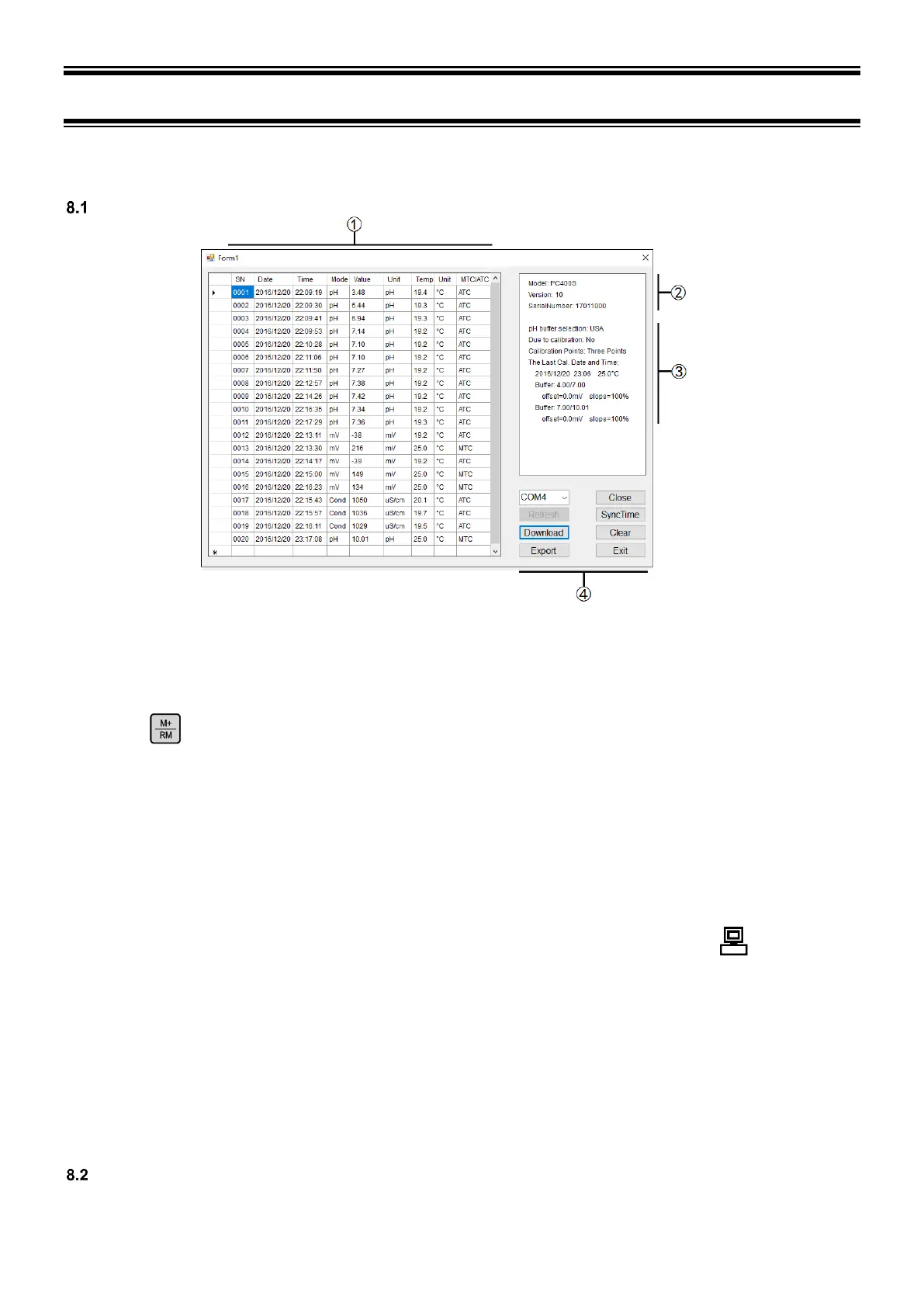
Software Interface
① — Stored data
(a)Press “Download” Key to upload the data in the meter to the software, including date, time, measurements,
temperature, and temperature compensation mode. The program will categorize the data by pH, mV, and Cond.
(b)Press after the meter is connected to the computer, or set up auto timing storage function. In this case,
all the measuring data will be uploaded to the software, and will not be stored in the meter.
② — Model and Numberings
③ — Calibration information
④ — COM Port #and other buttons
COM Port # is the number for the software to connect with the computer. Every computer’s COM port is different.
In Figure-13, the COM port # is COM4.
Open/Close — Click it to turn on/off the program. When turned on, the LCD will display
Refresh — COM port reset button; Click it to reset the COM port to COM1.
SyncTime — Click it to sync the computer’s time and date to the meter’s.
Download — Click it to upload the data stored in the meter to the computer.
Clear — Click it to clear all the data.
Export — Click it to export all the data to a Microsoft Excel file.
Exit — Click it to exit the program.
Install the software
The PC-Link software works for all Windows based system (does not work for Mac). Insert the PC-Link disk into the
computer, open the PC-Link folder where you will find the folder for PC-Link software and a zipped file for drivers.


 To Next Page