Click on the Devices tab, then the Core Audio tab. Uncheck Enabled, then re-check it.
4) In iTunes, stop then re-start audio playback.
!
Symptom: The touch buttons don't work consistently.
Solution: Be sure that the top panel protective film has been removed.
!
Symptom: Duet isn't recognized in System Preferences, Maestro or my DAW application.
Solution: Here are the steps, in order, to check if Duet isn't recognized:
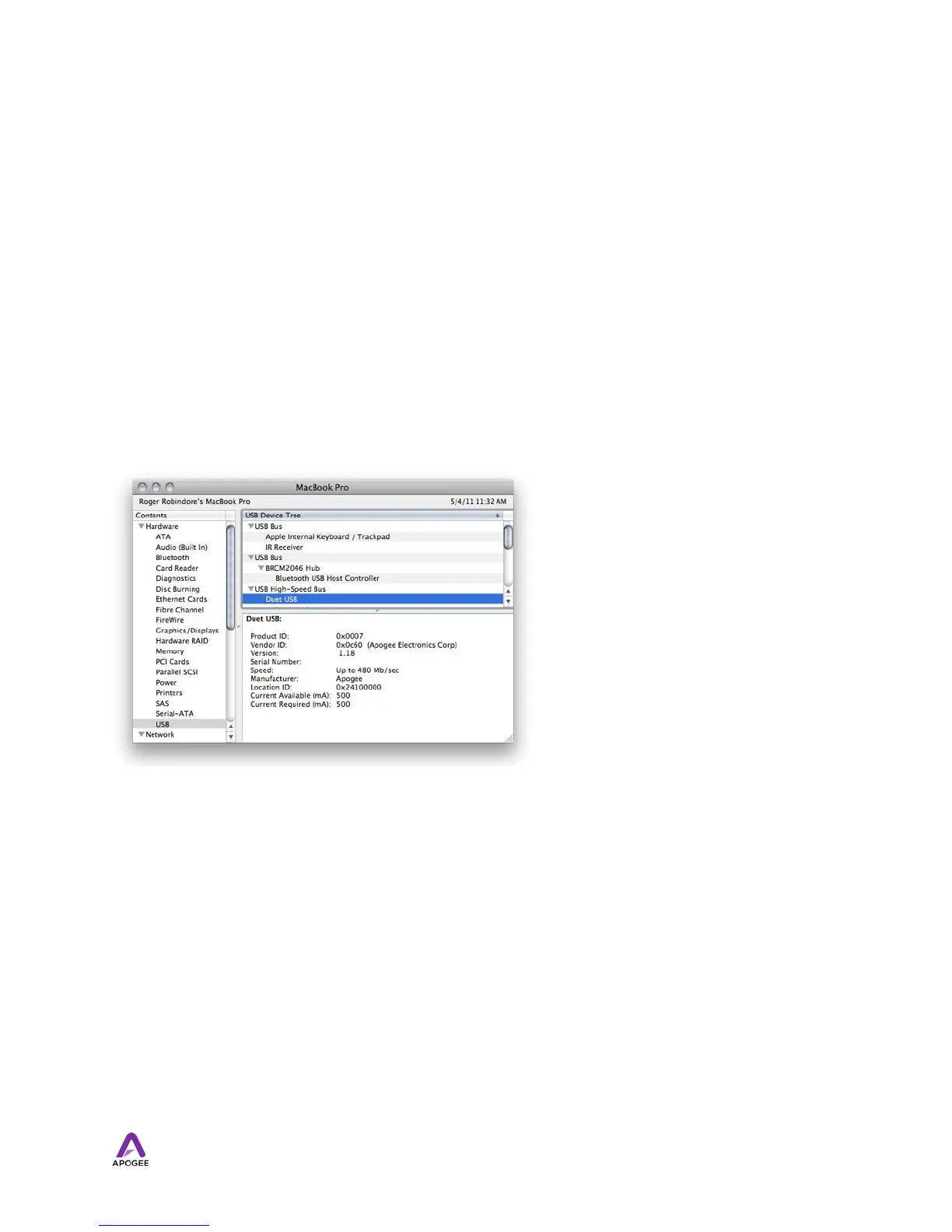
Open System Profiler by choosing About This Mac under the Apple menu and clicking
More Info…
In System Profilers Contents column, open the Hardware disclosure triangle and click
USB.
Find Duet USB in the USB Device Tree and click on it to display the device's properties.
Verify that the properties are the same as shown below:
If Duet 2 doesn't appear in the USB Device Tree
1) hotplug Duet
1) try a different USB cable or try a different USB port on your Mac.
If the Version shown in System Profiler doesn't match the Version shown above, run the
Duet 2 Software Installer.
56



 To Next Page