50
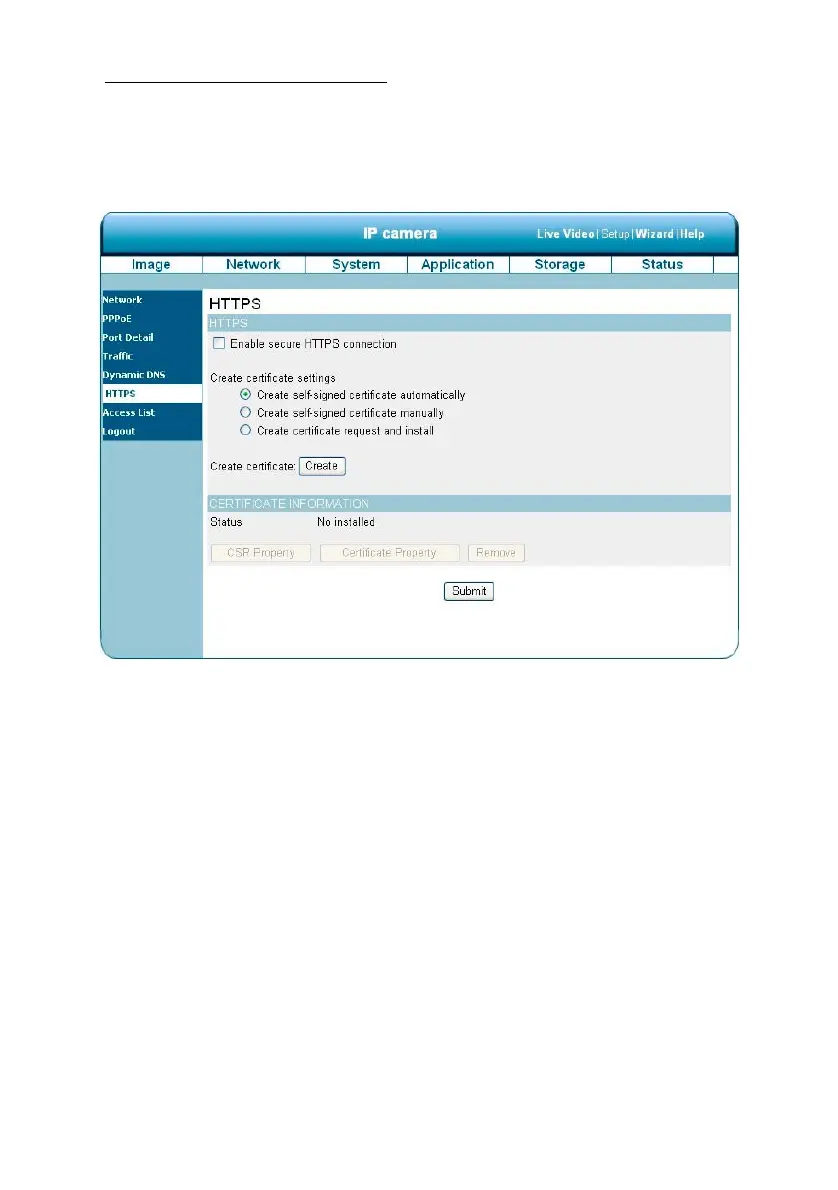
Change the Network Setting — HTTPS.
The “Network” page has, on its upper left, the “HTTPS” icon. Please follow the steps below to change the
HTTPS setting through the network as necessary.
1. Click on the HTTPS button on the upper left menu to enter the “HTTPS Setting” page.
2. Mark the “Enable HTTPS secure connection” to activate the function.
3. Click to select the “Create certificate method” from “Create self-signed certificate automatically”,
“Create self-signed certificate manually” and “Create certificate request and install”.
4. Click “Create” to save the create certificate settings.
5. The Certification Information will show below.
6. Click “CSR Property” to see the Certificate Signing Request information.
7. Click “Certificate Property” to see the Certificate information.
8. Click “Remove” to remove the created certificate.
9. Click on the Submit button to submit the new setting.
NOTE: The certificate cannot be removed while the HTTPS is still enabled. To remove the
certificate you must first uncheck Enable HTTPS secure connection.



 To Next Page