19
OSD Menu User Guide - 1.6 Media Source Menu
Please Note: Before operating the Media menu, Plug in the USB device then press the INPUT button to set the
Input Source to Media.
Press ▼ / ▲ buttons to select Media in the Source menu, then press the OK button to enter.
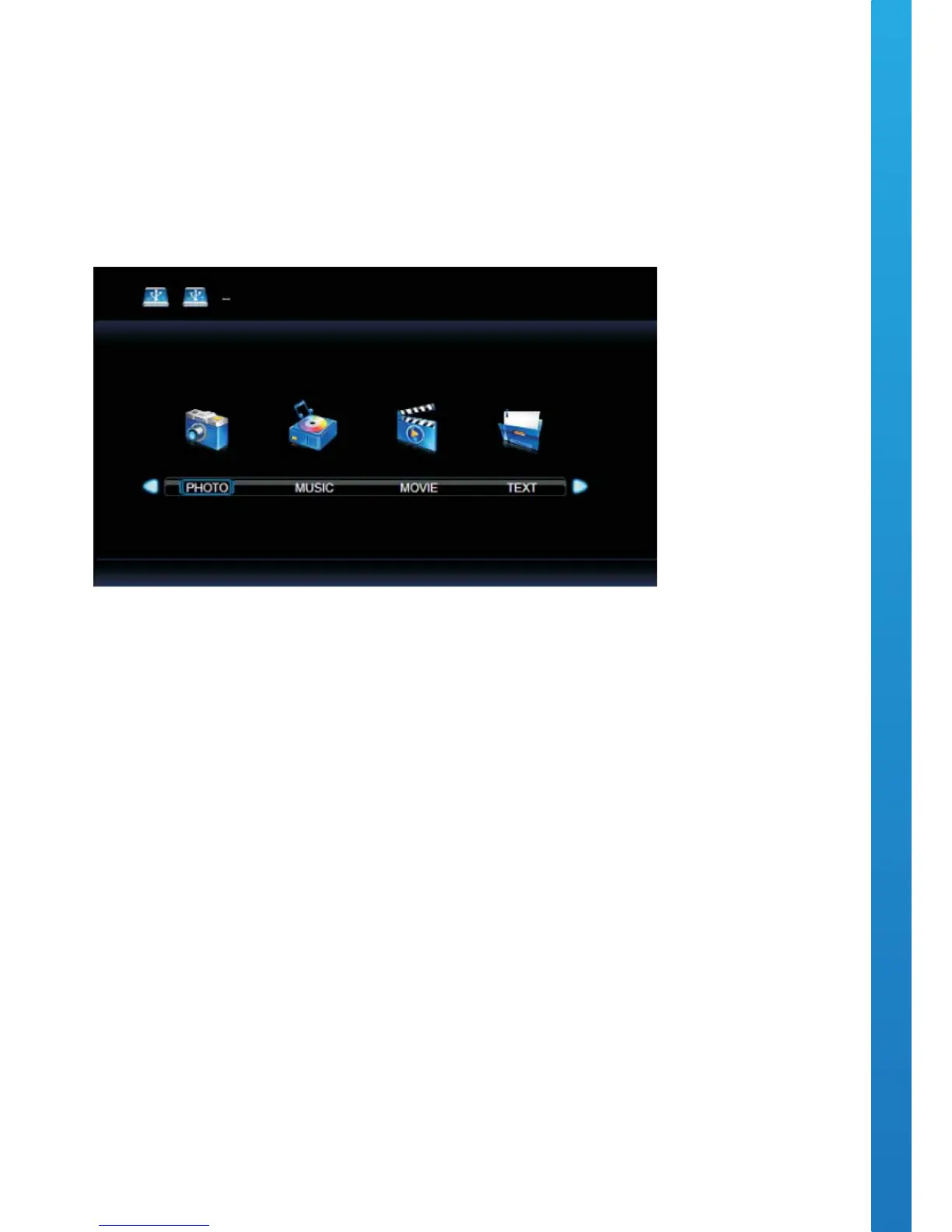
Press ◄ / ► buttons to select the option you want to adjust in the main Media menu, then press the OK
button to enter.
PHOTO MENU
Press ◄ / ► buttons to select PHOTO within the main menu, then press the OK button to enter.
Press the menu button to return back to the previous menu and exit menu to quit.
Press ◄ / ► buttons to select the drive disk you want to watch, then press the OK button to enter.
Press ◄ / ► buttons to select RETURN, to go back to the previous menu.
Press ◄ / ► buttons to select the le you want to open. When highlighting the option you want to select the
le information will appear on the right hand side and the picture will be appear in the center of the screen.
Press ◄ / ► buttons to select the folder you want to search for in the le by selecting menu, then press the
red button or OK on your remote controller to enter the sub-menu.
Press ◄ / ► buttons to select the picture you want to delete in the le by selecting menu, then press the red
button on your remote controller and press the OK button to delete the picture.


 To Next Page