View Your Content
22
Look Back Video
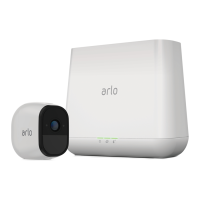
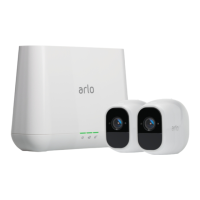
When plugged in, your Arlo Pro 2 camera uses a prebuer to record the three
seconds before motion is detected. Your motion-triggered video recordings start
before the motion happens, so you don’t miss a thing. Prebuering also oers lower
latency than ever between motion detection and the start of video recording.
¾ To set up your camera to record Look Back video:
1. Plug in your Arlo Pro 2 camera.
2. Make sure that the camera is using a motion-detection mode such as Armed.
3. Subscribe to a CVR plan.
When the camera detects motion, it records the three seconds before the motion
happened.
Record Clips From Live Video
¾ To record clips from live video:
1. Tap the Arlo icon on your mobile device.
If you are using a computer, enter arlo.netgear.com in the address bar of a
browser.
The Devices page displays.
2. Tap or click Live in the camera feed image.
The camera feed icons display at the bottom of the camera feed image.
3. Tap or click Record Video .
This icon turns red to indicate that you are recording the live feed.
4. To stop recording, tap or click Record Video .
The recording is saved in your library.


 To Next Page