Troubleshooting
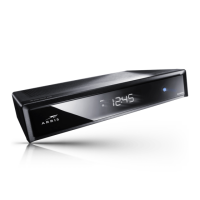
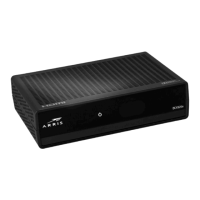
High-Definition All-Digital Dual Tuner DVR Set-top DCX3510-M • User Guide 44
365-095-25384-x.1
Problem Possible Solution
There is no video on
the TV screen
• Verify that the TV is powered on and set to the appropriate input source for the DCX
set-top.
• Verify that the DCX set-top is powered on and tuned to an authorized cable channel.
• Verify that all video cables between the DCX set-top and the TV are firmly connected.
• Verify that the coaxial cable feed is firmly connected to the DCX set-top and the wall
jack.
• If the DCX set-top video output is connected to a home theater unit, verify that the
home theater unit is powered on and set to the appropriate input source.
• If the DCX set-top video output is connected to a TV through an HDMI connection,
power off the TV and then power off the DCX set-top. Wait one second and then
power on the devices.
• Not all HDTVs can display every output format (1080p60, 1080p30, 1080p24, 1080i,
720p, 480p, or 480i) available on the DCX set-top. To select a different format:
1. Ensure that your DCX set-top is plugged into a power outlet and is turned off.
2. Press the MENU key on the remote control. Your settings are displayed on the DCX
set-top front panel display.
3. Press the ▲ and ▼ keys to display the HDMI/YPbPr OUTPUT setting.
4. Press the ► key to cycle through the available output formats until a picture displays
on the TV.
No graphics or
program guides appear
on the TV screen
If you use the IEEE-1394 connection, on-screen graphics, including closed captions and
program guides, are not displayed by the DCX set-top. On-screen graphics and captions
may still be overlaid by your TV, if enabled. Alternatively, use HDMI or component video
instead.
No closed captions
display
• Verify on the User Settings menu that closed captions are enabled on the DCX set-
top.
• Verify that closed captions are enabled on the TV.
Note: Closed captioning may not be available on the current program.
There are black bars to
the right and left of the
picture
Wide screen TVs display 4:3 programs in this format unless set to Stretch. Turn on the 4:3
OVERRIDE feature in the User Settings menu. This enables most wide screen TVs to
stretch the video to fill the screen (see your TV manual for information about stretching
4:3 video).
• If the DCX set-top is connected to a wide screen TV, verify that the TV TYPE is set to
16:9 in the User Settings menu.
Many HD programs are broadcast in pillar-box format with black bars to the left and
right of the picture. These programs are broadcast in 16:9 HD formats even though the
video is not 16:9.



 To Next Page