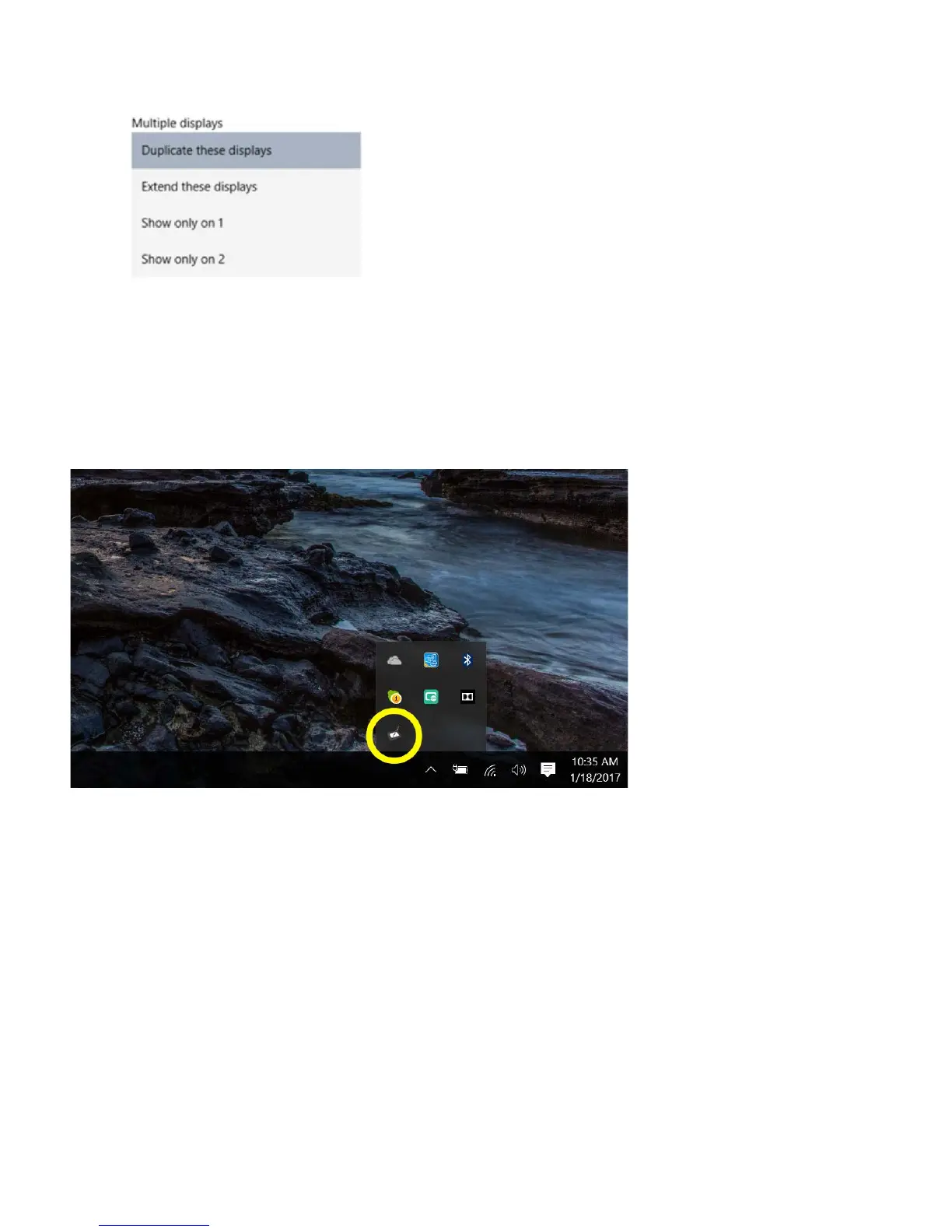
2. In Multiple Displays dropdown, change to [Extend these displays].
3. If your computer is equipped with more than one monitor, your ARTISUL pen display will map to
the monitors based on how they are configured in the DISPLAY PROPERTIES control panel.
4. After you have correctly configured your computer for multiple monitors, you can then adjust your
ARTISUL pen display mapping by opening the ARTISUL panel and changing the appropriate
options. This enables you to toggle the current ARTISUL mapping and screen cursor between the
system desktop or primary display and your other monitors.
Note: 11. Under the “Duplicate” display mode of the “Multiple Display” function, the display resolution of
your monitor must be set to the same resolution as your ARTISUL. Otherwise, your pen cursor will be
misplaced on the screen. For ARTISUL D13, please make sure the other monitor resolution is set to 1920 x
1080.


 To Next Page