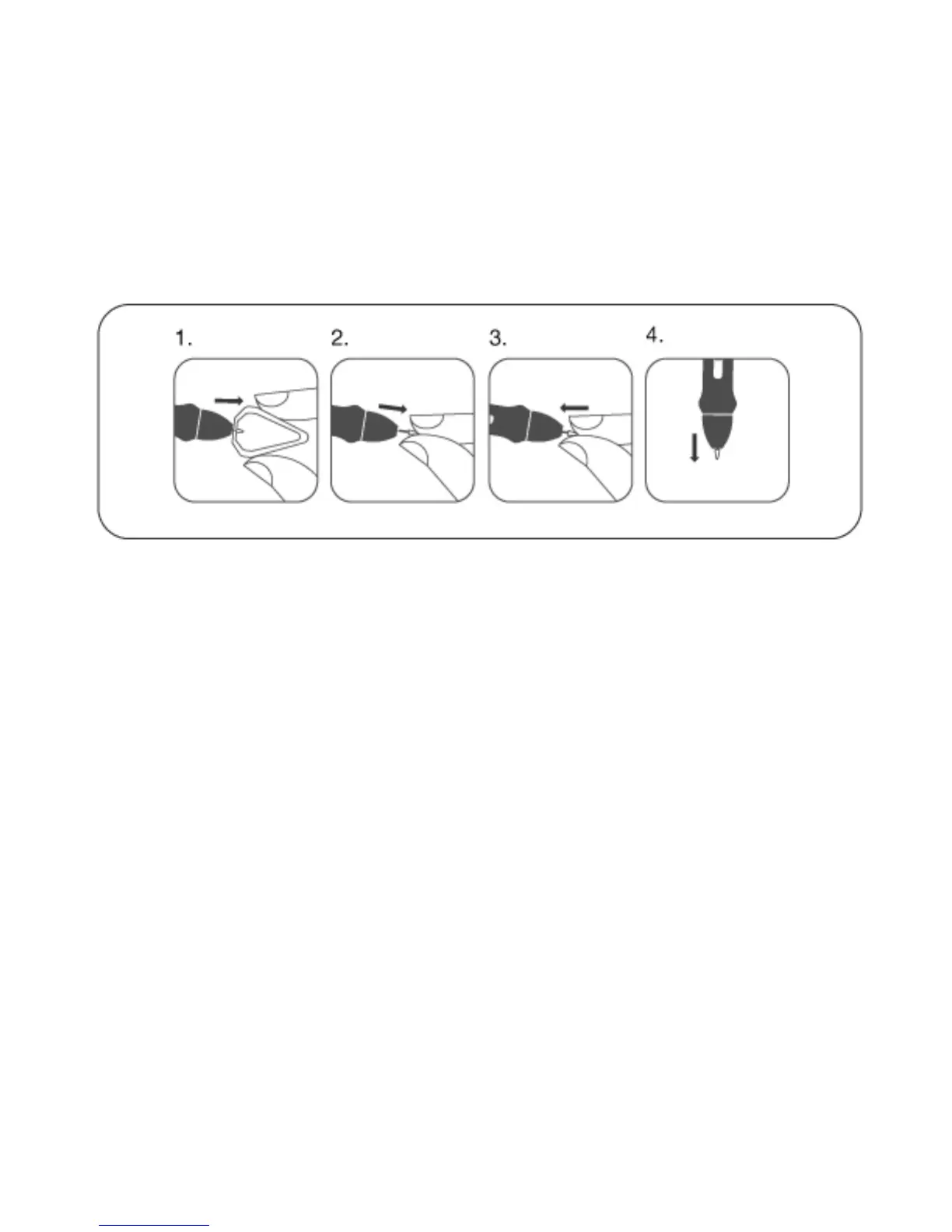
III. Changing the Pen Tip
1. You will need the pen case (D13), the pen nib storage case (D10), or the pen nib removal tool (D16).
2. For D13, pull out the pen nib from with nib remover device built into the pen case. For D10, use the
pen nib removal device in the pen nib storage case to pull out the pen nib. For D16, use the pen nib
removal tool to pull out the pen nib.
3. Push the new pen tip into tip into the U-Pen.
D16
IV. Taking care of your ARTISUL Pen Display
1. Keep the U-Pen and the ARTISUL LCD screen surface clean. Dust and dirt particles can stick to the
pen and cause excessive wear to the screen protector.
a. Wipe the LCD screen gently with a soft cloth.
b. Stubborn stains may be removed with a screen-cleaning cloth.
2. Keep cables neat and orderly. Overly bending the cables at the ends may cause damage to the
wires inside.
3. Keep the U-Pen in a safe place when not in use. A damaged pen may have adverse effects on
pressure sensitivity.
Note:
1. Unplug all ARTISUL cables before you begin cleaning your ARTISUL.
2. Never spray water or detergent directly on your ARTISUL. It may cause damage.
3. Never use strong solvent such as a thinner or alcohol for cleaning.
4. Never reverse or compress the ARTISUL cables and don’t bend it over 90∘. It may cause
damage to the cables.


 To Next Page