English
37
receiver can compute a position. Remember you may also
have to press the ESC button so that the map screen can
show the location of the first logged feature.
Georeferencing an Image File
Georeferencing an image file means defining at least three
reference points giving the position of the image in space.
Defining a reference point means entering its precise X-Y-Z or
Lat-Lon-Height coordinates depending on the coordinate
system used in the currently open job.
The larger the number of reference points you define, the
more evenly distributed these points over the entire image,
the better the georeferencing of the image.
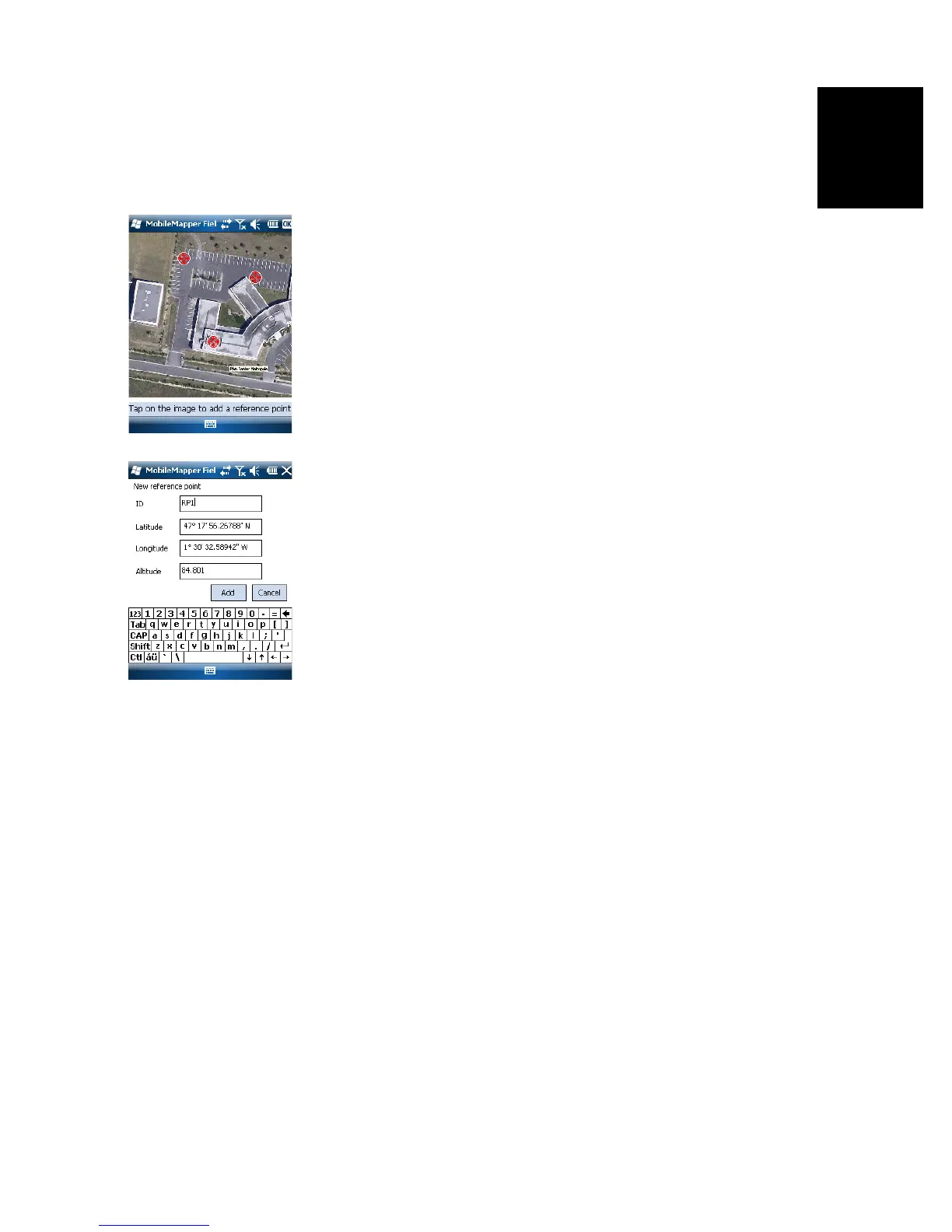
To georeference an image, do the following after adding it to
the list of available background maps:
• Select the name of the background map from the list.
• Tap on the Modify button.
• Find the point on the image for which coordinates are
known. Adjust the zoom setting and drag the stylus on the
image if necessary.
• Tap on the point location and then enter its ID and
coordinates. If you are currently standing at that location
and the receiver delivers a valid GPS position, you don’t
need to enter any coordinates. The receiver will do that for
you.
•Tap Add to enter and complete the definition of this point.
• Resume the previous three steps until all the reference
points have been defined. Each point on the map is
represented by a red circle. If this happens, you can
always delete a bad point by tapping on it and then
tapping on the Delete button.
•Tap OK to complete the georeferencing process. This takes
you back to the screen showing the list of background
maps.
More about Background Maps
• The background map will be displayed only when it is
geographically close to the computed GPS position and
the zoom is set properly.
• For large background maps, you may have to zoom in
several times before the map screen can start viewing
details of the background map.
• If a background map is not properly georeferenced, the
background map will never appear on the map screen, and


 To Next Page