English
40
the feature. By doing this, you will place the feature at the
center of the map screen.
Prerequisites
• The receiver is on and MobileMapper Field running.
• A Map job is used, which contains three SHP layers: a
point layer named “Points”, a line layer named “Lines”
and a polygon layer named “Areas”. All layers are set to
be seen on the map screen.
• The units used have been set to meet your requirements.
• The reception status is good (number of satellites>6,
PDOP<3)
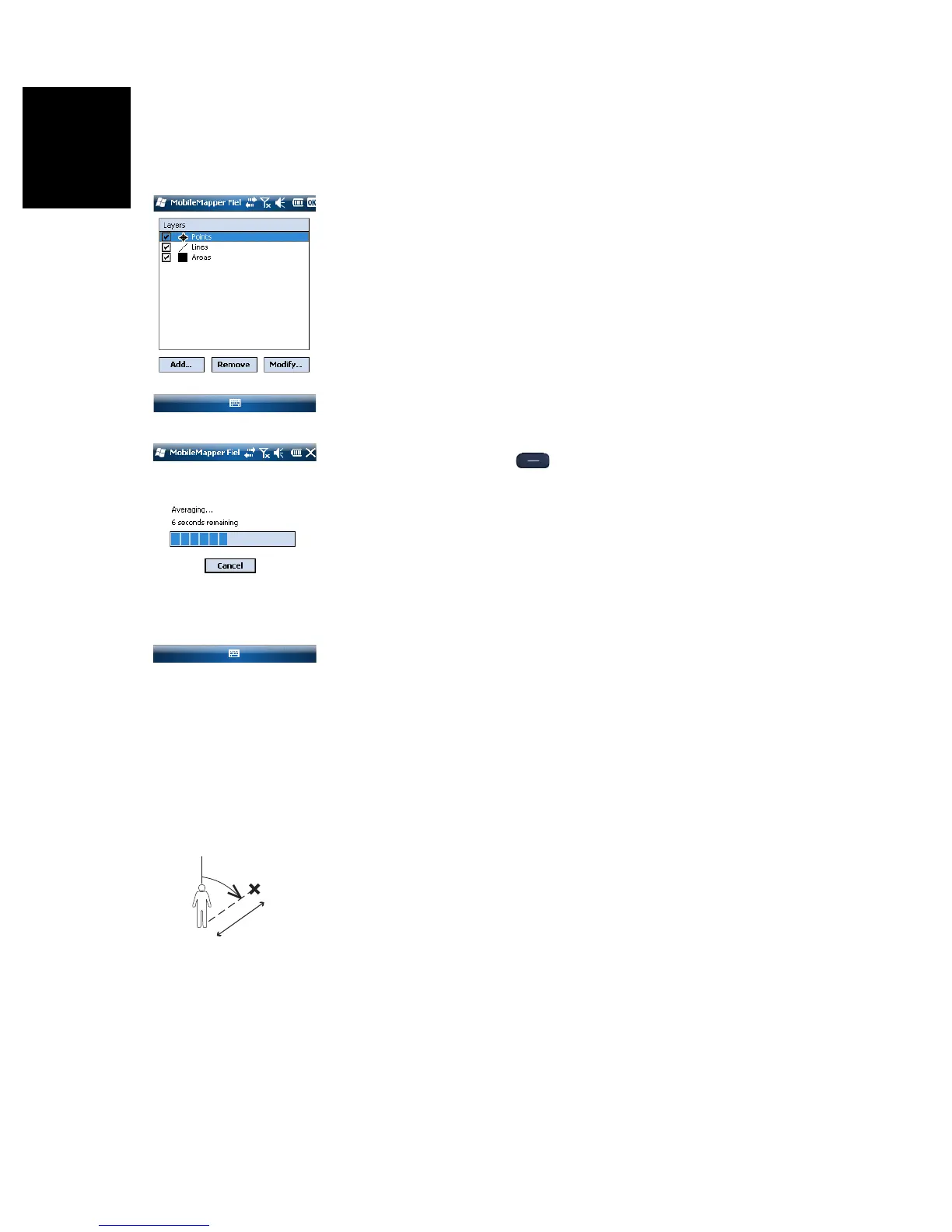
Logging a Point Feature
• Stand near the point you want to log.
•Tap Log (or press underneath). A menu appears
listing all the layers in the job.
• Tap on the point layer name (“Points” in our example).
• Tap on the Settings tab and check or change the averaging
time expressed in seconds. As the last chosen averaging
time is prompted by default, you may not have to view this
tab every time you log a new point feature.
• To log the point with an offset, tap on the Offset tab and
enter the following parameters (for no offset, just check
that the horizontal distance is 0 on this tab and proceed
to the next step):
– Bearing: This field is filled automatically either from
the GPS compass, the E-compass if this option is
activated in Menu> Options> E-compass, at the time you
access the Offset tab, or from the range finder, if there
is one (see below).
If the E-compass is used, a valid measurement will be
made if you take care to hold the receiver horizontally
in the direction of the point feature, before you start
logging the feature.
If neither the E-compass nor a range finder is used,
then the GPS compass can provide this value by
default. A valid measurement will be made if you take
care to steadily walk in the direction of the point
feature before you start logging the feature.
– Horizontal Distance field: Distance to the point feature.
If a range finder is used, tap on the Read Range Finder
button once the range finder can provide valid
Bearing
d= Horizontal Distance
d
N


 To Next Page