22
Quick Settings and Notications
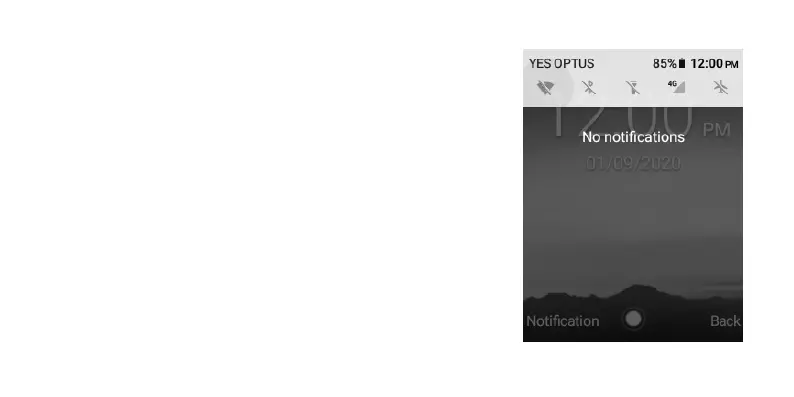
You can quickly access common settings such as Wi-Fi, Bluetooth,
Flashlight, and Mobile Data by pressing the top left-hand context
key labelled “Notication”. In this screen there is a “Quick settings”
task bar across the top of the page as well as your notications
which can be opened from this screen by scrolling and selecting the
alert.
At the top of the page, you can highlight the quick setting options
by using the arrow keys to select between the different options. The
icons will be highlighted in a light grey to indicate which function is
being selected.
To enable/disable these, press the Select key once the option is
highlighted.
To enter into the advanced settings for the for these functions, highlight
the icon, then press and hold the Select key for three seconds.



 To Next Page