●Your Aspera Jazz 2 storage can now be accessed by the computer, and you can move files between the two devices.
To use your Aspera Jazz 2 as a tethering hotspot via USB:
●Connect your Aspera Jazz 2 to a Windows-based computer with the USB cable.
●Go to the Settings application and select Network & Internet.
●Select Hotspot & Tethering and enable USB tethering.
●After establishing the connection, you can access the internet through your Aspera Jazz 2 data on your computer.
Application Functions
Camera and Gallery
The Aspera Jazz 2 comes with a rear facing and front facing camera which can be used to take photos and videos.
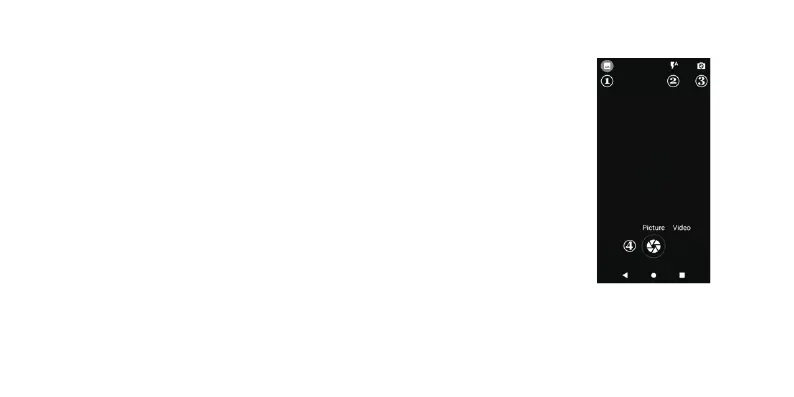
You can open the camera by tapping on the Camera application. Once inside, you can manipulate multiple settings.
1 – Opens to modes and further settings
2 – Chooses Flash Modes
3 – Switches between rear and front cameras
4 – Taking a picture/video, depending which option is selected
To view photos and videos on your device:
•Open up the Applications menu
•Select Photos
This will bring you into a gallery of the images and/or videos that are saved onto your phone, whether they are downloaded or taken with
the camera.
To go into an image or video, simply tap once on the preview image.
26



 To Next Page