•Take the back cover off the Aspera Jazz 2. This can be done by applying gentle force on the indent located on the bottom corner of the phone (please
see diagram in “Getting to know your Aspera Jazz 2”).
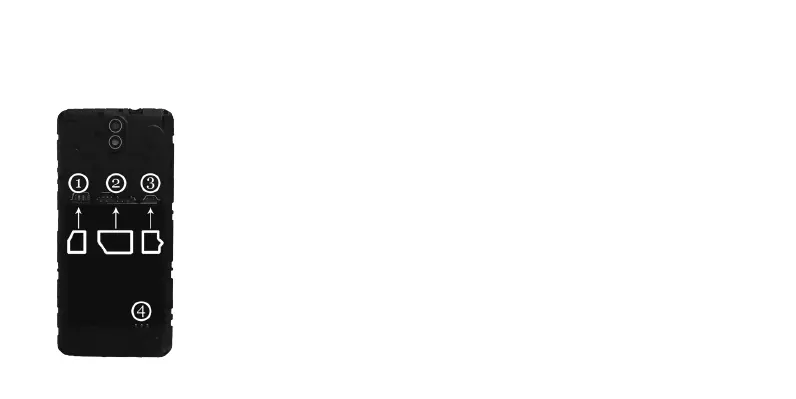
•Insert the micro-SIM into the first slot in the orientation shown by the phone (as shown by (1) in the diagram). Please ensure that the micro-SIM is
orientated correctly and inserted fully.
•You can also optionally insert a second SIM card, as the Aspera Jazz 2 is a dual-SIM phone. The second SIM slot is a standard size SIM. Please
ensure when inserted the standard SIM that it is orientated correctly and inserted fully, as shown by (2) in the diagram.
•You can optionally insert a micro-SD card to expand the storage on the Jazz 2. This can be inserted into the (3) slot, following the orientation as given
in the diagram.
•Insert the battery into the back of the phone by lining up the battery connections to the pins (4) in the battery slot.
You may now turn on the phone to begin the Android setup process.
•Press and hold the power button for five seconds, and the phone will begin the start-up process. Let go of the power button at this stage.
•After the phone has finished starting up, it will display a Welcome screen. Select the language you wish to use on the phone, then tap “Start”.
•If the SIM card has not been inserted correctly, it will ask you to insert the SIM card. If there is no SIM card in the phone, you can skip this step.
•You can connect to a Wi-Fi network to continue setup or skip this step if you do not wish to pursue any backup/restoring options for now.
Getting Started
Please make sure the Aspera Jazz 2 has charge before beginning the setup process.
Please ensure the device is turned off before inserting the SIM card.
The Aspera Jazz 2 takes a micro-SIM sized card in the first slot, and a standard size SIM in the second slot.
9



 To Next Page