Introduction to Aspera Jazz 2
Interaction – The Aspera Jazz 2 operates mainly from interactions on the touch screen and detects finger pressure and direction to then
operate the software.
Your main controls will be tapping, holding, and swiping on the screen with your fingers. Most methods rely only on a single finger making the
interaction, so beware of your other fingers or your hands interfering with input if they are close to the edge of the device.
Lock Screen – When your phone is on standby and/or idle mode and the screen has switched off, you can wake the screen to land into the
Lock Screen by pressing the power button once.
Depending on your security settings, you may need to either Swipe upwards on the screen with one finger, input a PIN code, or input a
password to pass the Lock Screen and enter the Home Screen.
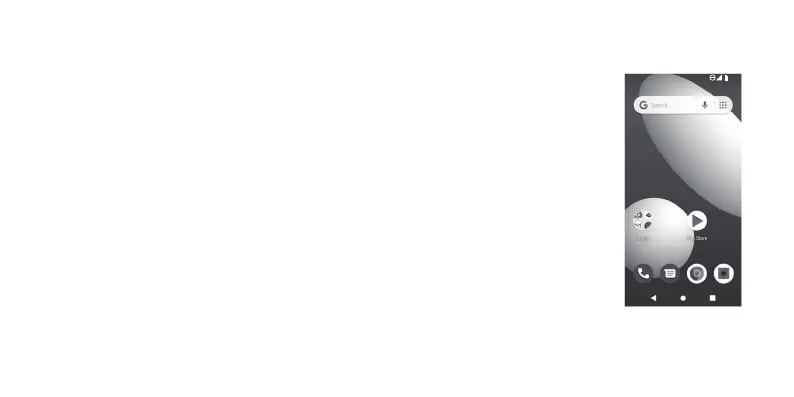
Home Screen – When your device has been unlocked, you will land onto the Home Screen, which has your application shortcuts and your
primary applications available for use.
Notification and Quick Access Panel – Used to quickly access key settings, such as Wi-Fi, Mobile Data, Bluetooth, App
Notifications, and more.
12
100%
12:00
PM



 To Next Page