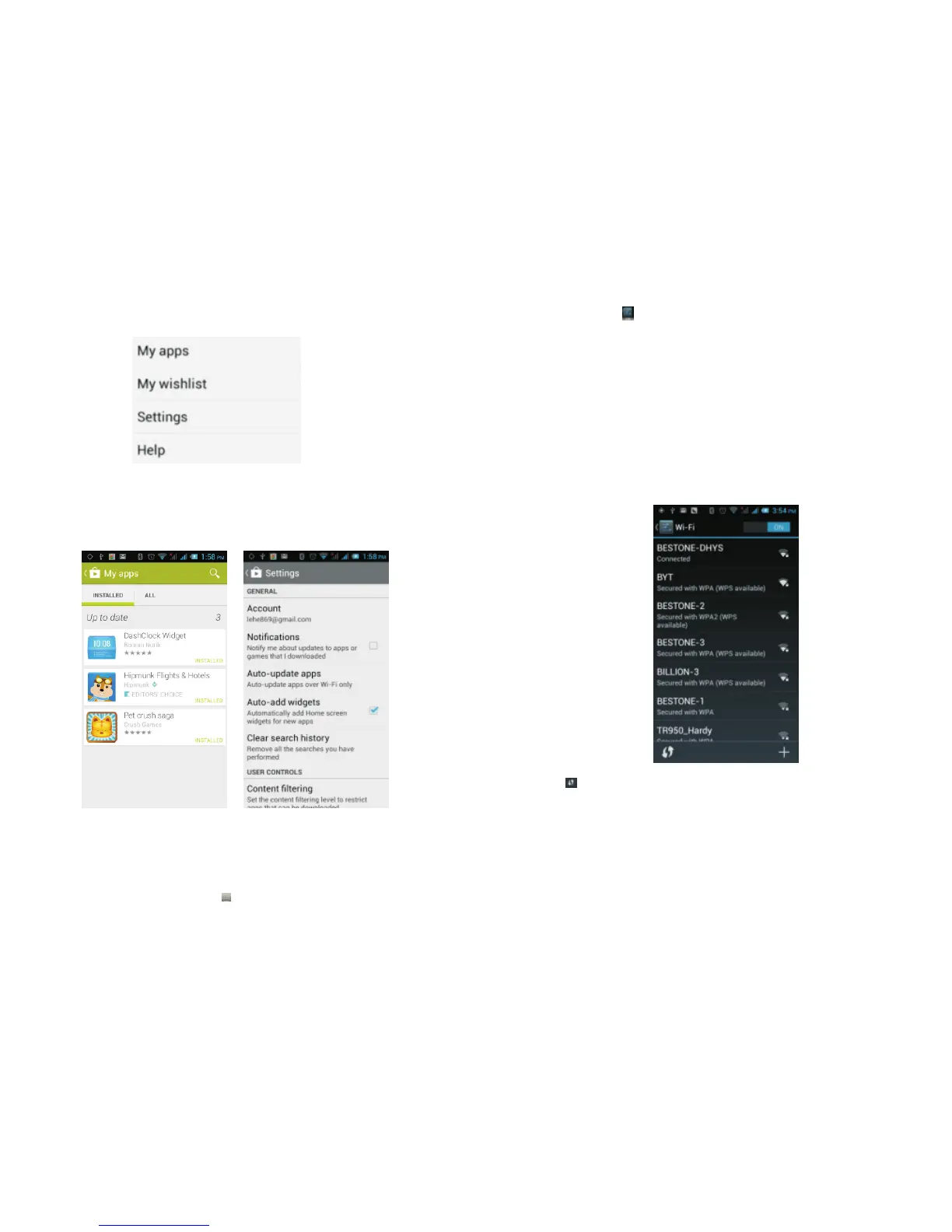
bring up the following menu:
Selecting "My apps", you can view your "Installed
applications" and "All Applications", you can also
re s e t a c c o u nt s , n o t i f i ca t i o n s , au to - u p d a ti n g
applications, password etc.
For other Google services, such as: Gmail, Google,
Google Talk, you will need an active Google account
in order to properly use all features.
Settings
On the main screen, tap to see installed applications, .
and then click to enter the settings, you can adjust
the settings according to your need to personalise
your mobile phone.
4.1 SIM Management
Set the SIM card for voice calls, video calls,
messages, data connections and other settings.
4.2 WI-FI
Click WI-FI to enter the WI-FI interface, slide the
"Open" icon on the top right of the screen, your phone
will automatically search for wireless networks within
range.
Click to refresh the network list, if your phone finds
a wireless network, you can click on the wireless
network name, enter the password in the input area,
and then click "Connect", when the connection is
completed it will show "Connected”.
.
35 36



 To Next Page