15
Chapter 2: Setting up the hardware RT-N15U
Using QIS without auto-detection
To use QIS without auto-detection:
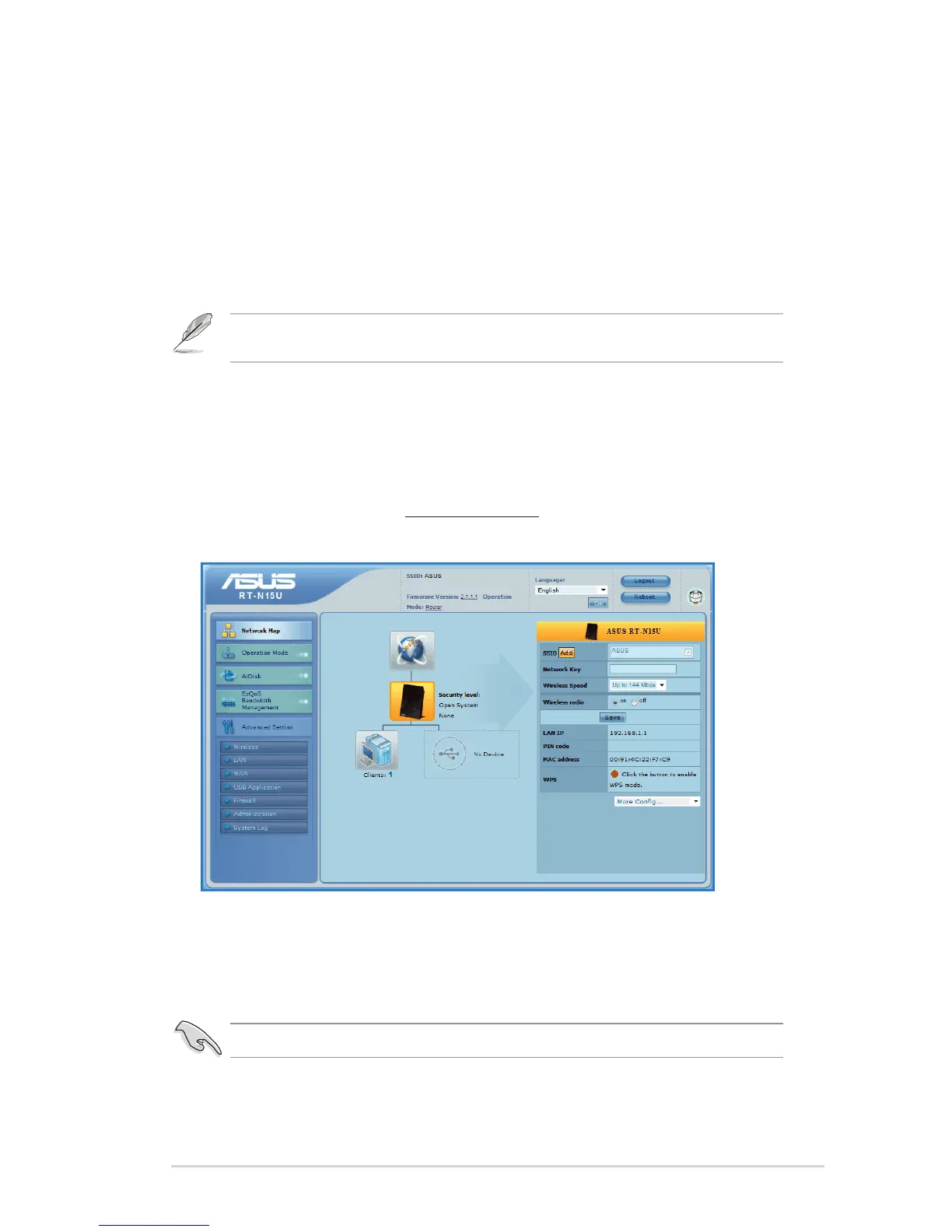
1. In your web browser, key in http://192.168.1.1
2. Under Internet status, click GO in the Quick Internet Setup eld.
Select your next preferred task from any of these options:
1. Going to Internet: Click to start surng the Internet or do Internet-
related activities such as chat, or read/write e-mail messages.
2. Advanced Setting page: Click to go to the wireless router’s
Advanced Setting page and congure more advanced wireless
settings.
3. Add to Favorites: Click to add the router’s web interface to your
Favorites.
3. Select your connection type from these types of ISP services: Dynamic IP,
PPPoE, PPTP, L2TP, and Static IP. Key in the necessary information for your
ISP connection type.
4. Click Apply all settings to save the settings.
Important: Obtain the necessary information about your Internet connection type from your ISP.
Note: If you choose options 2 and 3, you will need to log into the web GUI. For more details,
refer to the section Conguring via the web GUI in this user manual.


 To Next Page