34
VivoTab Note 8 E-Manual
Working with Windows
®
apps
Use your VivoTab Note 8’s touch screen panel to launch, customize, and
close apps.
Launching apps
Tap an app to launch it.
Moving apps
Customizing apps
You can move, resize, unpin, or close apps from the Start screen using
the following steps:
Tap and hold the app tile then drag it to a new location.
1. Tap and hold the app tile for one (1) second, then release it to
launch the Customize bar.
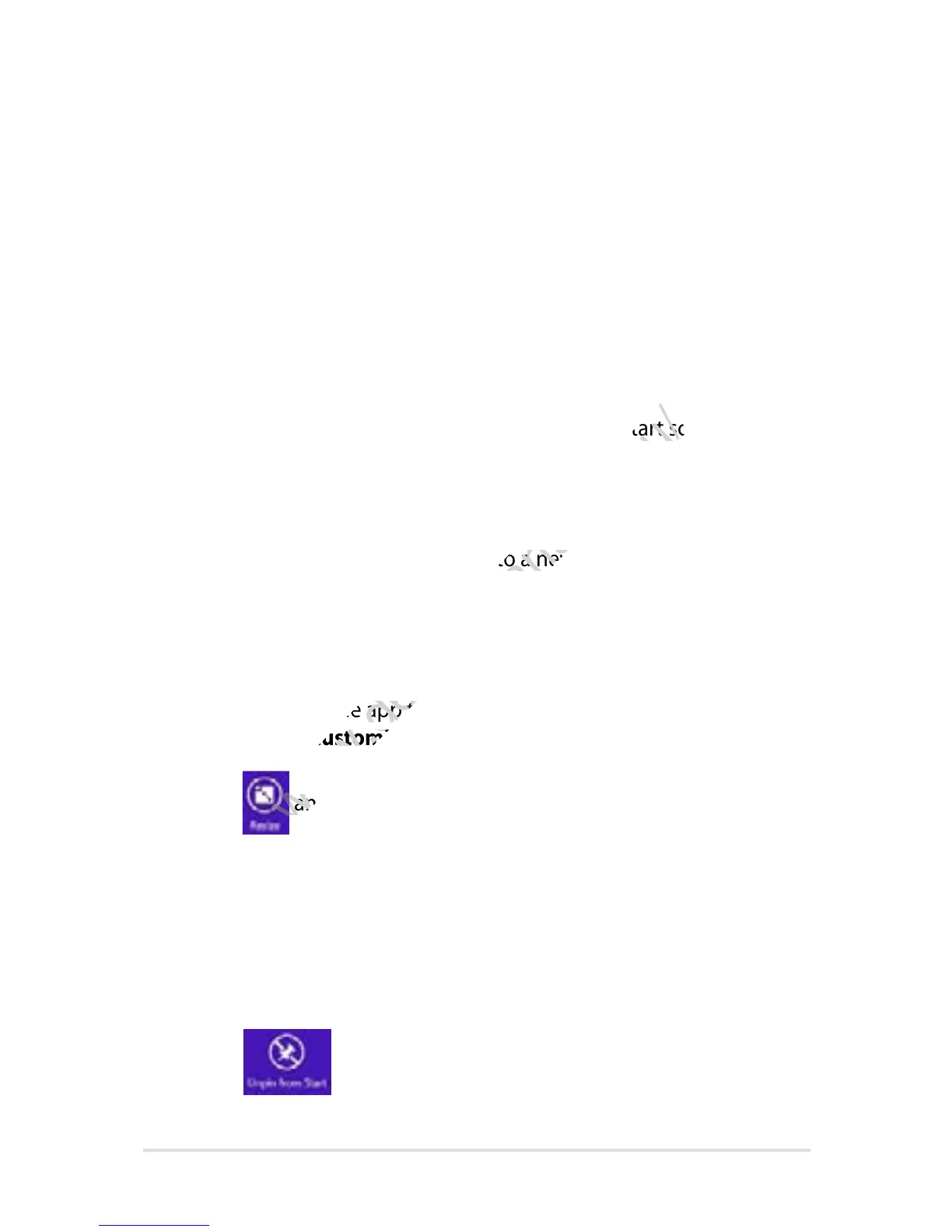
2. Tap
and select an app tile size.
Resizing apps
To resize an app:
1. Tap and hold the app tile for one (1) second, then release it to
launch the Customize bar.
2. Tap
to unpin an app.
Unpinning apps
To unpin an app:
You can move, resize, unpin, or close apps from the Start screen using
www.devicemanuals.eu/
You can move, resize, unpin, or close apps from the Start screen using
Tap and hold the app tile then drag it to a new location.
www.devicemanuals.eu/
Tap and hold the app tile then drag it to a new location.
Tap and hold the app tile for one (1) second, then release it to
www.devicemanuals.eu/
Tap and hold the app tile for one (1) second, then release it to
Customize
www.devicemanuals.eu/
Customize
and select an app tile size.
www.devicemanuals.eu/
and select an app tile size.
and select an app tile size.
www.devicemanuals.eu/
and select an app tile size.




 To Next Page