38
VivoTab Note 8 E-Manual
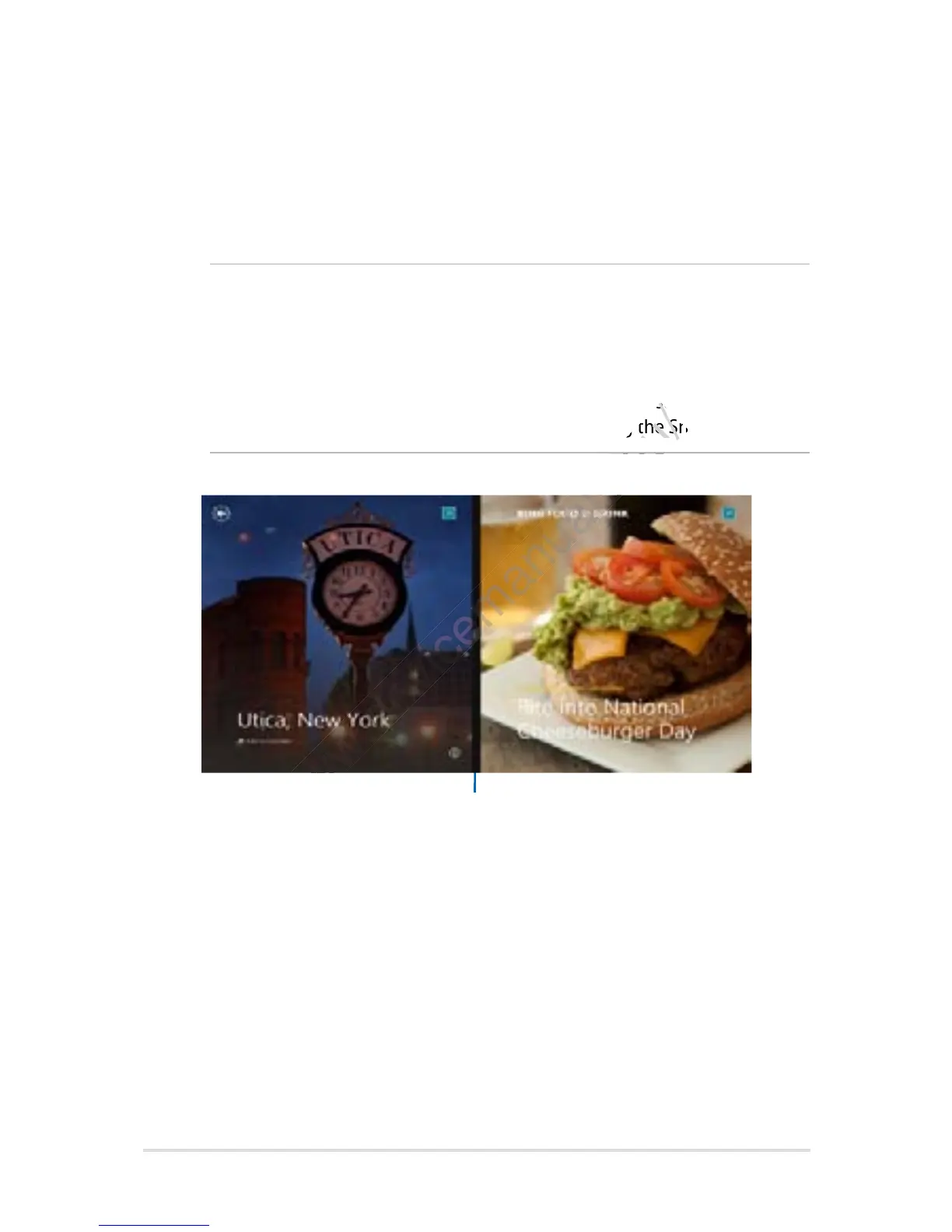
Snap feature
The Snap feature displays two apps side-by-side, allowing you to work
or switch between apps.
IMPORTANT!
• You can only activate the snap feature in landscape
orientation.
• Ensure that your VivoTab Note 8’s screen resolution is set to
1366 x 768 pixels or higher before using the Snap feature.
Snap bar
Using Snap
To activate Snap using the touch screen panel of your VivoTab Note 8,
you can perform the following steps:
1. Launch the app that you wish to snap.
2.. Tap and hold the app’s topmost part then drag it to the left or
right side of the screen until the snap bar appears.
3. Launch another app.
Ensure that your VivoTab Note 8’s screen resolution is set to
www.devicemanuals.eu/
Ensure that your VivoTab Note 8’s screen resolution is set to




 To Next Page