Power connection
Thanks to the Power over Ethernet (POE) 48V technology, your TERRACOM device
can be powered through the Cat-5 cable. For that you will need a POE switch.
Otherwise, your Terracom device can be powered by an external DC-JACK 24V-
0,25A power supply. The front panel “POWER” LED will now remain green.
Network connection
Use a straight Cat-5 cable to link your PC network card to the device. Open your
favourite web browser (we recommend Mozilla Firefox) and type the default IP
address into the address bar. You will be asked for a login. The default settings are:
login: admin / password: admin.
You can now visualize the web pages of the PPM-IT5.
The default login/password is: admin/admin
Assign IP address to the PPM-IT5
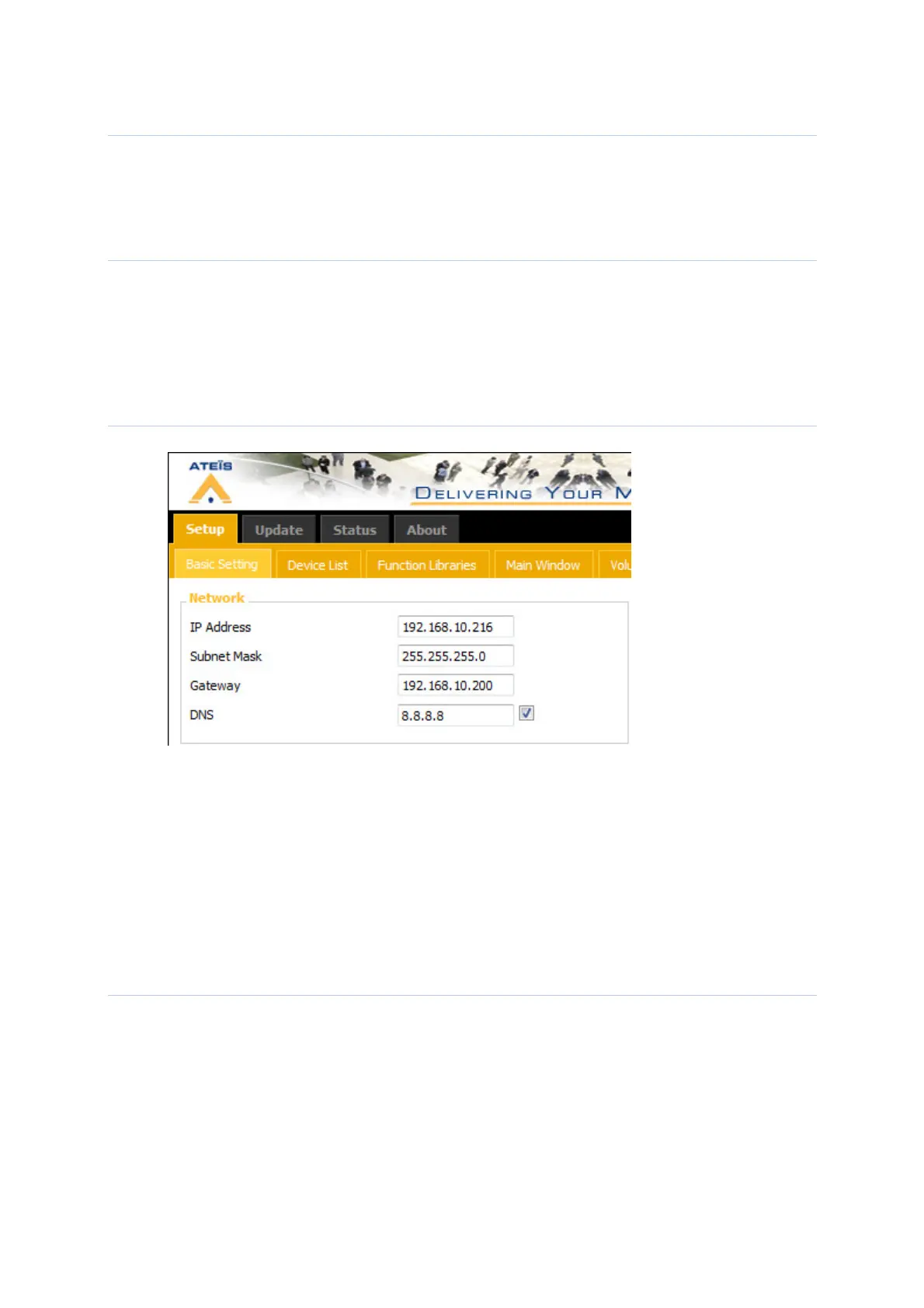
You can now change the IP address of your device: Setup ->Basic Setting ->Network
N.B:You don’t need to set up the Gateway if all the devices are in the same LAN (local
area network).
You don’t need to set up the DNS if the PPM-IT5 is not synchronised with an external
NTP server.
Reboot.
Notice that you might have to change again the IP settings of your PC network card
to be in the same network mask as the new IP address of your TERRACOM.
To avoid conflict issues that occur when connecting multiple TERRACOM devices
with the same IP number, be sure to only connect one TERRACOM device at a time
to the Ethernet switch when assigning IP addresses.
SIP server settings
If you use a SIP server
Enter the IP address of your SIP server and the (SIP & RTP) ports you will use.



 To Next Page