EasyManua.ls Logo

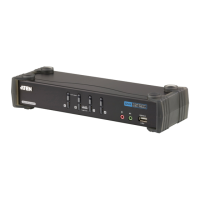
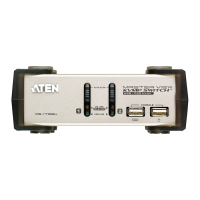
ATEN CS1732a - User Manual

ATEN CS1732a
42 pages
Print Icon
To Next Page IconTo Next Page
Loading...
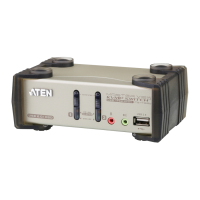
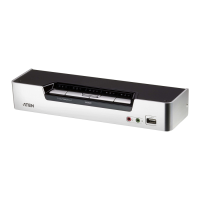
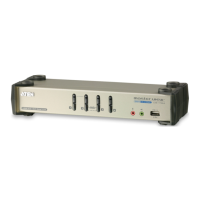
USB KVMP
TM
Switch
CS1732A / CS1734A
User Manual
www.aten.com

Questions and Answers

  • J
    Jason GriffinAug 10, 2025
    How to fix unresponsive USB devices on my ATEN CS1732a?
    • S
      Stacy LopezAug 10, 2025
      If USB devices are not responding when connected to your ATEN Switch, the USB ports may need to be reset. Try unplugging the device’s USB cable from the USB port on the switch’s rear panel, and then plug it back in. You can also use the USB reset hotkey combination to reset the USB ports.
  • M
    Mark GrossAug 20, 2025
    Why are my mouse and keyboard not responding with my ATEN CS1732a?
    • K
      Kevin PatelAug 20, 2025
      If your mouse and/or keyboard are not responding with your ATEN Switch, there might be an improper reset. Try unplugging the cable(s) from the console port(s) and then plugging them back in. Another possible cause is that the KVM switch needs a reset. To do this, power off all devices connected to the installation, then power off the KVM switch. Wait five seconds, and then power everything back up.
  • S
    Sheena ThompsonAug 30, 2025
    What to do if a device is not recognized (Windows) when connected to the ATEN Switch?
    • S
      Scott PerkinsAug 31, 2025
      If a device is not recognized by Windows when connected through your ATEN Switch, it might be a Windows timing issue. First, unplug the KVM cable from the computer’s USB port. Next, go into Windows’ System Settings and remove the Unknown Device entry. Finally, plug the KVM cable back in, and Windows should recognize the device.

ATEN CS1732a Specifications

General IconGeneral
TypeKVM Switch
Number of Ports2
Computer Connections2
USB Ports2
Audio SupportYes
KVM Ports2
HousingMetal
Video Resolution1920 x 1200
Switching MethodHotkey, Pushbutton
Scan Interval5, 10, 20 seconds

Related product manuals