EasyManua.ls Logo

ATEN CS1792 - User Manual

ATEN CS1792
47 pages
Print Icon
To Next Page IconTo Next Page
Loading...
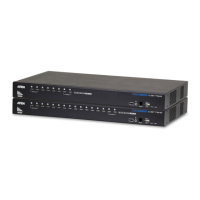
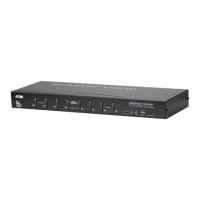
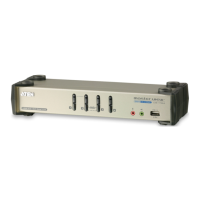
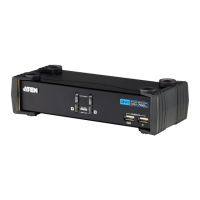
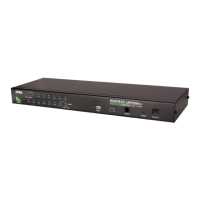
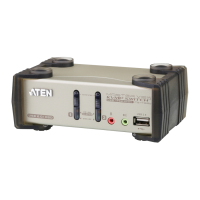
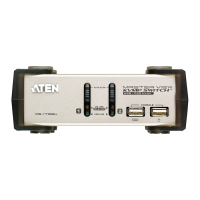
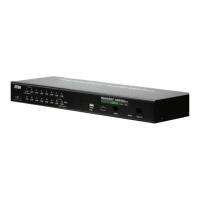
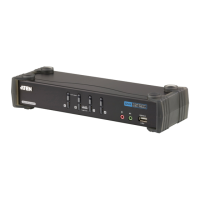
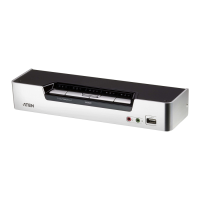
USB 2.0 HDMI KVMP Switch
CS1792 / CS1794
User Manual
www.aten.com

Other manuals for ATEN CS1792

Questions and Answers

  • B
    Brandon JohnsonJul 26, 2025
    What to do if monitor does not display after KVM cable set is hot plugged on ATEN Switch?
    • S
      smithadamJul 26, 2025
      If your monitor displays nothing after hot-plugging the KVM cable set into your ATEN Switch, power off all devices, including the ATEN Switch. Confirm that all KVM cables are properly connected. Then, power on the ATEN Switch, followed by the computers. This is because some HDMI/DVI graphics cards are incompatible with cable set hot plugging.
  • T
    Tracie RodriguezAug 1, 2025
    How to fix ATEN Switch when cannot switch ports by pressing [Scroll Lock] twice?
    • A
      Angela FordAug 1, 2025
      If you cannot switch ports on your ATEN Switch by pressing [Scroll Lock] twice, it may be that your keyboard is incompatible with Scroll Lock invocation. In this case, switch to the Alternate HSM invocation keys.
  • B
    Barbara HoldenAug 6, 2025
    Why are my mouse and keyboard not responding on ATEN Switch?
    • A
      Anthony HendersonAug 7, 2025
      If your mouse and/or keyboard are not responding with your ATEN Switch, try unplugging the cable(s) from the console port(s) and then plugging them back in. If that doesn't work, power off all devices, including the ATEN Switch itself. Wait five seconds, and then power everything back on.
  • S
    Scott MorenoAug 14, 2025
    What to do if ATEN Switch device not recognized in Windows?
    • C
      Christine PayneAug 14, 2025
      If a device is not recognized by Windows when connected to your ATEN Switch, unplug the KVM cable from the computer’s USB port. Then, go into Windows’ System Settings and remove the Unknown Device entry. Finally, plug the KVM cable back in, and Windows should now recognize the device.
  • J
    Joshua ThompsonAug 19, 2025
    Why are my USB devices not responding on ATEN CS1792?
    • M
      Mr. Calvin Mcintyre DDSAug 19, 2025
      If USB devices are not responding when connected to your ATEN Switch, try unplugging the device’s USB cable from the USB port on the switch’s rear panel, and then plug it back in. Also, the CS1792 / CS1794 has a built-in USB 2.0 hub, so will not support PCs or OS that do not support USB 2.0. For OS that do not support USB 2.0, keyboard and mouse functions can be reset using the [F1] hotkey function.

Summary

FCC Information

RoHS

Compliance with Restriction of Hazardous Substances directive.

SJ;T 11364-2006

China RoHS standard for electronic information products.

User Information

Online Registration

Registering product with the manufacturer for support.

Telephone Support

Contacting the manufacturer via phone for assistance.

User Notice

Legal disclaimer regarding manual content and manufacturer liability.

Package Contents

About this Manual

Conventions

Product Information

Introduction

Overview

General introduction to the CS1792/CS1794 HDMI USB 2.0 KVMP Switch.

Features

Lists key functionalities and capabilities of the KVMP switch.

Requirements

Lists necessary hardware and software for console and computers.

Operating Systems

Details the supported operating systems for the KVMP switch.

Components

Front View

Describes the front panel layout and its components.

LED Status Panel Detail

Explains the function of the LEDs on the front panel.

Rear View

Details the rear panel layout and its connectors.

Hardware Setup

Cable Connection

Step-by-step instructions for connecting cables to the KVMP switch.

Installation Diagram

Visual guide illustrating the hardware connection process.

Basic Operation

Overview

Introduces manual and hotkey methods for accessing computers.

Manual Switching

Explains how to switch between computers using front panel buttons.

Hot Plugging

Describes the ability to add/remove USB devices without shutting down the unit.

Powering Off and Restarting

Procedures for safely powering down and restarting the KVMP switch.

Port ID Numbering

Explains the numbering system for KVM ports and its use.

Keyboard Port Operation

Port Switching

Methods for switching between connected computers using hotkeys.

Cycling Through the Ports

Using hotkey combinations to sequentially switch between ports.

Going Directly to a Port

Using hotkeys to select a specific computer port directly.

Auto Scanning

Feature to automatically cycle through computer ports for monitoring.

Hotkey Setting Mode

Invoking HSM

Steps to enter the Hotkey Setting Mode for configuration.

Alternate HSM Invocation Keys

Alternative key combinations to invoke the Hotkey Setting Mode.

Alternate Port Switching Keys

Changing the default hotkeys used for port switching.

Keyboard Operating Platform

Configuring keyboard emulation modes (PC vs. Mac).

List Switch Settings

Displaying current switch settings via a text editor.

USB Reset

Resets USB focus if it is lost or needs re-initialization.

Hotkey Beeper Control

Toggling the audible beep feedback for hotkey operations.

Disable Port Switching Keys

Disabling the default port switching hotkey combinations.

Firmware Upgrade Mode

Entering the mode required for updating the switch's firmware.

Restore Default Settings

Resetting all hotkey configurations to their factory defaults.

Video DynaSync

Optimizing display resolution by storing monitor EDID data.

Mouse Emulation Control

Toggling mouse emulation features on or off.

Other OS Mode

Resets keyboard/mouse for OS versions not fully supporting USB 2.0.

HSM Summary Table

A quick reference table for all Hotkey Setting Mode functions.

The Firmware Upgrade Utility

Before you Begin

Prerequisites and preparation steps for upgrading firmware.

Starting the Upgrade

Step-by-step guide on initiating the firmware upgrade process.

Upgrade Succeeded

Confirmation screen displayed after a successful firmware update.

Upgrade Failed

Instructions and troubleshooting steps if the firmware upgrade fails.

Appendix

Safety Instructions

Essential safety precautions for using the device.

Technical Support

Information on how to contact ATEN for support and assistance.

Specifications

Detailed technical specifications of the CS1792 and CS1794 models.

Troubleshooting

Common problems and their solutions for the KVMP switch.

Mac Keyboard Emulation

Mapping PC keyboard keys to emulate Mac keyboard functions.

Factory Default Hotkey Settings

Table listing the default configurations for hotkey operations.

Limited Warranty

Details of the product's warranty terms and conditions.

ATEN CS1792 Specifications

General IconGeneral
Console ports3.5mm headphone, 3.5mm mic, HDMI, USB A
Audio connectionsYes
USB connector typeUSB Type-A
HDMI ports quantity3
Console USB ports quantity1
Number of computers controlled2
Power sourceAC
Power consumption (typical)3.2 W
Storage temperature (T-T)-20 - 60 °C
Operating temperature (T-T)0 - 50 °C
Operating relative humidity (H-H)0 - 80 %
Sustainability certificatesRoHS
Cables includedKVM
Built-in displayNo
Product colorBlack, Silver
Rack capacity1U
Housing materialMetal, Plastic
HD typeWUXGA
Scan interval1, 99 s
Maximum resolution1920 x 1200 pixels
Harmonized System (HS) code85176200
Weight and Dimensions IconWeight and Dimensions
Depth72.4 mm
Width206.3 mm
Height44 mm
Weight420 g

Related product manuals