SOFTWARE SOFTWARE
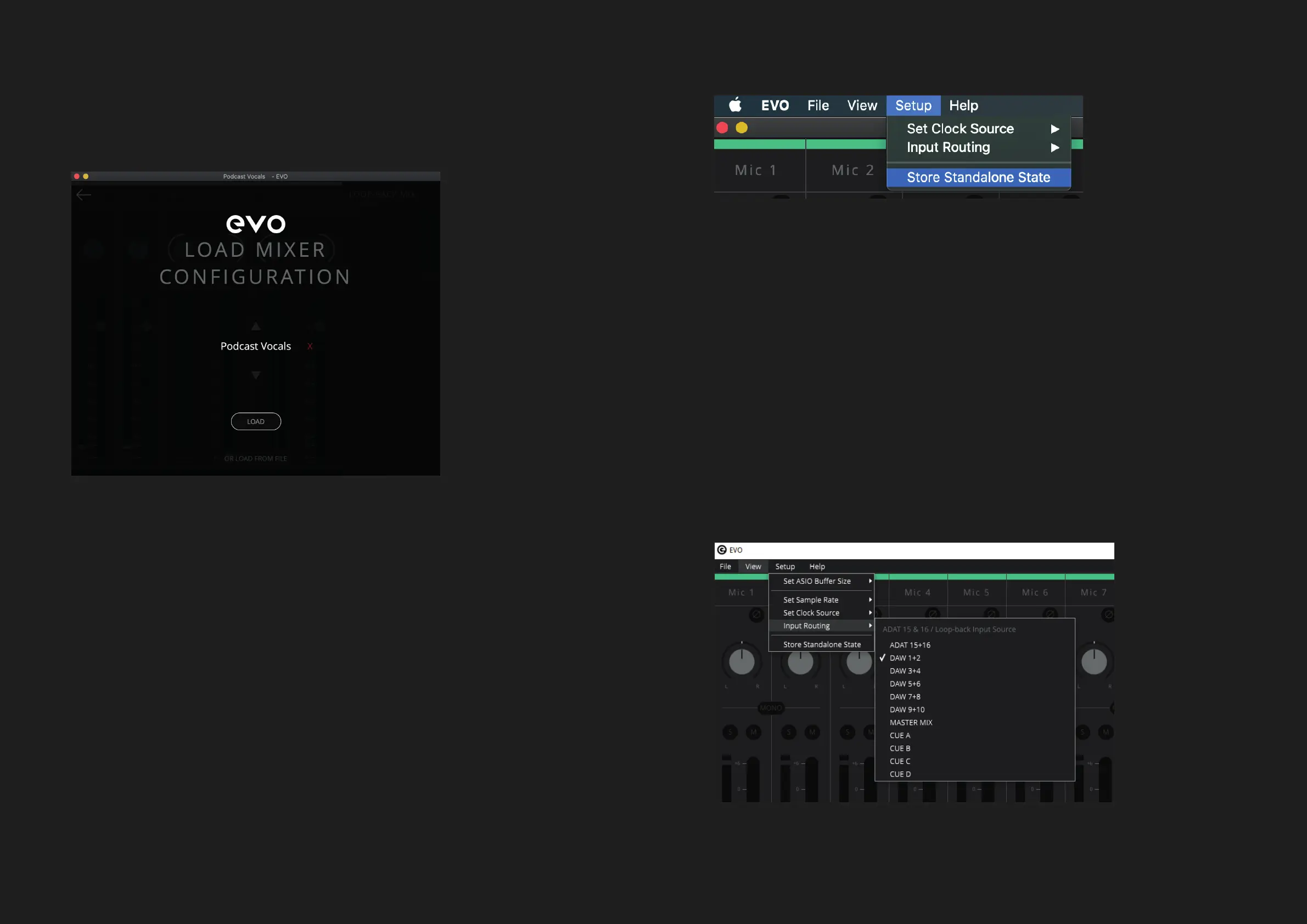
You can also delete a previously saved conguration by clicking the red ‘X’ next
to it.
If you’d like to open an EVO 16 conguration from your documents, simply click
‘Load From File’ and then use the le explorer to nd the setting you wish to load.
EVO 16 includes Loop-back channels that allow you to take audio from
applications on your computer and feed it to another application, great for
recording video interviews or for setting up gaming streams. You can think of
it as a virtual cable that runs from your outputs and back to the inputs.
Selecting the Loop-back Source
Firstly, you would need to select which output of the EVO 16 you wish to use
as your source for the Loop-back channels. This is done by going to ‘Setup >
Input Routing’:
Using Audio Loop-back on EVO 16
To open a previously saved conguration, Go to File > Open and select the
conguration from the list..
Standalone Operation
If you would like to use EVO 16 without a host computer, EVO 16 can be congured
to operate in standalone mode. This is great for setting up complex tracking setups
in remote locations.
To setup Standalone mode, rst setup the iD mixer in the way that you wish to
be saved onto your EVO 16. This includes your digital I/O settings, output routings
and talkback settings in the System panel.
Now navigate to the Setup menu and select Store Standalone State. The EVO
Software Mixers current conguration will then be saved onto the EVO 16 itself,
ready to be recalled when the EVO 16 is next powered on.



 To Next Page