HARDWARE FEATURES
HARDWARE HARDWARE
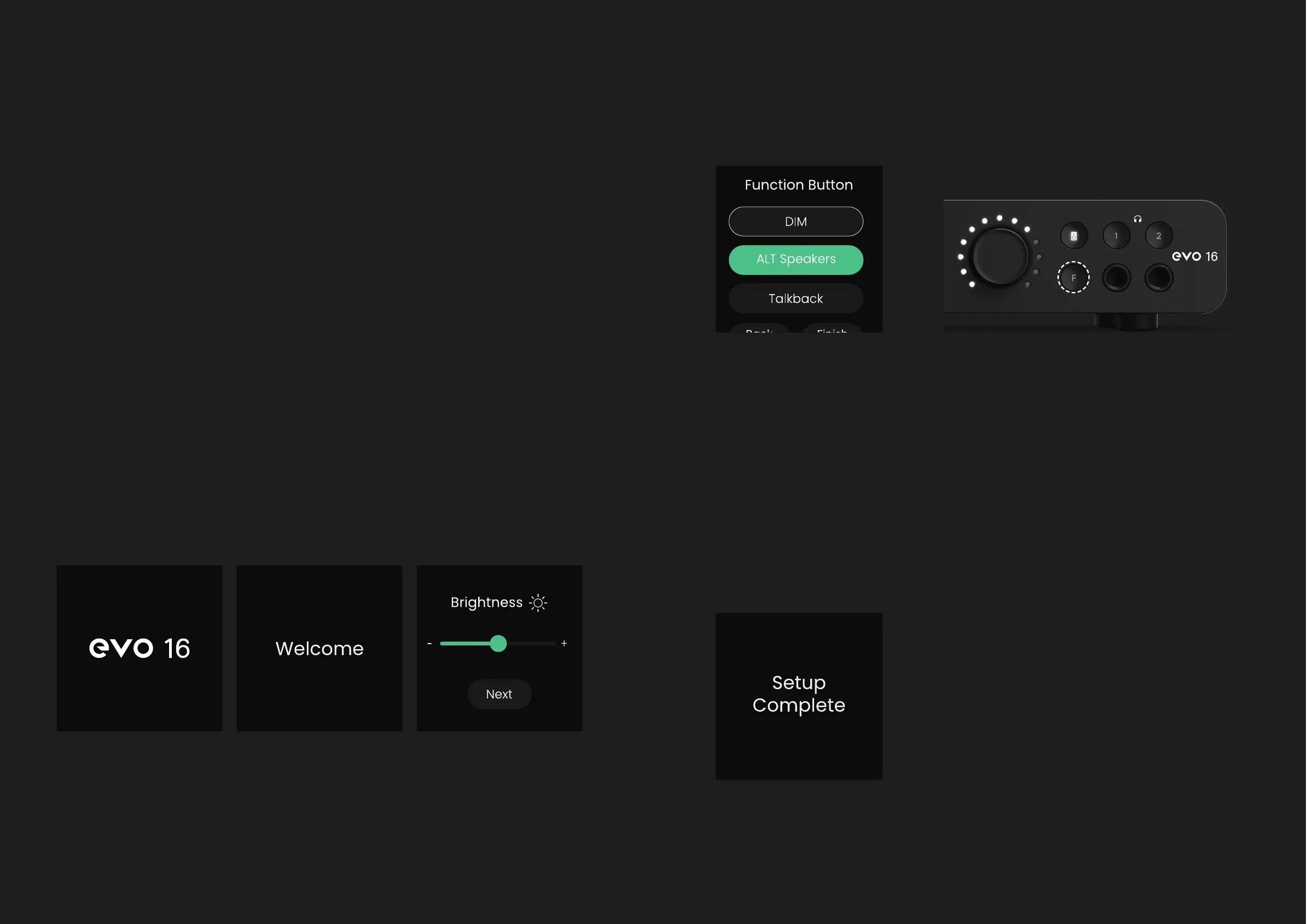
DIM - Reduces the output level to the speakers by a set value
ALT Speakers - Switches between the Main and ALT Speaker outputs
Talkback - Toggles Talkback on and o
Mono - Sums the Monitor outputs to Mono
More detail on the Function Button and its settings can be found later in this
manual.
Once selected, click ‘Finish’ to complete the setup.
Next, you can choose which monitoring feature is assigned to the hardware
F Button on the front of the unit when pressed:
Initial Setup
The Motion User Interface is a control system designed to change the way
you interact with your audio interface. For the rst time, a stunning high
resolution, full colour screen intelligently displays information as you need
it, transforming EVO 16 into a fully immersive, easy to use experience.
The rst time powering on EVO 16, Motion UI will ask to follow the setup
procedure, allowing you to customise EVO 16’s settings to your liking.
Firstly, you can adjust and set the brightness of all of EVO 16’s hardware
LEDs, including the LED Ring, to suit your studio environment. Use the
Control Wheel to adjust the slider and then press the Control Wheel down
to save your settings and then hit ‘Next’.



 To Next Page